Keyboard Not Working? Common Causes and Fixes
Why isn't my computer keyboard working? Most of the time, the answer is simpler than you fear. A dead keyboard can mean a loose cable, dead batteries, a bad driver, or a setting you accidentally flipped on.
Our research into common fault patterns shows that roughly half of all "dead keyboard" reports trace back to just three causes: power, connection, or a Windows driver glitch.
That last one is bigger than most people realize. Microsoft ships keyboard support through the HID driver stack, which stands for Human Interface Device. It's the same standard that handles your mouse and game controller.
When that stack breaks, your keyboard goes quiet even though the hardware is fine. The fix depends entirely on where the failure sits, so let's find out.
why isn't my computer keyboard working
Your keyboard isn't working because of one of four things: no power, a lost connection, a broken driver, or a hardware failure. Check the cable or batteries first. Then try a different USB port or re-pair Bluetooth.
If nothing works, look at Device Manager. That order solves most cases fast.
Start Here: The 30-Second Checks That Solve Half of All Dead Keyboards
Before you touch a single setting, run these five checks. They take under a minute and eliminate the most common causes. If your keyboard springs back to life during any of them, you're done.
- Check the cable or batteries. For wired keyboards, push the USB plug in firmly and try another port. For wireless ones, swap the AA or AAA batteries, or plug in the charging cable.
- Look at the indicator LEDs. Press Caps Lock or Num Lock. If those little lights blink, your keyboard has power and the problem is software. If they stay dark, it's power or connection.
- Try a second computer. Plug your keyboard into another machine. If it works there, the keyboard is fine and your original PC is the issue.
- Try a second keyboard. Plug a known-good keyboard into your PC. If it works, the original keyboard is the problem.
- Unplug USB hubs and docking stations. Connect straight to a rear port on the desktop tower. Front-panel ports and unpowered hubs often under-deliver current.
That last point matters more than people think. Per USB Implementers Forum specifications, a standard USB 2.0 port supplies 500 mA, while USB 3.0 supplies 900 mA. A keyboard with heavy RGB backlighting can pull close to those limits.
An unpowered hub splits that current across every device plugged into it. Drop below the keyboard's requirement and it goes dark.
For laptop owners, add one more check. Press Fn plus the key that toggles the internal keyboard, often F6 or F12 depending on the brand. Some Lenovo, Dell, and HP models ship with a setting that disables the built-in keyboard whenever an external one is connected.
If you unplugged a USB keyboard recently, that setting can leave your laptop's keys dead.
The Two Questions That Tell You Where the Problem Lives
Two quick questions narrow almost every keyboard fault into one of three branches. Answer honestly and skip straight to the matching section. Guessing wastes time; testing saves it.
Question 1: Does the keyboard work before Windows or macOS loads?
Restart your computer and tap the BIOS or UEFI entry key, usually Del, F2, or F10. If your keyboard responds inside BIOS, the hardware is fine. The fault lives in your operating system.
Jump to Branch B.
If the keyboard is dead even in BIOS, the problem is physical. It could be a cable, a battery, a port, or the keyboard itself. Jump to Branch A.
Question 2: Is it all keys, some keys, or the wrong characters?
If every key is dead, suspect power, connection, or driver.
If only a few keys are dead, suspect the keyboard matrix, spill damage, or a worn switch.
If the wrong characters appear, suspect your keyboard layout or a stuck Num Lock.
That covers the full map. Here are the three branches in one glance.
| Symptom | Likely Cause | Where to Go |
|---|---|---|
| Dead everywhere, even in BIOS | Power, cable, or hardware | Branch A |
| Works in BIOS, dies in Windows | Driver or OS setting | Branch B |
| Some keys dead or wrong characters | Layout, matrix, or damage | Branch C |
Branch A: Nothing Works Anywhere, Hardware and Power Checks
If your keyboard is dead in BIOS and on other computers, treat it as hardware until proven otherwise. Work from the cheapest fix upward. Don't replace anything until you've cleared the simple stuff.
Wired keyboards
Swap the USB port first. Use a rear port directly on the motherboard, not a front-panel one or a hub. If that fails, try a different cable on detachable models.
Inspect the connector for bent pins or debris.
Next, test the port itself. Plug a USB flash drive into the same port. If the drive doesn't mount, the port is dead or under-powered.
That's a motherboard or hub fault, not a keyboard fault.

If the keyboard uses PS/2, that round purple connector, check the BIOS setting for PS/2 support. Some modern boards ship with it disabled by default.
Wireless and Bluetooth keyboards
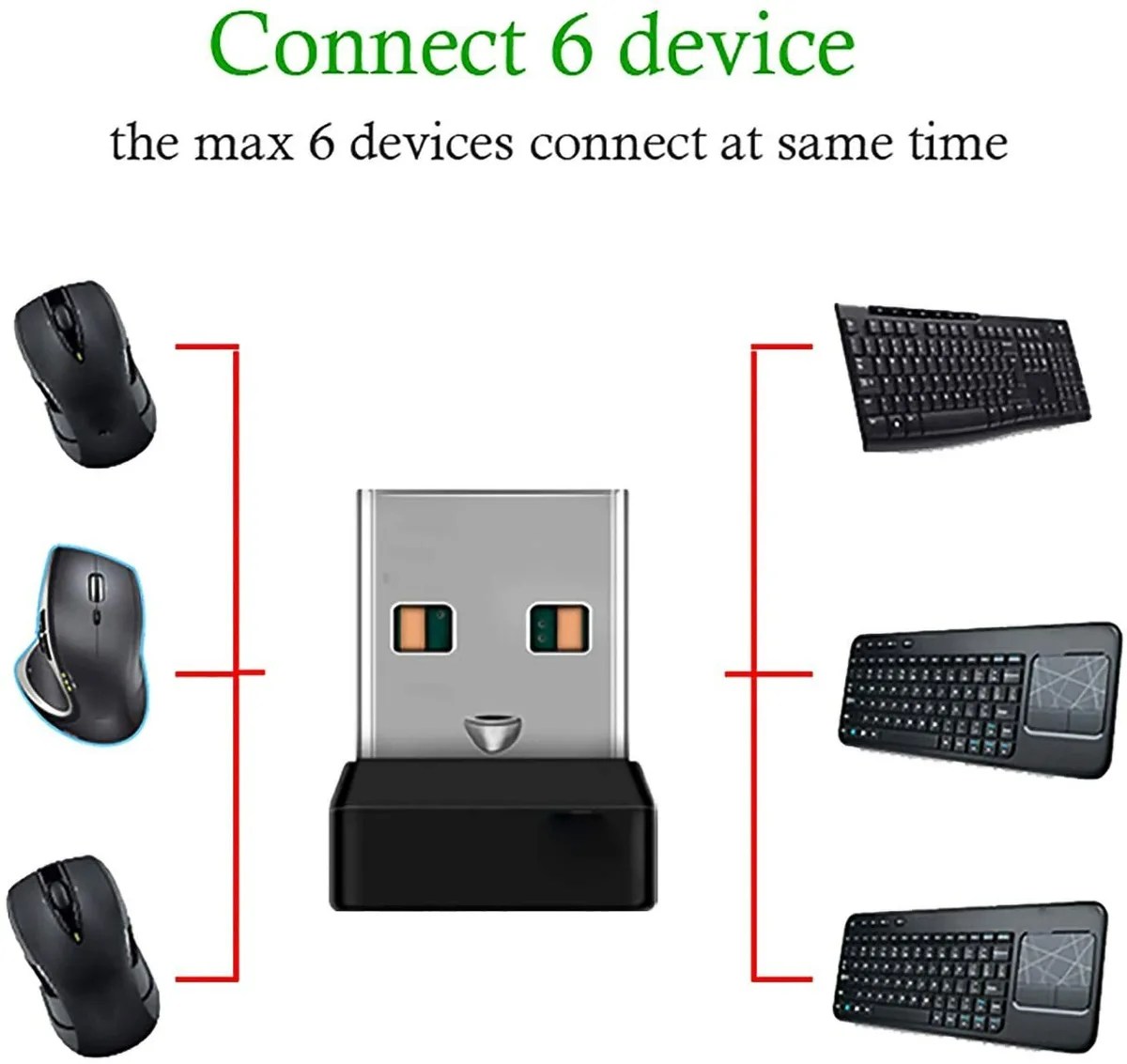
For 2.4 GHz RF models, the tiny USB dongle is the usual suspect. Move it to a different port, ideally one away from USB 3.0 ports. Those ports emit radio noise in the 2.4 GHz band that can jam a nearby receiver.
For Bluetooth, forget and re-pair the device. On Windows, go to Settings, Bluetooth and devices, and remove the keyboard. Then put the keyboard into pairing mode and add it fresh.
Charge or replace the batteries first. A weak cell causes dropped connections long before it dies completely.
Laptop built-in keyboards
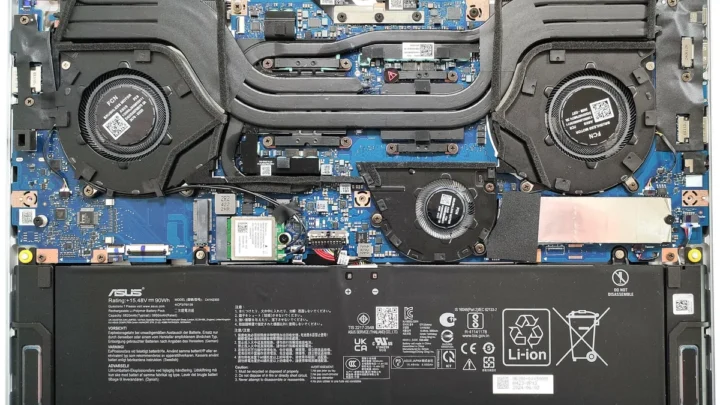
A laptop keyboard that dies suddenly, especially after a spill or a drop, usually has a loose ribbon cable. That flat FPC connector runs from the keyboard to the motherboard. Reseating it requires opening the chassis, which voids most warranties.
If the laptop is under warranty, stop here and call support.
If you do open it, work on an anti-static mat with a grounding strap. Li-ion batteries can swell, and a punctured cell is a fire risk. When in doubt, hand it to a technician.
Ribbon reseats are cheap, and a botched one can cost far more than the repair.
Branch B: Works in BIOS but Dies in the OS, Driver and Software Fixes
This branch is the most fixable and the most common cause of a keyboard that dies only after boot. If your keyboard works in BIOS but goes silent once Windows or macOS loads, the hardware is fine. The fault sits in the driver layer or a setting that's intercepting your keystrokes.
Rolling back a bad update
Microsoft ships system updates on a monthly cadence, traditionally the second Tuesday, sometimes called Patch Tuesday. Per Microsoft Learn documentation, keyboard and input support runs through the HID driver stack, and an update can occasionally leave a device entry in a bad state after a failed install.
If your keyboard died right after an update, roll back. Go to Settings, Windows Update, Update history, and uninstall the most recent update. Reboot and test.
This alone resolves a large share of post-update keyboard failures.
Clearing out duplicate and ghost HID entries
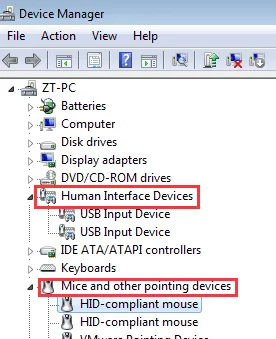
Open Device Manager and expand the Keyboards section. If you see two or more entries for the same keyboard, Windows may be routing input to a dead ghost device. Right-click each entry, choose Uninstall device, then restart the PC.
Windows will rebuild the HID stack on boot.
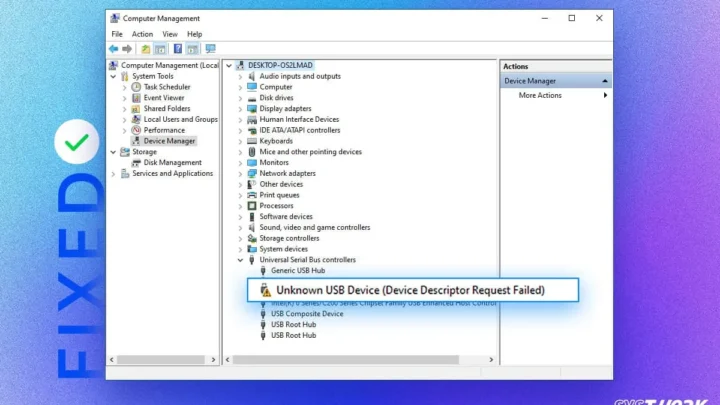
While you're here, check for yellow warning icons. Error Code 10 and Code 43 mean the device can't start, which usually points to a driver fault or a power-management conflict.
Settings and apps that quietly hijack your keys
Filter Keys is the sneak thief of keyboard troubleshooting. It's a Windows Accessibility feature that ignores brief or repeated keystrokes. Turn it on by accident, often by holding the right Shift key for eight seconds, and your keyboard feels broken.
Go to Settings, Accessibility, Keyboard, and switch Filter Keys off.
Two more culprits worth checking:
- Power management. In Device Manager, right-click your keyboard, open Properties, Power Management, and uncheck "Allow the computer to turn off this device to save power."
- Third-party remappers. Tools like AutoHotkey or PowerToys can trap input if a script hangs. Close them and test.
- Keyboard layout. A stuck AZERTY or Dvorak layout makes the right keys type the wrong characters. Check your input language in Settings.
If you've ruled out drivers but the keyboard still misbehaves in the OS, a malicious keylogger is a rare but real possibility. Run a reputable anti-malware scan before you log into anything sensitive. Per the National Institute of Standards and Technology (NIST), keeping systems patched and scanned remains the baseline defense against input-layer threats.
One more Windows-only wrinkle: Fast Startup. This feature performs a hybrid shutdown that skips some hardware initialization on the next boot. If your keyboard dies after a normal restart but works after a full shutdown, disable Fast Startup in Control Panel, Power Options.
Branch C: Some Keys Dead, Wrong Characters, or Weird Lag
Partial failures point somewhere different than a total blackout. When most keys work but a few don't, the fault usually lives in the keyboard matrix, the grid of wires under the keys. A dead row or column takes out a whole cluster of letters at once.
If you press Q and get nothing, then W also fails, that pattern suggests a shared trace rather than a single bad switch.
Layout mismatches and stuck Num Lock
Wrong characters almost always mean the wrong layout is active. A US layout expects ANSI, while UK and most of Europe use ISO with a taller Enter key and an extra key beside Z. If your quotes, at-symbol, or hash land in the wrong place, check your active input language first.
On Windows, go to Settings, Time and Language, Language and Region. Confirm the right keyboard is at the top. On macOS, open System Settings, Keyboard, Input Sources.
Remove anything you don't use.
Stuck Num Lock causes a related trick. On compact laptops, the number row doubles as a numpad. When Num Lock is on, pressing U, I, O, J, K, and L types 4, 5, 6, 1, 2, and 3 instead.
Toggle Num Lock off and the letters return.
Spill damage, worn switches, and dying laptop ribbons
If a few keys died after a spill, corrosion is the likely cause. Liquid seeps under the membrane and eats the conductive traces. Cleaning a spill hours later rarely helps.
The damage is already done.
Mechanical keyboards behave differently. A single dead switch usually means a worn contact or a broken solder joint. On hot-swap boards, you can pull the switch and drop in a replacement.
Soldered boards need a desoldering tool and steady hands.
Lag is its own beast. If keys register a beat late, check your polling rate and any running remapper. A hung AutoHotkey script can buffer input.
So can a dying USB hub sharing bandwidth across too many devices.
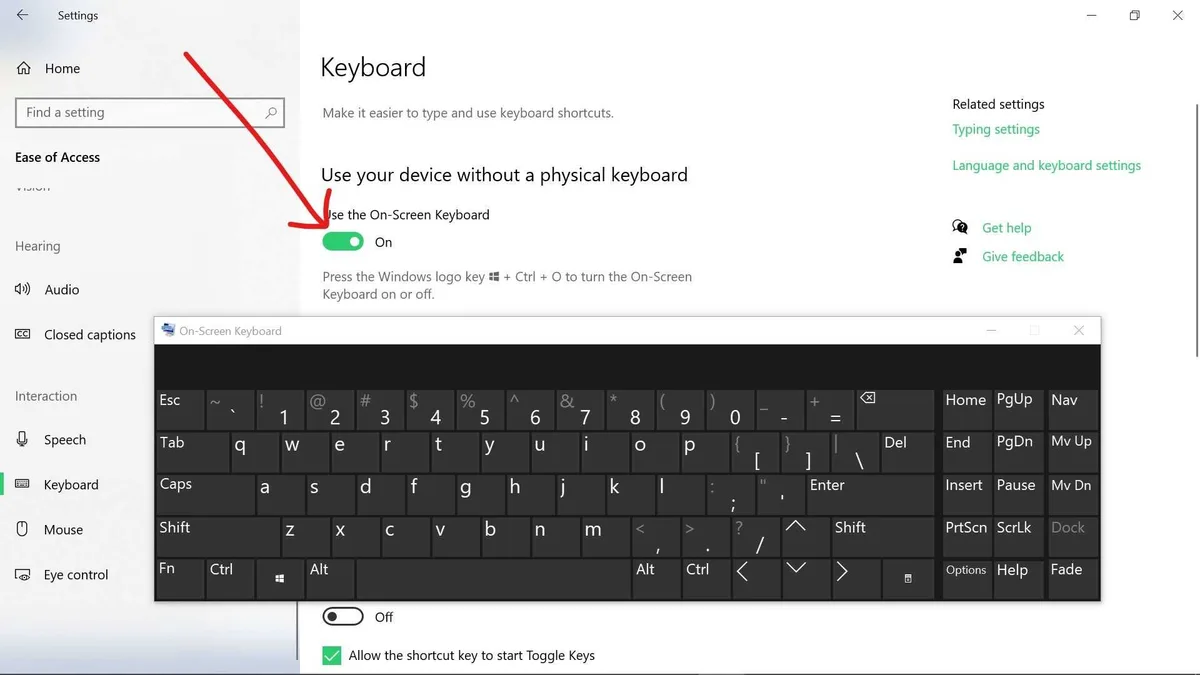
One quick test isolates matrix faults. Open the On-Screen Keyboard, built into Windows and macOS. Press every key on your physical board and watch which ones light up on screen.
The pattern of dead keys tells you if it's a row, a column, or scattered single switches.
Mistakes That Make It Worse (And When to Stop and Replace)
The wrong fix can turn a ten-minute problem into a dead machine. Here are the traps we see most often, plus the point where you should stop tinkering.
- Installing random driver downloads. Unofficial "driver updater" sites bundle adware. Per Microsoft and Apple guidance, use Windows Update or the manufacturer's own support page. Nothing else.
- Editing the registry by hand. Copy-pasted registry hacks from forums can brick input entirely. Try a system restore point instead.
- Forcing a swollen laptop battery back in. A puffed Li-ion cell is a fire risk. Stop. Take it to a technician.
- Skipping backups before driver surgery. Reinstalling the HID stack is usually safe. Usually. Back up first.
- Blaming the keyboard when it's the port. A dead USB port can masquerade as a dead keyboard for months.
Here's the honest call on repair versus replace. Laptop keyboards cost roughly $20 to $150 for the part, plus labor if you don't open the chassis yourself. External keyboards run $15 to $200 or more.
If a board is under warranty, use it. If it's a $15 membrane board with three dead keys, replace it.
For anything expensive, like a $180 mechanical keyboard, a repair is worth it. A single hot-swap switch costs a few dollars. A soldering job might run $30 to $60 at a local shop.
The math is simple: repair when the fix costs less than half the replacement.
If you've worked through every branch and the keyboard still fails across multiple computers and operating systems, you've confirmed a hardware fault. At that point, more troubleshooting just burns time.
Frequently Asked Questions
Why isn't my computer keyboard working but the mouse is?
Your mouse and keyboard use separate driver entries in the HID stack, so one can fail while the other keeps working. A keyboard-specific driver fault, a Filter Keys glitch, or a dead USB port is the usual cause. Open Device Manager, uninstall the keyboard entry, and restart.
How do I know if my keyboard is broken or my computer?
Test the keyboard on a second computer, or test a known-good keyboard on yours. If the keyboard fails everywhere, it's broken. If it works elsewhere, the fault is in your PC.
A BIOS test confirms it, since BIOS loads before any OS driver.
Why did my keyboard suddenly stop working after a Windows update?
Updates occasionally leave a HID device entry in a bad state. Roll back the most recent update through Settings, Windows Update, Update history. Then restart and test.
Clearing duplicate entries in Device Manager fixes most of the remaining cases.
Can a dead keyboard be caused by a virus?
It's rare, but yes. Malware can hijack input at the driver level or disable devices. Run a full anti-malware scan from a trusted vendor.
If the keyboard works in Safe Mode but dies after a normal boot, that's a strong signal something is loading at startup.
Why do only some of my keys work?
A pattern of dead keys usually points to a fault in the keyboard matrix, the shared wiring grid under the keys. One broken trace kills a whole row or column. Spill damage and corrosion cause this most often.
A mechanical board may have individual dead switches instead.
When should I just replace the keyboard?
Replace it when the fault follows the keyboard to every computer and every operating system. Also replace it when a repair costs more than half the price of a new one. For cheap membrane boards, replacement is almost always the cheaper move.

Similar Posts