How to Factory Reset Quest 3: Step-by-Step Guide
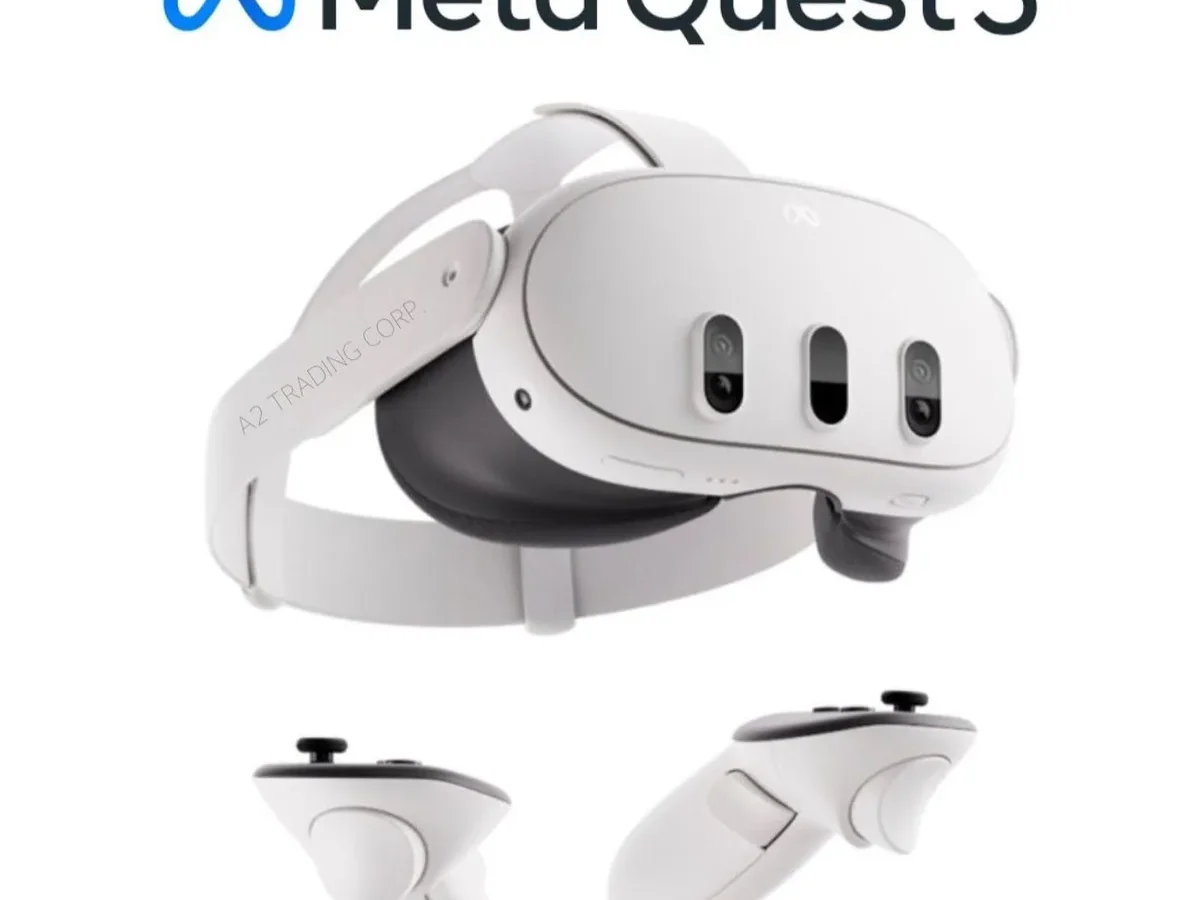
Factory resetting a Meta Quest 3 isn't complicated, but the wrong method can lock you out of a headset you own or wipe saves you can't get back. If you're wondering how to factory reset Quest 3 safely, the answer comes down to one question first: does the headset still boot normally?
If it does, you'll reset from the Settings menu in about two minutes. If it's frozen, looping, or stuck on a black screen, you'll need the boot menu instead. And if the headset is tied to someone else's Meta account, neither method will work without that person's password.
Meta Horizon OS stores your account, Wi-Fi credentials, Guardian boundary, hand-tracking calibration, and every sideloaded app on the headset itself. A factory reset wipes all of it in one pass. Here's how to pick the right path and walk through it cleanly.
how to factory reset quest 3
To factory reset a Quest 3, open Settings, go to System, then Factory Reset, and confirm. If the headset won't boot, hold Power and Volume Down to enter the boot menu. Choose Factory Reset there.
You'll need the Meta account password tied to the device. The wipe takes five to fifteen minutes.
Before You Wipe: What a Quest 3 Reset Actually Deletes
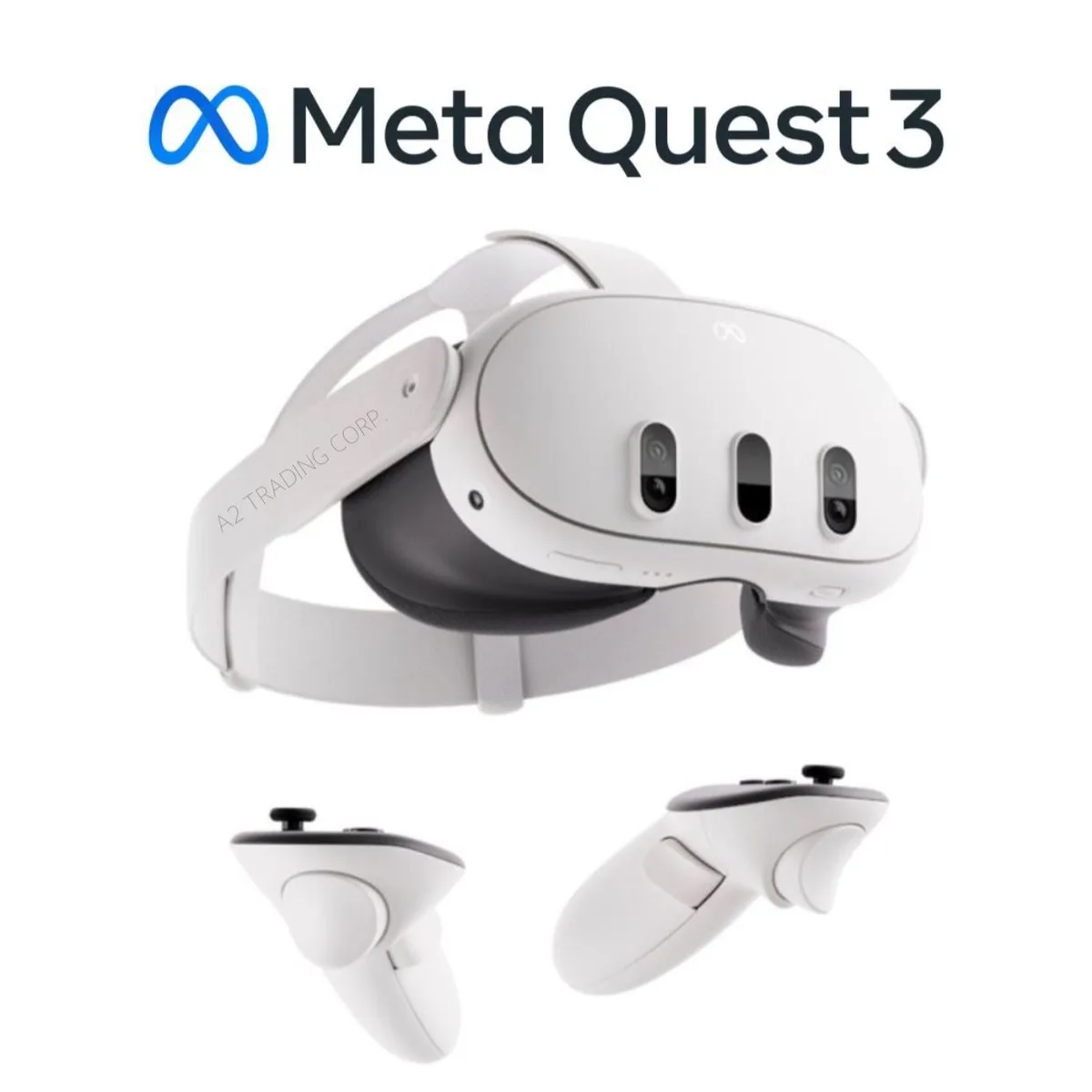
A factory reset restores your Quest 3 to the state it left the factory in. That's a full wipe, not a cleanup. Everything stored locally gets erased, and most of it doesn't come back automatically.
Here's what goes and what stays, based on Meta's own support documentation and how Horizon OS handles storage.
| Data type | Erased by reset? | Recoverable? |
|---|---|---|
| Meta account login | Yes | Yes, sign back in |
| Installed games and apps | Yes | Yes, re-download from library |
| Local game saves | Yes | Only if the game supports cloud saves |
| Sideloaded APKs and developer mode | Yes | No, must reinstall manually |
| Screenshots and recordings | Yes | Only if synced to the Meta Horizon app |
| Wi-Fi and Bluetooth pairings | Yes | No, re-enter manually |
| Guardian boundary | Yes | No, redraw after setup |
| Hand and controller calibration | Yes | No, recalibrate after setup |
The biggest surprise for most people is cloud saves. Aggregate user reports confirm that plenty of Quest titles still don't back up progress to the cloud at all. If you're mid-way through a long campaign and the game isn't listed as cloud-supported, that save is gone.
The Account Lock Problem
This is the one that catches people out on secondhand headsets. If your Quest 3 is still linked to a Meta account you don't control, a factory reset won't free it. The OS asks for that account's password before it will erase anything.
That's a deliberate anti-theft measure, and it's the same principle most modern phones use. So if you bought a used Quest 3 and the seller never removed their account, your options are limited to getting their credentials or contacting Meta support with proof of purchase. There's no workaround, and any guide claiming otherwise is wrong.
The Two Reset Paths, and Which One You Need
There are really only two paths that matter, plus a smaller phone-side option. Which one you take depends entirely on whether the headset turns on and reaches the home environment.
If the headset boots normally, use Path A. If it's stuck, looping, or black-screened, use Path B. If you just want to break the phone pairing, Path C handles that.
Path A: Settings Menu (Headset Boots Normally)
This is the clean option. It's fast, it's the officially documented route, and it gives you a chance to check your cloud saves first. Best for: selling, gifting, handing the headset to a family member, or clearing leftover accounts on a device you control.
Path B: Boot Menu (Frozen, Looping, or Black Screen)
This is your recovery route. You reach it with a button combination before the OS loads. Best for: boot loops, failed firmware updates, a headset that won't respond to anything, or a settings menu you can't reach.
Path C: Reset From the Meta Horizon App
This isn't a full wipe. Removing the headset from your Meta Horizon app breaks the phone pairing and can clear some account-side data. Best for: troubleshooting connection issues or preparing to pass the headset along, but it won't erase on-device content.
You'll still want Path A or B for that.
Quick Decision Table
| Your situation | Use this path |
|---|---|
| Headset works fine, you want a clean wipe | Path A |
| Selling or gifting the headset | Path A first, then unpair the app |
| Stuck on a boot loop or black screen | Path B |
| Forgot your pattern or PIN | Path B |
| Phone won't connect to the headset | Path C, then Path A if needed |
| Headset tied to someone else's account | Neither works without their password |
One more thing worth knowing: if you're only dealing with a minor glitch, try a simple restart before anything else. Hold the power button, choose Restart, and see if that clears it. A full reset is overkill for most temporary software hiccups, and it costs you all your local data for nothing.
Step-by-Step: Factory Reset From the Settings Menu
This is the path most people will use. It takes a couple of minutes plus the erase time, and it doesn't require any button gymnastics.
Prep first, then reset. That order matters, because once the wipe starts there's no going back.
Step 1: Get the Headset Ready
Charge the Quest 3 to at least 50% before you start. A reset that loses power midway can leave the device in a worse state than it began. While it charges, do these quick checks.
- Open each game you care about and confirm whether it supports cloud saves
- Sync any screenshots or recordings to the Meta Horizon app
- Note your Wi-Fi name and password so you can reconnect after
- Unpair the headset from your Meta Horizon app if you're handing it off
If you're selling or gifting, this is also the moment to remove your payment methods from your Meta account, since those stay attached to the account rather than the device.
Step 2: Run the Reset
Put the headset on and follow these steps.
- Press the menu button on your right controller to open the universal menu
- Select Settings
- Choose System
- Scroll to Factory Reset
- Select it and confirm when prompted
The confirmation screen is your last exit. Once you tap through, the erase begins immediately.
Step 3: Let It Erase and Reboot
The headset will show an erasing screen, then reboot on its own. Based on user reports, expect somewhere between five and fifteen minutes depending on your storage size and firmware version. The 512GB model can take longer than the 128GB version.
Don't unplug it. Don't force-restart it. Let it finish and boot to the setup screen on its own.
When you see the initial setup flow, the reset worked. From there you can either hand the headset off or set it up again yourself.
Step-by-Step: Factory Reset From the Boot Menu
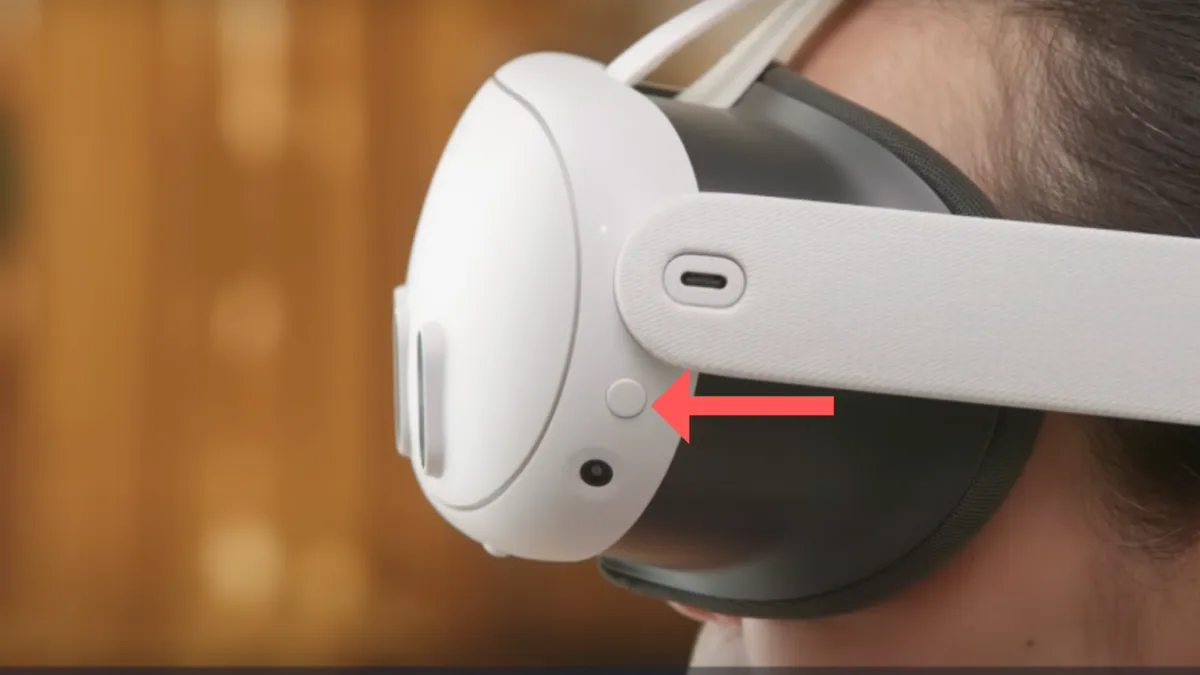
Use this path when the headset won't reach the home environment. The timing on the button combo is the part people get wrong, so read it carefully.
Step 1: Power the Headset Off Completely
Hold the power button until the headset shuts down fully. If it's stuck in a loop and won't power off, hold the button for around 30 seconds to force it. A hard power-off is fine here.
Step 2: Enter the Boot Menu
Press and hold the power button and the volume-down button at the same time. Keep holding both for roughly ten to fifteen seconds. Release when the boot menu appears.
If you let go too early, the headset just boots normally. That's the most common mistake. If that happens, power off and try again with a longer hold.
Step 3: Navigate and Confirm
Once you're in the boot menu, use the volume buttons to move through the options and the power button to select. Choose the factory reset option, then confirm. The screen will warn you that all data will be erased.
Accept it.
If your controllers aren't paired, this menu is navigable with the physical buttons alone, which is exactly why it's the fallback when the OS is unreachable.
If It Still Won't Reset
Work through these in order.
- Recharge the headset fully, then retry. Low battery can block the boot menu
- Try the button combo again with a longer hold
- Charge it for an hour and attempt the reset a second time
- Contact Meta support if nothing works across several attempts
A headset that refuses every reset path, including the boot menu, usually points to a hardware fault rather than a software one. That's a warranty conversation, not a settings problem.
After the Reset: Setting Your Quest 3 Back Up
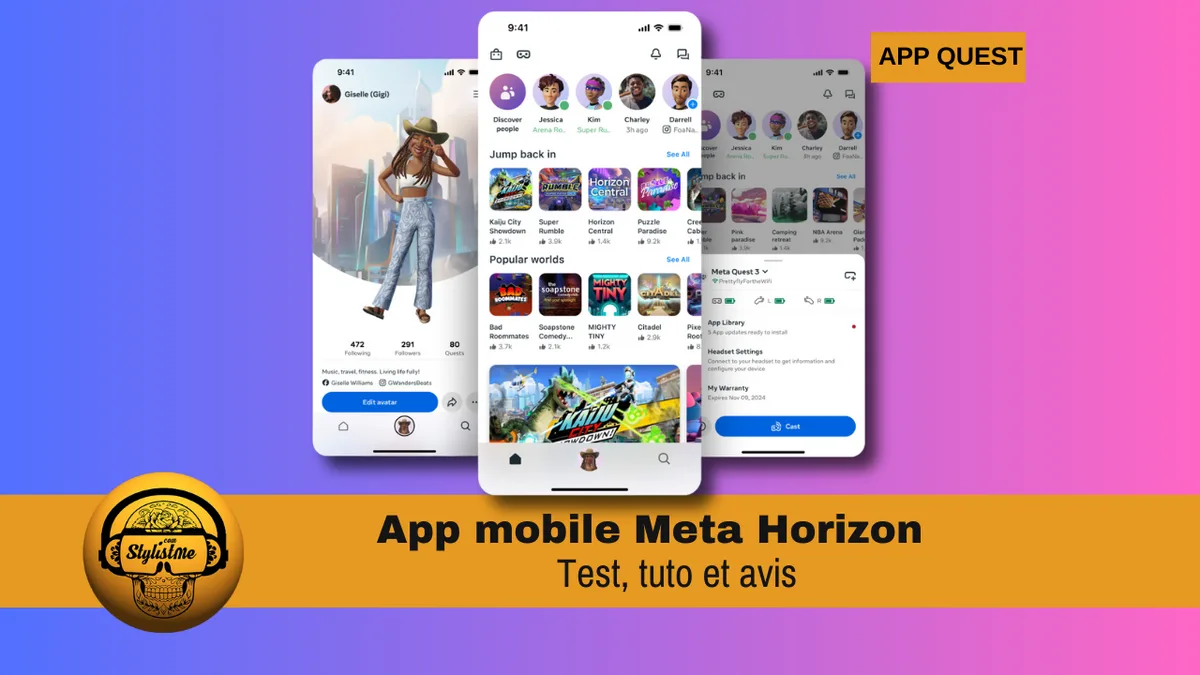
A freshly wiped Quest 3 boots straight into the initial setup flow. Everything from here is a rebuild, and it goes faster if you have your Meta account details and Wi-Fi password handy.
Sign Back In and Re-Pair
Download or open the Meta Horizon app on your phone first. The headset walks you through pairing with a code shown in the app. Then sign into your Meta account on both devices.
If you're setting up as a new owner, create a fresh Meta account instead. Don't sign in with the previous owner's credentials, even if you have them. That just re-links the device to their profile.
Restore Apps and Saves
Your purchased apps stay in your library. Re-downloading them is a tap, not a repurchase. Cloud saves restore automatically for supported titles once you launch them.
Everything else is manual. Sideloaded APKs need SideQuest again, and developer mode has to be re-enabled from the Meta Horizon app before it'll work. Screenshots and recordings only return if you synced them beforehand.
Redraw Guardian and Recalibrate
The Guardian boundary is wiped, so you'll redraw your play area on first use. Hand tracking and controller pairing reset to defaults too. Both recalibrate during setup, and it takes a couple of minutes.
Mistakes That Cost People Data, Time, or Their Headset
Most reset regrets come down to a handful of avoidable errors. Here are the ones we see reported most often.
Wiping a Headset Still Tied to Someone Else's Account
If the Quest 3 is linked to another Meta account, the reset stalls at the password prompt. You can't push past it, and no button combo changes that. Confirm account ownership before you buy used, or before you wipe a device you're passing on.
Assuming Every Game Has Cloud Saves
Cloud save support is inconsistent across the Quest library. Our research into user reports shows plenty of titles store progress locally only. Check each game before you reset, not after.
Resetting for Problems a Restart Would've Fixed
A quick Restart from the power menu clears most temporary glitches. Only reach for a factory reset when a restart genuinely fails. Otherwise you trade a two-minute fix for a full rebuild and lost local data.
Skipping the Backup Step
Screenshots, recordings, and Wi-Fi passwords don't come back on their own. Five minutes of prep saves you from re-downloading and reconfiguring everything.
Pulling the Power Mid-Erase
Interrupting the erase can leave the firmware in a bad state. Let it finish, even if it feels slow.
Selling, Gifting, or Returning Your Quest 3
A clean handoff takes more than a reset. The goal is to leave nothing of yours on the device and nothing of the new owner's tied to your account.
The Pre-Handoff Checklist
Run through this before the headset leaves your hands.
- Sync any screenshots or recordings you want to keep
- Confirm cloud saves for games you care about
- Remove payment methods from your Meta account
- Unpair the headset from your Meta Horizon app
- Run the factory reset using Path A or Path B
- Confirm the headset reaches the setup screen
That last step matters. If you see the initial setup flow, the wipe succeeded and your account is gone.
What the New Owner Needs From You
They need a headset that reaches setup, not one that's still logged in. If you leave your account attached, they'll hit the lock we covered earlier and may not be able to use the device at all.
For returns, follow the retailer's or Meta's process. A factory reset is usually required before an RMA, and it protects your personal data either way. As of 2026, Meta's warranty terms still don't treat a factory reset as voiding coverage, since it's a standard software action.
Frequently Asked Questions
Does a factory reset delete my games?
No, your purchases stay in your Meta account library. The reset removes the installed copies from the headset. Sign back in and re-download them for free.
Only local save data is at risk, and only for games without cloud save support.
Can I reset a Quest 3 without the Meta account password?
No. The OS requires the linked account's password to authorize a wipe. This is an anti-theft measure.
Without it, contact Meta support with proof of purchase. There's no legitimate way around it.
How long does a Quest 3 factory reset take?
The erase and reboot usually take five to fifteen minutes. The 512GB model can run longer than the 128GB version. Add extra time afterward for re-downloading apps and firmware on a fresh setup.
What's the difference between a restart and a factory reset?
A restart reboots the headset and keeps all your data. A factory reset erases everything and returns the device to its out-of-box state. Try a restart first for minor glitches, and save the reset for serious problems.
Will a factory reset fix a boot loop?
Often, yes. The boot menu reset is designed for exactly this situation. If the headset refuses every reset path, including recovery mode, that usually points to a hardware fault rather than software.
Do I need to reset before selling my Quest 3?
Yes, always. A reset removes your account, personal data, and payment links from the device. Skip it and the buyer may be locked out entirely.
It also protects your data from whoever gets the headset next.

Similar Posts