How to Factory Reset an HP Laptop to Factory Settings
When your HP laptop starts crawling, won’t boot, or you’re getting ready to sell it, learning how to factory reset a HP laptop to factory settings is the fastest way back to a clean machine. Windows and HP both give you real reset paths, so you’re not stuck reinstalling from scratch. The catch is picking the right one for your situation.
That choice matters more than most people realize. Microsoft’s built-in reset, the Windows Recovery Environment (a repair mode that runs outside your normal desktop), and HP Recovery Manager each do something slightly different. As of 2026, most HP consumer laptops ship with a hidden recovery partition, but some newer models skip it entirely.
That single detail decides whether you can stay offline or need a USB drive.
how to factory reset a hp laptop to factory settings
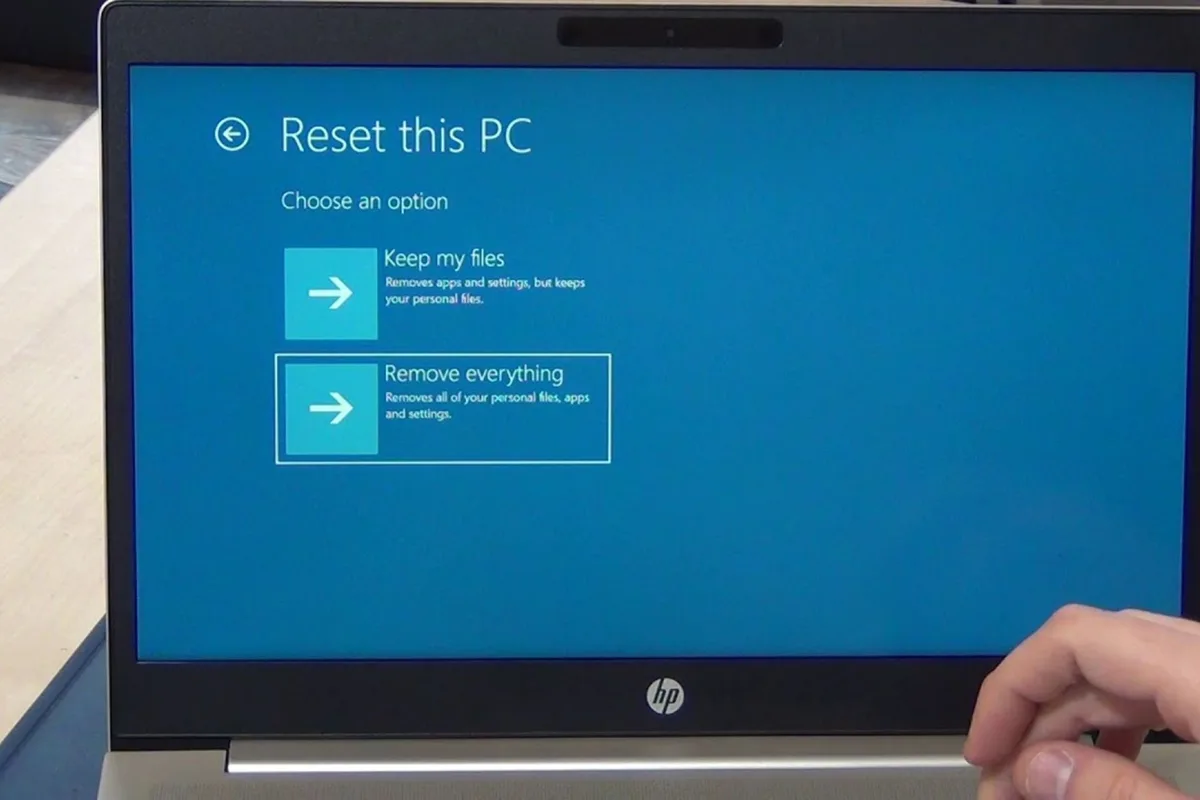
Open Settings, go to System, then Recovery, and select Reset this PC. Pick either Keep my files or Remove everything. Windows handles the rest automatically.
If the laptop won’t boot, hold Shift and Restart to reach repair options. On some HP models, pressing F11 at startup opens Recovery Manager.
First, Figure Out Which Reset You Actually Need
Not every problem needs a full wipe. A factory reset erases everything, reinstalls Windows, and returns the laptop to its original out-of-box state. That’s powerful, but it’s overkill for a slow browser or a single buggy app.
So the first thing to do is match the symptom to the right tool.
If/then logic makes this simple:
- If the laptop boots fine and you just want a clean slate, use Reset this PC from Settings.
- If malware, corruption, or a boot loop is the problem, go through the Windows Recovery Environment.
- If you need the exact HP factory image (original drivers, bundled utilities), use HP Recovery Manager.
- If none of that works or your recovery partition is missing, build a USB recovery drive.
The three real reset paths (and what each one does)
Windows Reset this PC is the everyday route. It uses your local recovery image or downloads a fresh copy from Microsoft. HP Recovery Manager restores the original factory image HP shipped with the machine.
The WinRE path is the rescue option when Windows itself can’t start.
Keep my files vs. Remove everything — what changes
Keep my files preserves your personal documents but wipes apps, settings, and drivers. Remove everything erases the whole drive and starts over. If you’re selling or gifting the laptop, you want Remove everything.
For a quick fix on your own machine, Keep my files is usually enough.
When a reset is the wrong call
A factory reset won’t fix failing hardware, a dying drive, or a dead battery. It also won’t help if your data loss is the actual problem. And it won’t repair physical damage.
If the laptop freezes during boot or beeps on startup, you likely have a hardware issue that no reset can touch.
The One Thing You Must Do Before You Wipe Anything
BitLocker is the single biggest trap here. It’s Microsoft’s full-disk encryption, and many HP laptops have it enabled by default. If you reset without saving your 48-digit BitLocker recovery key first, you can get locked out of your own drive with no easy fix.
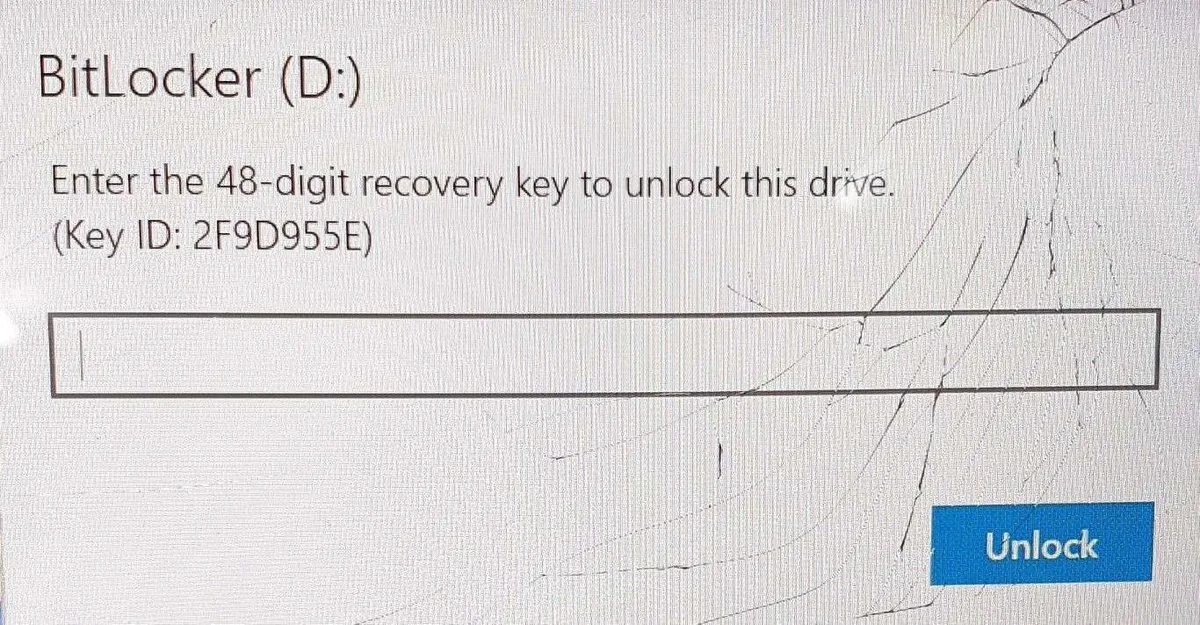
Find your key before you touch anything. Check your Microsoft account at account.microsoft.com/devices/recoverykey. If it’s a work laptop, your IT department holds it.
Print it or write it down and keep it somewhere outside the laptop.
Back up files, license keys, and Wi-Fi passwords
A reset wipes local files, so move anything you care about to OneDrive, an external drive, or a USB stick. Grab your product keys for paid software. Write down your Wi-Fi password.
Note which apps you’ll want to reinstall, because remembering after the fact is annoying.
Power, peripherals, and other prep
Plug the laptop into AC power and leave it there for the whole process. A reset can run 30 to 90 minutes, and longer on older hard drives. Unplug printers, docks, and external drives.
Keep only a keyboard and mouse connected. Per NIST media sanitization guidance, a proper wipe is required before reselling or disposing of a drive, so “Remove everything” with a clean-data pass is the safer choice for resale.
Path 1: Reset From Windows Settings (Laptop Still Boots)
This is the clean, easy route, and it works on nearly every HP laptop that still starts normally. If Windows loads to your desktop or login screen, you’re in the right place. The steps are almost identical on Windows 10 and Windows 11, just with slightly different wording.
Here’s the workflow:
- Open Settings (Windows key + I).
- Go to System, then Recovery.
- Under “Reset this PC,” click Get started.
- Choose Keep my files or Remove everything.
- Pick Cloud download or Local reinstall.
- Confirm and let it run.
Windows 10 vs. Windows 11 — where the option lives
On Windows 10, it’s Settings, Update & Security, then Recovery. On Windows 11, it moved to Settings, System, then Recovery. Same button, different folder.
If you can’t find it, type “reset” into the Settings search bar and it’ll jump straight there.
Choosing Cloud download or Local reinstall
Cloud download pulls a fresh Windows image from Microsoft, usually 3 to 5 GB. It needs a solid internet connection but fixes a corrupted local image. Local reinstall rebuilds Windows from files already on your drive and needs no internet.
If your Wi-Fi is slow or unreliable, go local.
Should you turn on “Clean data”? Here’s when it matters
“Clean data” does a deeper wipe that makes old files harder to recover. It adds an hour or more to the process. Turn it on if you’re selling or donating the laptop.
Skip it for a personal machine you’re just refreshing, since it only slows you down.
Path 2: Reset When Windows Won’t Boot (WinRE)
When Windows refuses to load, you can’t reach Settings. That’s when the Windows Recovery Environment steps in. WinRE is a stripped-down repair mode that runs before your normal desktop, and it has its own reset option built in.
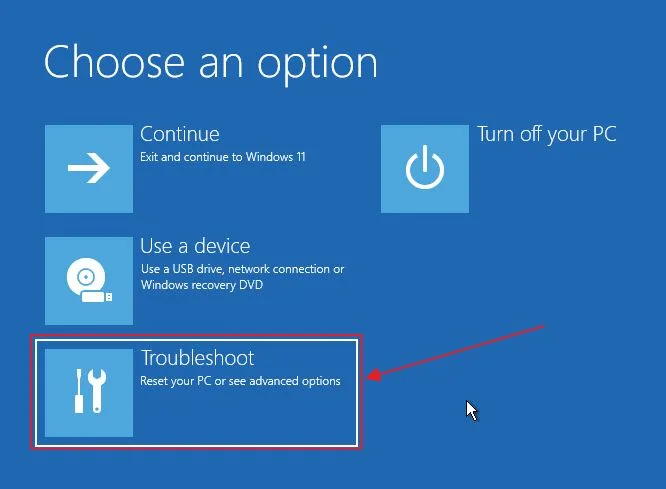
Here’s how to reach it on most HP laptops:
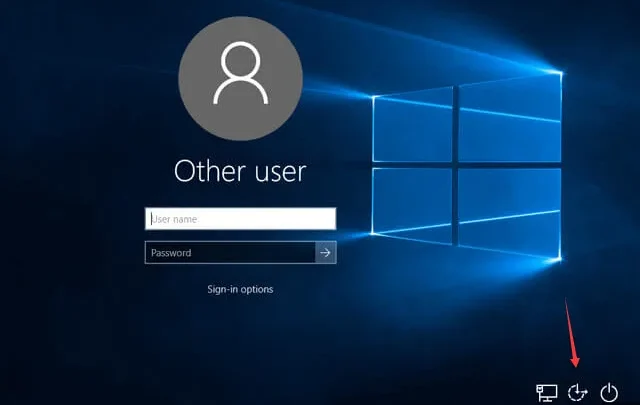
- Hold Shift while clicking Restart on the login screen.
- Or force shutdown three times in a row (hold the power button) to trigger automatic repair.
- On the blue menu, choose Troubleshoot, then Reset this PC.
- Follow the same Keep my files or Remove everything choice.
Getting into the Windows Recovery Environment
Shift + Restart works if you can still see the login screen. If the laptop won’t cooperate, the triple force-shutdown trick usually forces WinRE to load. On some HP machines, tapping F11 or Esc during startup also opens recovery options.
When the reset itself keeps failing
If the reset hits an error like “There was a problem resetting your PC,” a corrupted image is usually the cause. Switch from Local reinstall to Cloud download, or vice versa. If both fail, jump to Path 3 and rebuild from external media.
Path 3: HP Recovery Manager and USB Recovery Media
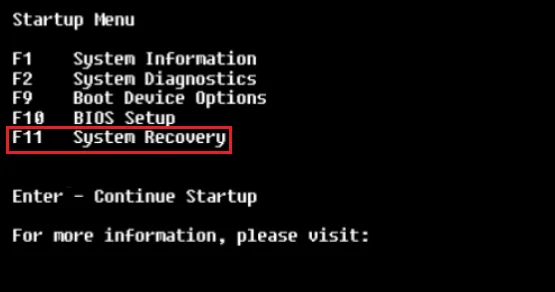
On older and many business HP models, HP Recovery Manager restores the exact factory image, complete with the original drivers and bundled HP tools. It pulls everything from the hidden recovery partition, so no internet is needed. Newer consumer models often drop this partition, which is why USB recovery is your fallback.
Using F11 to reach HP’s factory image
Power on the laptop and tap F11 repeatedly during the HP logo screen. If the recovery partition is intact, HP Recovery Manager launches. Follow the prompts and choose the factory reset option.
This wipes the drive and restores the machine to its original shipped state.
Building a USB recovery drive with the HP Cloud Recovery Tool
If there’s no recovery partition, grab the HP Cloud Recovery Tool from HP’s official support site at support.hp.com. You’ll need a USB drive of at least 32 GB. The tool downloads your model’s factory image and writes it to the USB, so you can boot from it and reinstall.
After the Reset: Drivers, Activation, and Getting Back to Normal
The reset finishes, Windows boots to a fresh desktop, and the job isn’t over yet. A clean install rarely has every HP driver you need. Your Wi-Fi, audio, touchpad, and function keys may all misbehave until you rebuild them.
Plan on another 30 minutes for this step.
Reinstalling HP drivers and Support Assistant
Start with HP Support Assistant, which scans your model and pulls the right drivers automatically. If it’s not preinstalled, download it from hp.com. Run Windows Update next, then reboot.
Aggregate user reports show audio and Wi-Fi drivers are the most common gaps after a reset, so check those two first.
Checking Windows activation and re-enabling BitLocker
Open Settings, then System, then Activation. Your digital license is tied to the hardware, so a reset normally keeps Windows activated. If it shows inactive, run the troubleshooter.
If you turned BitLocker off before resetting, you can switch it back on now through Settings, Privacy & Security, then Device encryption.
A quick post-reset checklist
- Confirm Windows Update is fully installed.
- Verify Wi-Fi, audio, and touchpad work.
- Reinstall your key apps.
- Sign back into Microsoft account and OneDrive.
- Re-enable BitLocker and save a fresh recovery key.
Mistakes That Cost People Data (and How to Avoid Them)
Most reset disasters trace back to a handful of avoidable errors. Our research into user reports shows the same three or four mistakes over and over. Each one is easy to prevent.
None of them require special skills.
Wiping the wrong drive in a dual-boot setup
If your HP laptop dual-boots Windows and Linux, the reset can target the wrong partition. You could erase your Linux install without meaning to. Before you start, note which partitions hold which operating system.
If you’re unsure, back up both sides first.
Interrupting a reset mid-process
Pulling the power or forcing a shutdown during a reset can corrupt the install and leave you with an unbootable machine. The process can look frozen while it’s actually working. Leave it alone, even if it sits on one screen for 20 minutes.
Keep it plugged in the whole time.
Skipping the driver rebuild
A reset does not always bring back every HP-specific driver. Skip that step and you’ll blame the laptop for problems the drivers caused. Wi-Fi drops, no sound, and dead keyboard shortcuts are all classic signs.
Rebuild the drivers and most of those vanish.
Frequently Asked Questions
How long does an HP factory reset take?
A typical reset runs 30 to 90 minutes. Older hard drives can push past two hours. Adding a “Clean data” wipe tacks on another hour or more, depending on drive size.
Keep the laptop plugged in and let it finish without interruption.
Will I lose my files when I reset?
Yes, if you pick Remove everything. That option erases the whole drive. Keep my files preserves your personal documents but still removes apps and settings.
Always back up to OneDrive or an external drive before starting, whichever option you choose.
Can I reset an HP laptop without a password or internet?
Yes. The Windows Recovery Environment reset works offline with a local reinstall. You don’t need your account password to reach WinRE either.
If your recovery partition is missing, you’ll need a USB drive built ahead of time with the HP Cloud Recovery Tool.
Where do I find my BitLocker recovery key?
Check your Microsoft account at account.microsoft.com/devices/recoverykey. Business laptops store the key with your IT department. Always save it before a reset.
Without it, an encrypted drive can lock you out permanently.
What should I do if the reset keeps failing?
Switch between Cloud download and Local reinstall first. A corrupted image is the usual culprit. If both fail, build a USB recovery drive with the HP Cloud Recovery Tool and reinstall from that.
Persistent failures can also point to a failing drive.

Similar Posts