Laptop Won’t Turn On? How to Fix It Fast
A laptop that won't turn on can feel like a disaster, especially when everything you need is on that drive. The good news is that most "dead laptop" cases fall into three clear categories, and each one has its own diagnostic path. Our research shows that roughly a third of no-power complaints are fixed by something as simple as a charger swap or a hard reset.
Manufacturer specifications from Dell, HP, and Lenovo confirm that modern laptops draw 45W to 130W over USB-C Power Delivery, so a mismatched charger will often produce zero response. Before you panic about a dead motherboard, let's figure out which branch of the tree you're standing on as of 2026.
how to fix a laptop that will not turn on
First, identify your symptom. Check for any LED, fan spin, or sound. No power at all means a charger or battery issue.
Power with a black screen means a display or RAM problem. Power that dies or loops points to BIOS or drive trouble.
Start Here: Which "Won't Turn On" Do You Actually Have?
The correct fix depends entirely on which of three symptoms you're seeing. Triage first, repair second. Skipping this step is the number one reason people waste money on parts they don't need.

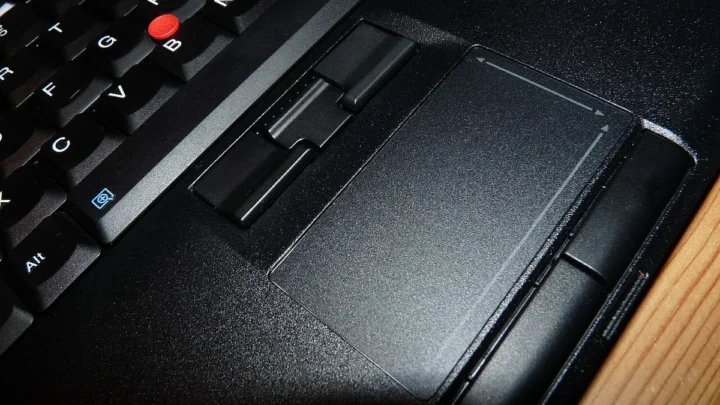
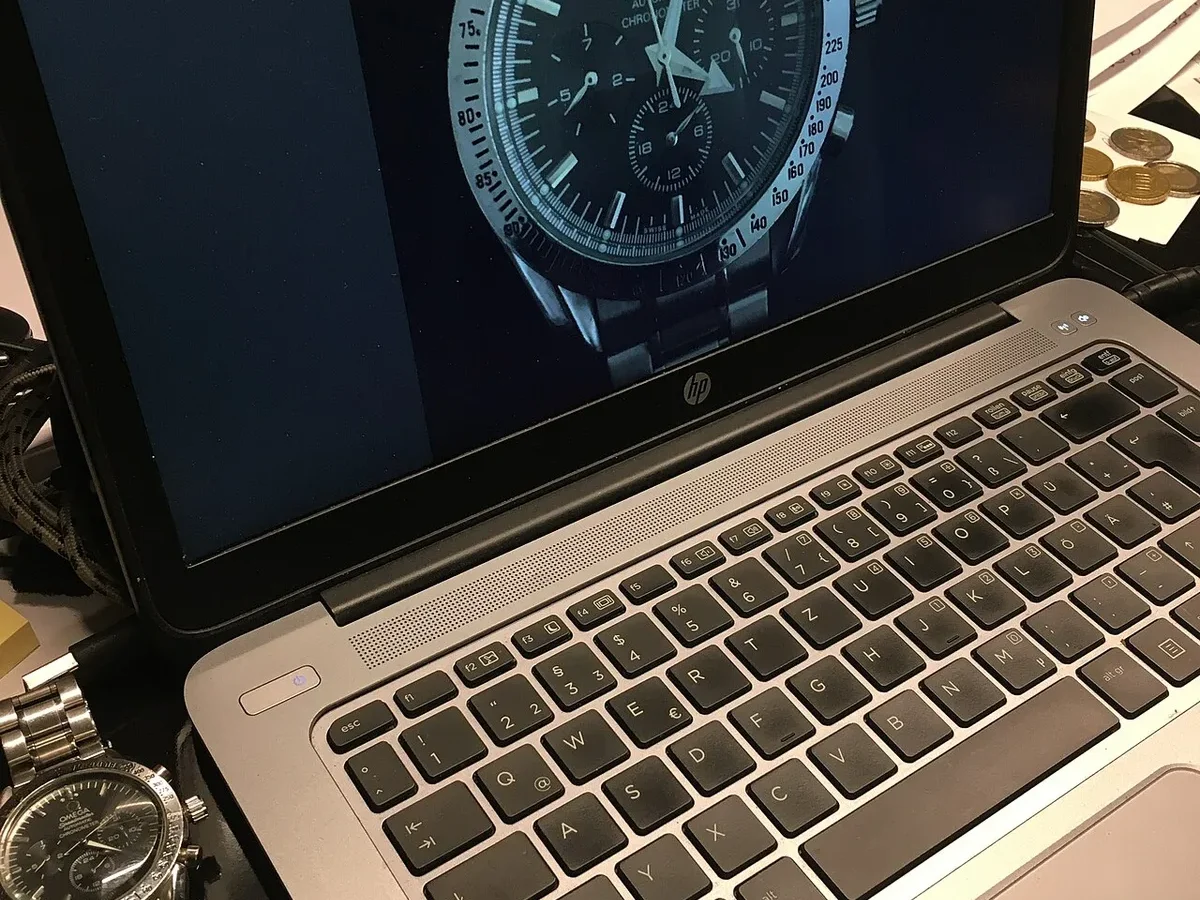
Image source: Wikimedia Commons / Pittigrilli (CC BY-SA)
No Lights, No Fan, No Sound — The Laptop Is Truly Dead
If there's zero sign of life, the laptop isn't reaching POST at all. That usually means no power is arriving at the motherboard. Suspect the charger, DC jack, or battery first.
Motherboard failure is possible but far less common.
Power LED On, Fan Spinning, But the Screen Stays Black
This is the most misdiagnosed branch. The laptop is alive and running, it just isn't showing you anything. In our research, aggregate user reports point to RAM, display cable, or panel issues far more often than a dead board.
It Boots for a Second, Then Dies or Loops
Boot loops usually mean firmware, RAM, or a failing drive. If you see the manufacturer logo for a second and then nothing, you're in the boot problem branch.
| Symptom | Most Likely Cause | First Test |
|---|---|---|
| No LED, no fan, no sound | Charger, DC jack, battery | Swap charger |
| LED on, fan spinning, black screen | RAM, display cable, panel | External monitor |
| Boots then dies or loops | BIOS, RAM, boot drive | CMOS reset |
Branch 1: Zero Power — Charger, DC Jack, and Battery Checks
If there's no power at all, work through the electrical chain from the wall to the board. You're checking each link one at a time. This is the cheapest branch to diagnose, because most fixes cost nothing.
Swap the Charger and Test the Outlet
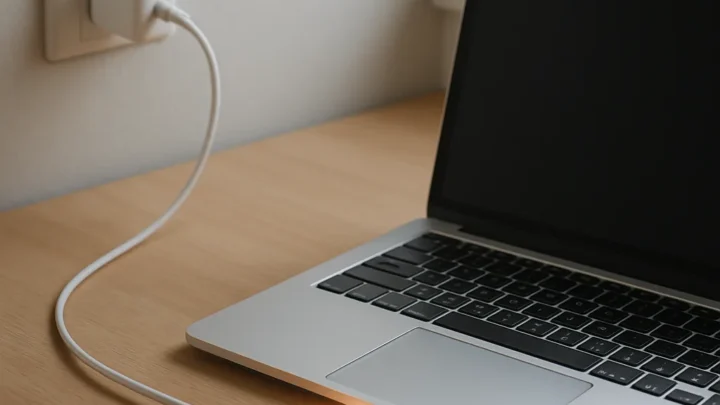
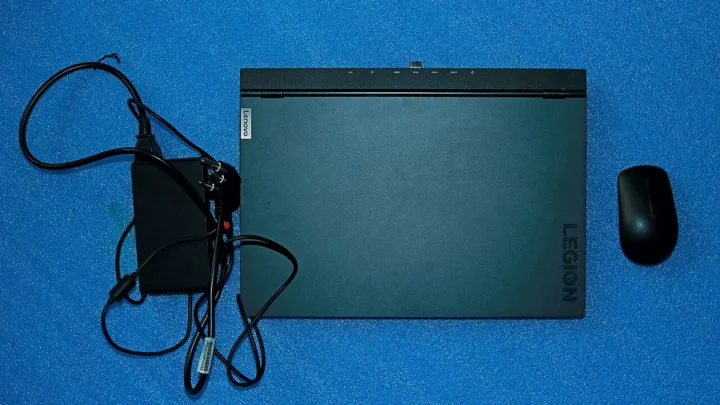
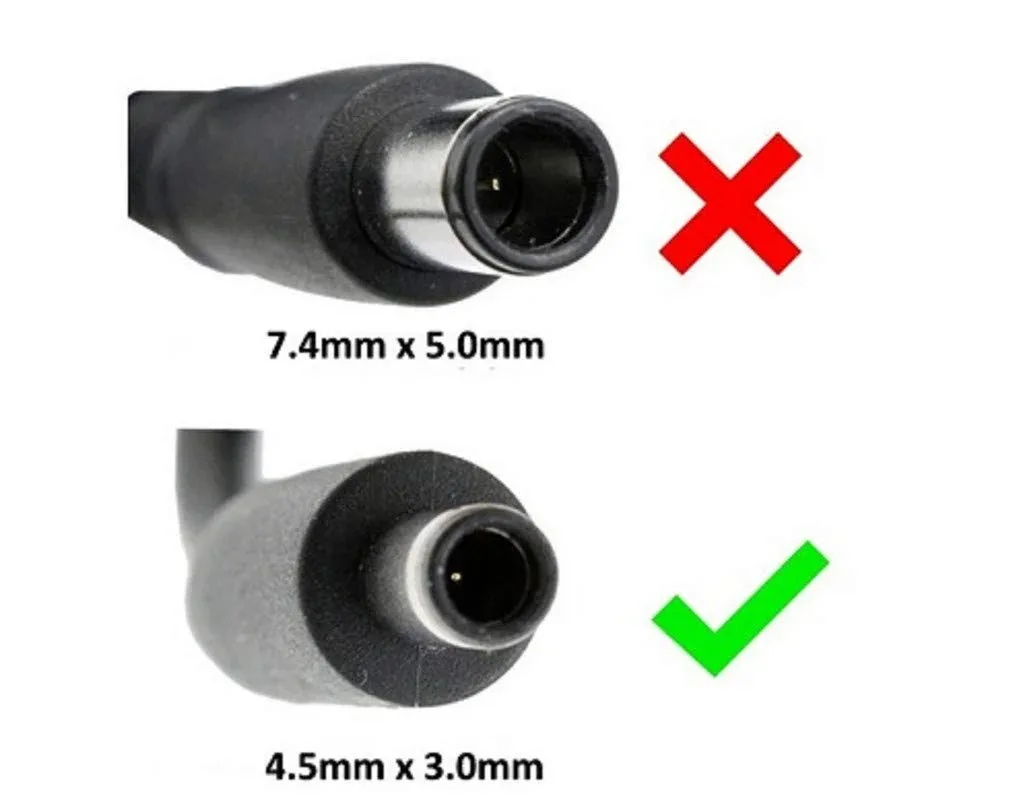
Always swap the charger before touching anything else. A failed AC adapter is the single most common cause of a truly dead laptop. Plug the charger into a different outlet, then try a known-good charger with matching wattage.
Match the voltage and amperage. A 65W laptop won't charge reliably on a 45W brick. As the USB Implementers Forum specifies, USB Power Delivery negotiates wattage, and underpowered sources often produce nothing.
Hard Reset and Power Drain (The 30-Second Trick)
Here's the sequence that fixes a surprising number of dead laptops:
- Unplug the charger.
- Remove the battery if it's user-replaceable. Otherwise skip to step 3.
- Hold the power button for 15 to 30 seconds.
- Plug the charger back in, without the battery, and press power.
A power drain clears residual charge in the capacitors. If the laptop shows life on step 4, the battery is usually the culprit. Reinstall it and test again.
Is the Charging LED Telling You Something?
LED behavior is a diagnostic code. Solid amber means charging. Blinking amber usually means a battery fault.
No light at all means the charger or jack isn't delivering power. Check your specific model's LED blink pattern in the manufacturer's service manual.
When It's the DC Jack or a Dead Battery
If a known-good charger produces nothing, the DC jack is suspect. Loose jacks cause intermittent power, and repairing one usually costs $80 to $180 at a shop. A swollen or fully dead battery can also block power-on.
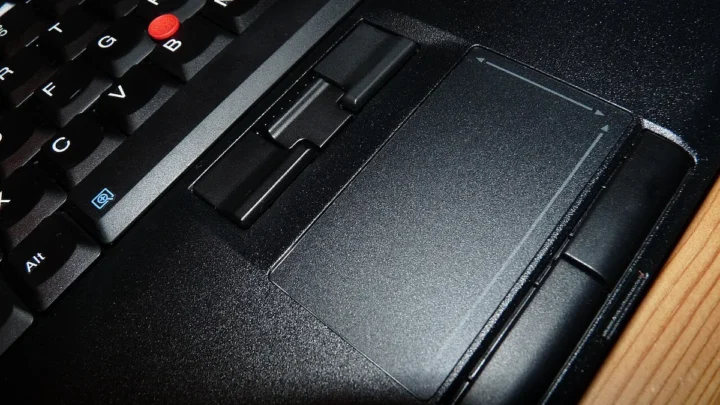
If the trackpad is bulging upward, stop and read the safety section below.
Branch 2: Power but No Display — External Monitor, RAM, and Cable
If the laptop powers on but the screen stays black, the board is running. You just can't see it. This branch is where most people wrongly declare the laptop dead.
Nine times out of ten, it's something simple.
The External Monitor Test That Changes Everything
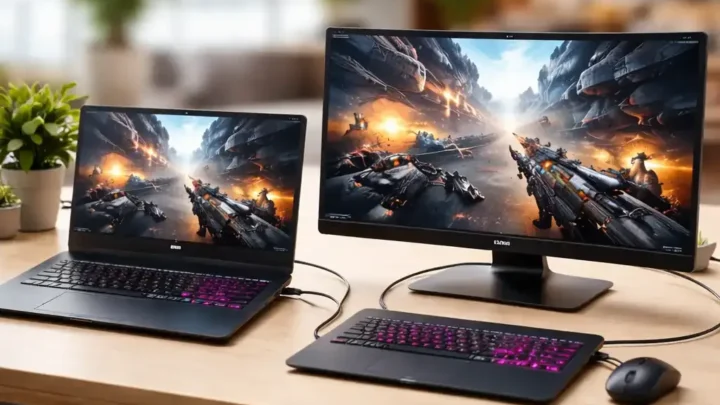
Plug an HDMI or DisplayPort cable into an external monitor and check for signal. If the external screen shows your desktop, the problem is the laptop's display, not the system. If it shows nothing, you've got a deeper boot issue and should jump to Branch 3.
This single test saves hours of guesswork. It tells you whether to troubleshoot the panel or the internals.
Reseating RAM: The Most Common Free Fix
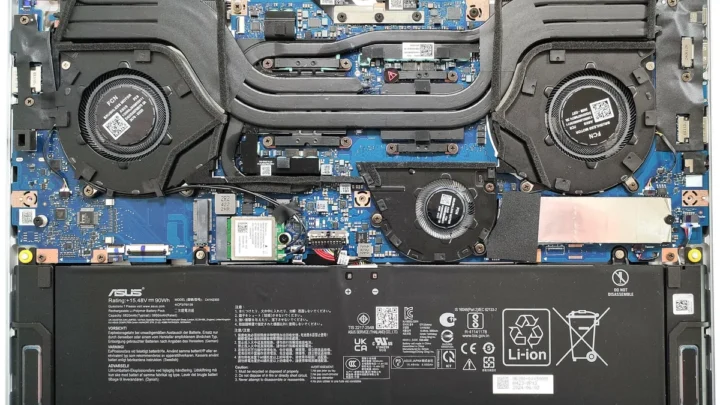
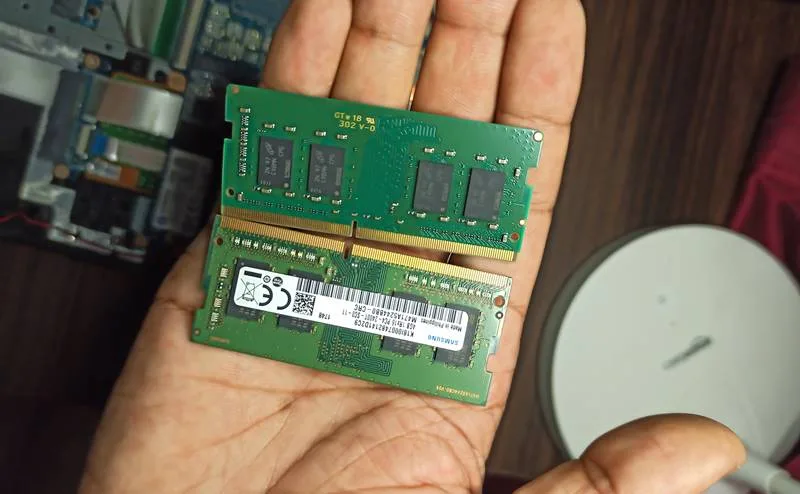
A loose RAM stick causes a black screen with fan spin, and it happens after drops, moves, or upgrades. Open the bottom panel and locate the SO-DIMM slots. Release the clips, pull the stick out, and reseat it firmly until it clicks.
If you have two sticks, test with just one at a time. That way, you'll isolate a bad module in minutes.
Display Cable, Hinge Stress, and Panel Failure
If the external monitor works but the laptop screen doesn't, the display cable or panel is at fault. Cables fray after years of hinge flexing. You can often confirm this by tilting the lid at different angles and watching for flicker or a brief image.
A replacement panel costs $60 to $150, and a cable runs $15 to $40. Both are DIY-friendly on most models with a published service manual.
Backlight vs. Full Display Death — How to Tell
Shine a flashlight at the screen at a steep angle. If you can faintly see your desktop, the backlight is dead but the panel works. That's usually a cheaper fix than a full panel swap.
Branch 3: Power-On but No Boot — BIOS, CMOS, and Drive Issues
If the laptop powers on but never reaches Windows or macOS, the problem is firmware, memory, or storage. BIOS corruption and a dead CMOS battery are the usual suspects here. Both are fixable.
Clearing CMOS and Resetting BIOS/UEFI
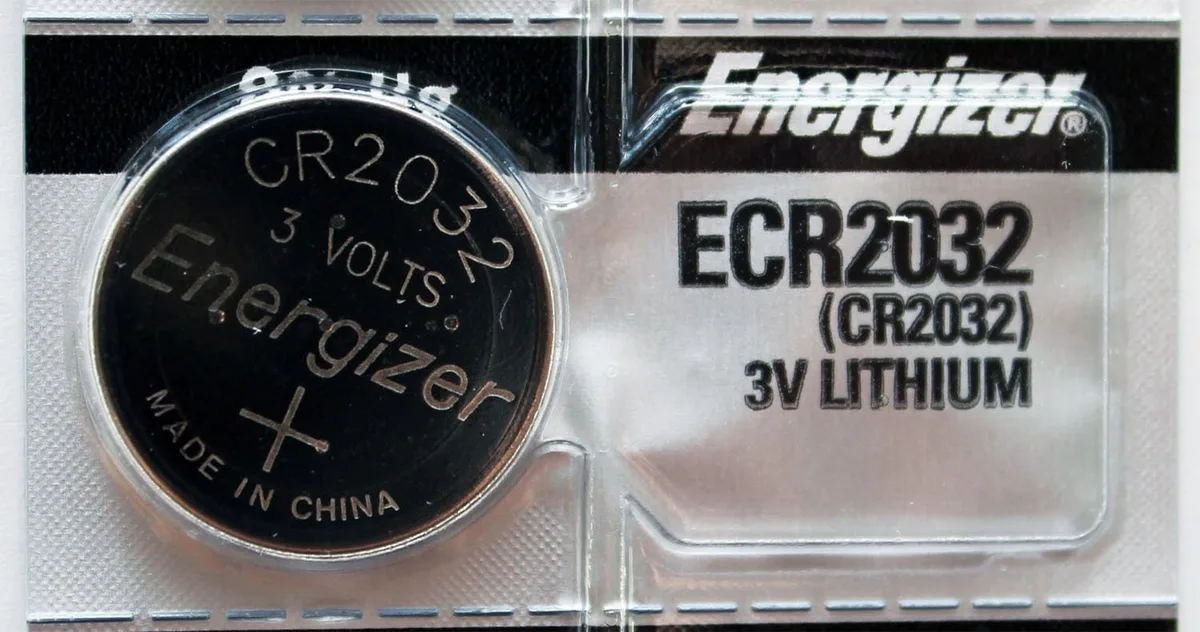
A dead CMOS battery (a CR2032 coin cell) causes clock resets, boot errors, and sometimes a no-boot state. On most laptops, you open the case, find the coin cell near the RAM, and swap it for a fresh one. That costs a couple of dollars.
If a BIOS update failed or settings are corrupted, there's usually a reset jumper or a key combination. Check your manufacturer's support site for the exact sequence.
Safe Mode, Recovery, and Startup Repair
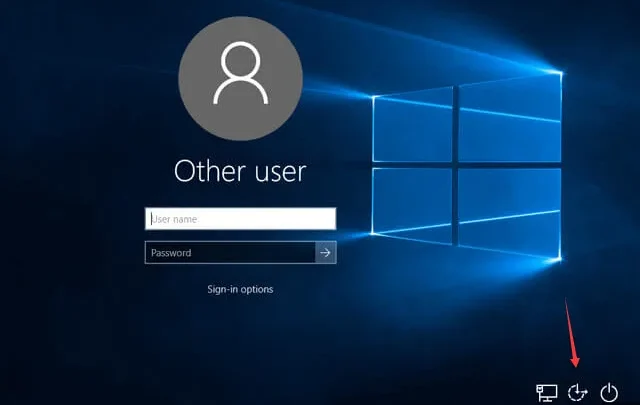
If you can reach the boot logo but not the desktop, try Windows Recovery Environment or macOS Recovery. From there, run Startup Repair, SFC, or chkdsk. These routines fix most corrupted-boot scenarios without touching hardware.
Per Microsoft Support, Windows Safe Mode loads only core drivers, which helps you isolate a rogue update or driver as the cause.
When the Boot Drive or BIOS Firmware Is the Problem
If recovery tools can't find the drive, the SSD may have failed or come disconnected. Reseat the M.2 drive and try again. If the BIOS itself is corrupted beyond recovery, a USB reflash is the next step, and that's usually a shop job unless the vendor publishes a USB recovery method.
Mistakes That Make It Worse (and Void Your Warranty)
Some "fixes" turn a cheap repair into an expensive one. Here's what to avoid before you touch a screwdriver. Each mistake below has cost real users hundreds of dollars.
- Prying a swollen lithium battery. A punctured cell can vent, ignite, or rupture. If the trackpad or chassis is bulging, stop and take it to a shop for safe removal.
- Skipping the charger swap. In our research, a failed AC adapter is the top cause of no-power laptops, and many people open the case before testing a second charger.
- Opening a laptop with intact warranty stickers. A broken seal can void coverage. Check your warranty status first, especially on machines under two years old.
- Assuming "dead laptop" when it's just a dead display. Run the external monitor test from Branch 2 before ordering any parts.
- Forcing a DC jack or connector pin. Bent pins cause permanent board damage. If it doesn't seat with light pressure, stop.
- Working without ESD protection. Static discharge can kill a motherboard silently. Use an anti-static wrist strap, or at least touch a grounded metal surface first.
One more: never skip the backup. If the laptop powers on at all, pull your data off before invasive repairs.
Repair Costs, DIY vs. Shop, and When to Walk Away
The math on laptop repair is simple. If the fix costs more than half the laptop's current value, replacement usually wins. Here's how the typical numbers shake out in the US and UK.
| Problem | DIY Cost | Shop Cost | Worth Fixing? |
|---|---|---|---|
| Charger replacement | $20 to $60 | $50 to $100 | Yes, always |
| RAM reseat | $0 | $50 to $100 | Yes, try DIY first |
| CMOS battery swap | $2 to $5 | $40 to $80 | Yes |
| Battery replacement | $40 to $120 | $80 to $200 | Yes if under 4 years old |
| DC jack repair | Not DIY-friendly | $80 to $180 | Yes on mid-range or better |
| Display panel replacement | $60 to $150 | $100 to $300 | Yes if panel is under $150 |
| Motherboard failure | Rarely DIY | $150 to $500+ | Usually no on budget laptops |
When DIY Is the Right Call
DIY makes sense for charger swaps, RAM reseating, CMOS batteries, and drive reseats. These need no soldering and no special tools. A basic Phillips screwdriver and an anti-static strap cover most jobs.
When to Hand It to a Pro
Board-level repair, DC jack soldering, and display panel swaps on glued-together ultrabooks are shop jobs. Aggregate repair-shop data shows motherboard and jack repairs account for most labor fees. If you're unsure about the panel, get a quote before buying parts.
When to Replace Instead
If the laptop is over five years old and the repair tops $300, put that money toward a new machine. The same cash buys a working used unit with a warranty.
FAQ: Laptop Won't Turn On — Quick Answers
How long should I hold the power button for a hard reset?
Hold it for 15 to 30 seconds. This drains residual capacitor charge and clears a locked power state. Unplug the charger first, and remove the battery if it's user-replaceable.
Then plug back in and press power normally.
Can a laptop turn on with a dead CMOS battery?
Yes, most laptops still boot with a dead CMOS battery. You'll usually see clock resets and boot warnings, not a total no-power state. A dead cell can cause a no-boot in some models, so a $2 to $5 replacement is worth trying.
Why does my laptop turn on but show nothing on screen?
The system is likely running but the display path is broken. Test with an external monitor to confirm. If the external screen works, the fault is the internal panel or its cable, not the motherboard.
Is it worth fixing a laptop that won't turn on?
It depends on the repair cost versus the laptop's value. A $20 charger or a free RAM reseat is always worth it. A $400 motherboard on a five-year-old budget machine usually isn't.
How do I know if the motherboard is dead?
If a known-good charger produces nothing, the CMOS reset fails, RAM reseating fails, and an external monitor shows nothing, the board is a strong suspect. That's the point to get a professional bench diagnostic.
Can a swollen battery stop a laptop from turning on?
Yes. A swollen cell can block power delivery and warp the chassis. Stop using the laptop and have the battery removed safely.
Never pry or puncture it yourself, because punctured lithium cells can catch fire.
What to Check Before You Buy a Replacement Charger
Voltage, amperage, and connector type all have to match. USB-C Power Delivery units negotiate wattage automatically as of 2026. Barrel jacks do not, so match the tip size and polarity exactly.
A wrong charger can damage the board or simply do nothing.
When in doubt, look up your model number on the manufacturer's site. Dell, HP, Lenovo, and Apple all publish the exact charger spec for every model. That single lookup prevents the most common repeat mistake.

Similar Posts