Mouse Not Working on Laptop? Here’s Why & How to Fix It
Why isn’t my mouse working on my laptop? If you’re staring at a frozen cursor right now, the answer usually comes down to one of four things: a dead battery, a loose or faulty connection, a driver glitch, or a system setting that quietly switched your input device off. The good news is that most of these are fixable in under five minutes without any special tools.
In our research across Windows and macOS support documentation, we found that a huge share of “dead mouse” complaints trace back to simple USB power management or a Bluetooth pairing drop. USB 2.0 ports, for reference, deliver up to 500 mA of power, and that’s usually plenty for any standard mouse. Knowing which branch you’re on, wired, wireless, or Bluetooth, is what makes the rest of this guide click.
why isn’t my mouse working on my laptop
Your mouse isn’t working because of a dead battery, a bad USB port, a dropped Bluetooth pairing, or a disabled driver. Wired mice often fail from a loose cable or port. Wireless ones lose charge or their receiver.
Bluetooth mice drop pairing. Check power first. Then check the connection.
Then check the driver.
Start Here: The 60-Second Quick Check Before Anything Else
Before you dig into drivers or BIOS settings, run through the fast stuff. Most mouse failures resolve here, and you’ll save yourself an hour of frustration.
Try these in order:
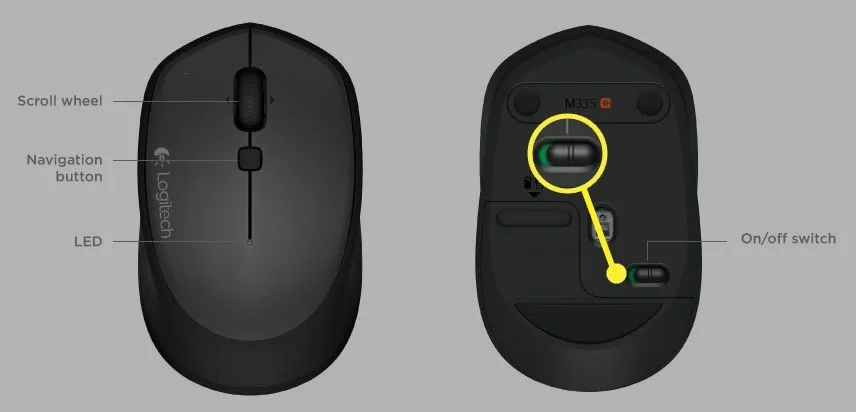
- Flip the power switch on the bottom of the mouse. It’s the most overlooked fix, and it’s real.
- Check the battery or charge the mouse for 15 minutes.
- Unplug and replug the USB receiver or cable into a different port.
- Restart the laptop. A full reboot clears more USB state issues than you’d think.
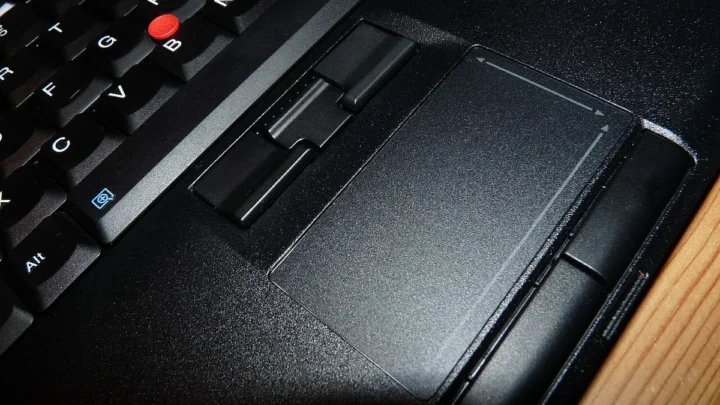
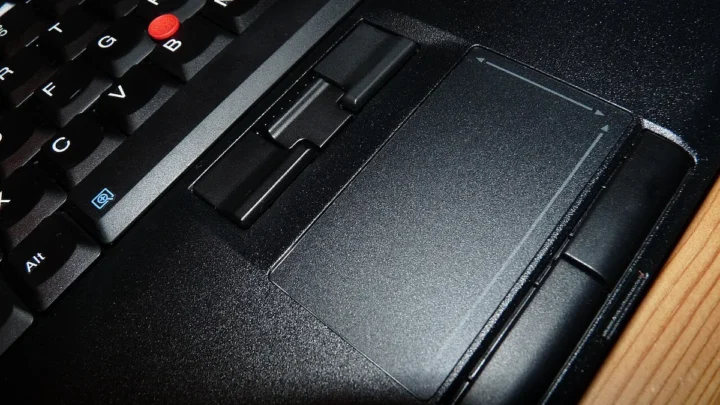
- Tap your touchpad. If it works, you know the laptop itself is fine.
Image source: Wikimedia Commons / Atudu (CC BY-SA)
If none of that works, you’ve narrowed it down. The problem is deeper: drivers, Bluetooth, or a hardware fault somewhere in the chain.
Here’s how to think about it:
| Symptom | Likely Branch | First Fix |
|---|---|---|
| Cursor frozen, mouse light off | Power / battery | Replace batteries or charge |
| “USB device not recognized” | Wired / receiver | Try another port |
| Mouse pairs then drops | Bluetooth | Re-pair and delete old profile |
| Nothing works, touchpad also dead | Laptop-side | Safe Mode or BIOS check |
Once you know which branch you’re on, the fixes get specific. That’s what the next sections walk through.
Wired, Wireless, or Bluetooth: The Three Branches That Change Everything
Your first job is figuring out which type of mouse you’re dealing with. The troubleshooting path splits hard here, and mixing them up wastes time.
Wired USB Mouse: Port, Cable, and Hub Checks
If your wired mouse isn’t responding, the cable or port is almost always the culprit. Wired mice skip Bluetooth and battery issues entirely, so the variables shrink fast.
Try this sequence:
- Test the mouse on another computer. If it works, the problem is your laptop.
- Plug into a different USB port on the same laptop. Front ports and rear ports behave differently.
- Skip any USB hub or dock. Plug directly into the laptop.
- Wiggle the cable near the connector. If the cursor flickers, the cable is breaking internally.
- Inspect the port for dust, bent pins, or debris.
If the wired mouse works on another machine but not yours, jump ahead to the driver section. If it fails on both, replace the mouse.
2.4 GHz Wireless Mouse: Receiver and Battery Checks
Wireless mice using a USB receiver (also called a dongle) run into two main problems: dead batteries and lost pairing between the mouse and its receiver.
Here’s what to check:
- Replace batteries with fresh ones, even if the old ones “look fine.” Voltage drops fast near end of life.
- Unplug the receiver and plug it into a different USB port.
- Look for a pairing button on both the mouse and the receiver. Press both within 10 seconds.
- Move the receiver away from USB 3.0 ports. USB 3.0 can emit 2.4 GHz interference.
- Check the mouse’s power switch on the underside.
Logitech’s Unifying and Bolt receivers have their own pairing utilities. If you’ve lost the receiver entirely, most manufacturers sell replacements directly.
Bluetooth Mouse: Pairing, Permissions, and Interference
Bluetooth mice are convenient but finicky. If your Bluetooth mouse won’t connect, start by removing the old pairing profile and starting fresh.
The usual suspects:
- The mouse is still paired to another device (phone, tablet, old laptop). Bluetooth allows multiple pairings, but only one active connection.
- Bluetooth is turned off on the laptop.
- The mouse’s pairing mode timed out. Most mice stay in pairing mode for 60 to 120 seconds only.
- macOS is blocking the mouse via Input Monitoring permissions under Privacy & Security.
- Too many Bluetooth devices are connected. Most laptops cap around 7 active devices.
For pairing steps specific to your model, check your manufacturer’s support page. Microsoft and Apple both publish current guides.
When the Mouse Isn’t the Problem: Laptop-Side Fixes (Drivers, Ports, Touchpad Lockouts)
If the mouse itself works fine on another computer, the issue lives inside your laptop. This section covers the three most common laptop-side causes.
HID Drivers, Device Manager, and Windows Error Codes
A Human Interface Device (HID) driver is what lets Windows talk to your mouse. If that driver corrupts or goes missing, the mouse goes silent.
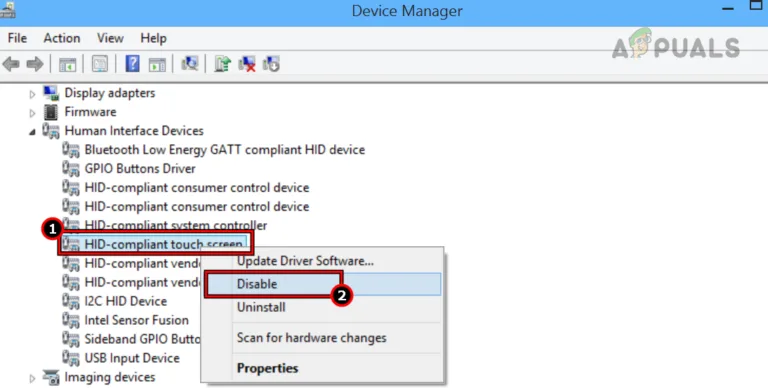
Open Device Manager and look for yellow warning icons. A few error codes show up constantly:
- Code 10: The device cannot start.
- Code 28: Driver isn’t installed.
- Code 43: Windows has stopped this device.
- Code 45: Device isn’t currently connected.
Fix: right-click the HID-compliant mouse entry, choose Uninstall device, then restart. Windows reinstalls the driver automatically on boot.
For deeper driver work, Microsoft’s official documentation at support.microsoft.com covers Device Manager error codes in full.
The Fn Key Trap and Touchpad Toggles
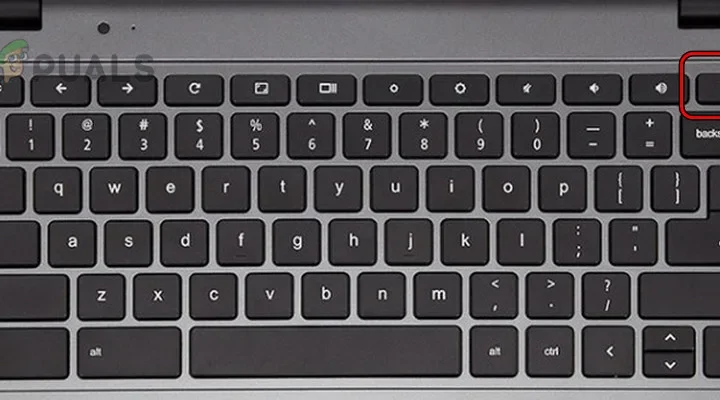
This one catches people constantly. Many laptops map a function key combo to disable the touchpad, and sometimes that same toggle kills the external mouse too.
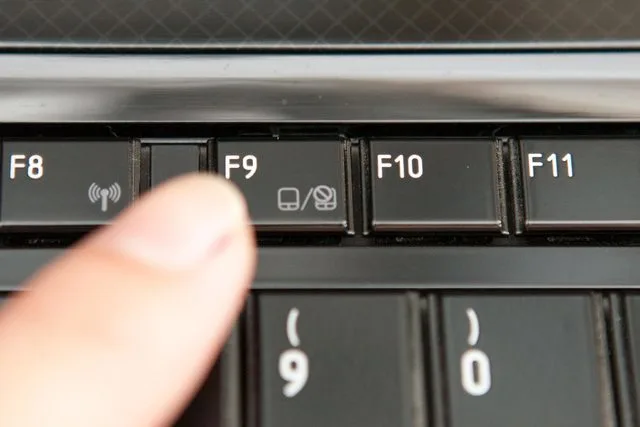
Look for a small touchpad icon on your keyboard’s F-keys, usually F5, F7, or F9. Press Fn plus that key to toggle. On some Dell and Lenovo models, the toggle is a dedicated button near the top row.
Also check Settings under Bluetooth & devices, then Mouse. If the mouse appears there but is toggled off, flip it on.
USB Ports, Docks, and Power Management
Windows sometimes cuts power to a USB port to save battery, and your mouse is the casualty. This is called USB selective suspend, and it’s enabled by default.
To disable it:
- Open Device Manager.
- Expand Universal Serial Bus controllers.
- Right-click each USB Root Hub, choose Properties, then Power Management.
- Uncheck “Allow the computer to turn off this device to save power.”
For dock and hub issues, try plugging the mouse directly into the laptop. A failing dock will kill every peripheral connected to it, not just the mouse.
Advanced Fixes: Safe Mode, BIOS, and OS-Level Conflicts
When the standard stuff fails, you’re into deeper territory. These steps take longer but resolve stubborn cases.
Safe Mode first. Boot into Safe Mode on Windows or macOS. If the mouse works there, a third-party app or driver conflict is your culprit.
Uninstall any recent mouse software (Logitech Options+, Razer Synapse, or similar) and reboot normally.
BIOS and UEFI next. Restart your laptop and enter BIOS (usually F2, F10, or Del during boot). Look for USB Configuration or Legacy USB Support.
If it’s disabled, enable it. This matters more on older laptops.
Fast Startup last. Windows Fast Startup can leave USB devices in a stuck state. Turn it off under Control Panel, Power Options, Choose what the power buttons do, then uncheck “Turn on fast startup.”
macOS users, reset the SMC and NVRAM. These two resets fix stubborn Bluetooth and USB behavior on MacBooks. Apple’s official instructions live at support.apple.com.
If nothing here works, and you’ve tested the mouse on another machine, the issue may be a failing USB controller. That’s a hardware repair, not a software fix.
Common Mistakes That Make It Worse (And What to Do Instead)
Most people make the same handful of mistakes when a mouse dies. Fix the behavior first, and you’ll fix the mouse faster.
Mistake one: uninstalling the mouse driver before checking the cable or battery. You lose your working baseline, and now nothing responds.
Mistake two: leaving the mouse paired to an old device. If your Bluetooth mouse is still connected to a phone in another room, it may lock onto that signal instead of your laptop.
Mistake three: plugging a wireless receiver into a USB 3.0 port next to a Wi-Fi adapter. Both run near 2.4 GHz. Interference is real, and moving the receiver six inches away often fixes dropouts.
Mistake four: disabling the touchpad before confirming the external mouse works. Now you’ve got no cursor at all.
Mistake five: ignoring Windows Update. A bad patch breaks HID drivers, and the next patch fixes them. As of 2026, Microsoft still pushes driver updates through Windows Update by default.
What to do instead:
- Change one variable at a time. Test after each change.
- Write down what you tried. It stops you from repeating steps.
- Keep a spare wired mouse nearby. It’s the fastest way to isolate whether the laptop or the mouse is at fault.
If you’ve tried three fixes and nothing changed, stop. You’re chasing a hardware fault, not a settings problem.
When to Stop Troubleshooting: Hardware Failure vs. Warranty Call
Stop troubleshooting the moment you’ve confirmed the mouse works on another computer and fails on yours. At that point, the problem is the laptop, and software fixes won’t touch it.
Here’s how to tell the difference:
| Test Result | Verdict | Action |
|---|---|---|
| Mouse works on second laptop | Laptop fault | Check ports, drivers, or USB controller |
| Mouse fails on second laptop | Mouse fault | Replace mouse or claim warranty |
| Works in Safe Mode only | Software conflict | Uninstall third-party mouse software |
| No USB ports work at all | Controller or motherboard | Book a repair |
If the USB controller is dead, you’ll usually see it in Device Manager as a missing USB Root Hub. That’s a hardware repair, not a DIY fix for most people.
Warranty coverage varies. Logitech, Razer, and Microsoft typically cover mice for one to two years. Laptop warranties from Dell, HP, and Lenovo usually include USB port repairs if you’re inside the coverage window.
Before you call support, gather three things:
- Your laptop’s serial number and purchase date.
- The exact error message (Code 10, Code 43, or similar).
- A clear note that you already tested the mouse on another system.
That last point matters. Support teams skip straight to replacement when you’ve done the cross-test. Without it, they’ll walk you through the same steps you’ve already tried.
One more thing. If your laptop is under three years old and a USB port dies, push for repair. USB controllers rarely fail on their own.
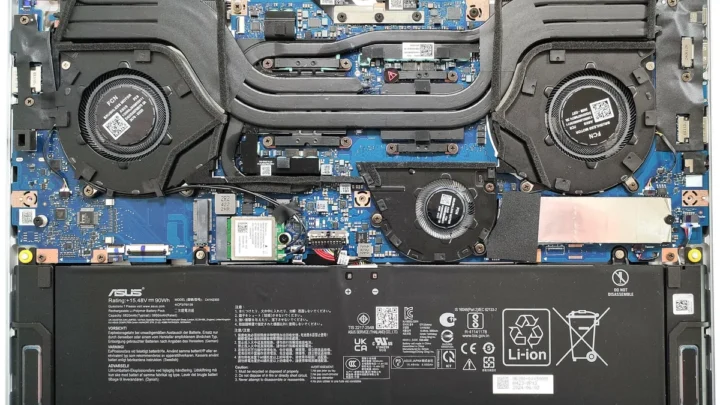
A failing port often signals a looser issue, like a swollen battery pushing against the board.
Frequently Asked Questions
Why does my mouse work sometimes but not always?
Intermittent mouse failures usually point to a failing cable, a loose receiver, or low battery voltage. Replace the batteries or try a different USB port. If the problem follows the mouse to another laptop, the mouse itself is dying.
Can a Windows update break my mouse?
Yes. Windows updates can replace or corrupt HID drivers. If your mouse died right after an update, open Device Manager, uninstall the HID-compliant mouse entry, and restart.
Windows reinstalls a fresh driver on boot.
Why isn’t my wireless mouse connecting to my laptop?
Your wireless mouse likely lost its pairing with the USB receiver, or the battery is too low to broadcast. Replace the batteries, unplug and replug the receiver, and press the pairing buttons on both devices within 10 seconds.
How do I fix a Bluetooth mouse that keeps disconnecting?
Remove the old pairing profile first. Then re-pair the mouse from scratch. Keep the receiver or mouse within three feet during pairing, and move it away from USB 3.0 ports, which can interfere with the 2.4 GHz Bluetooth signal.
My touchpad and mouse both stopped working. What now?
If both input devices are dead, the problem is almost certainly laptop-side, not the mouse. Boot into Safe Mode. If the touchpad returns, uninstall any recent mouse or touchpad software.
If nothing returns, check Device Manager for a missing USB controller.
Is it worth repairing a broken mouse?
Rarely. Unless it’s a high-end gaming mouse under warranty, replacement is cheaper than repair. Wired mice start around $10.
Wireless models with a receiver start near $20. Repairs usually cost more than that.

Similar Posts