Laptop Not Connecting to Internet? Fix It Fast
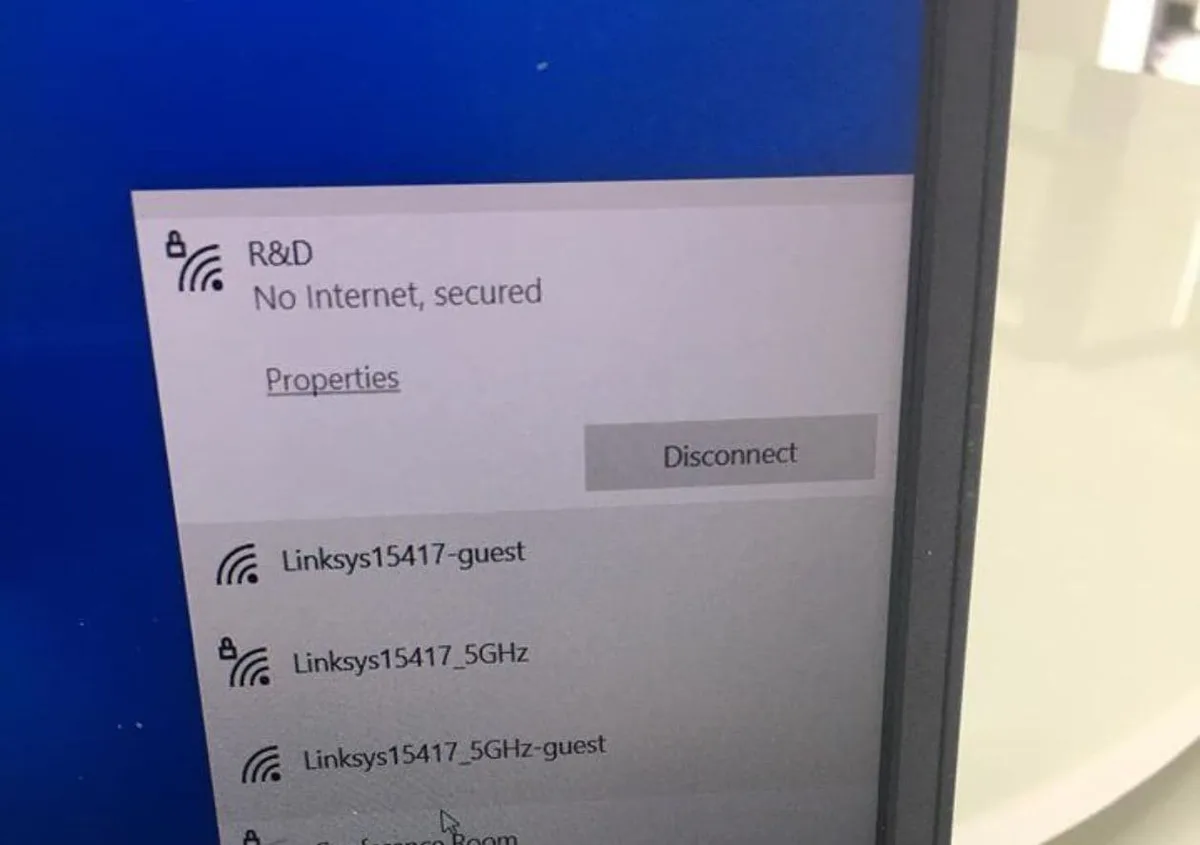
Why is my laptop not connecting to the internet? Most of the time, the answer comes down to one of three culprits: a flaky Wi-Fi profile, a dead DHCP lease, or a router that just needs a restart. The good news is you don't need to be a network engineer to figure out which one it is.
You just need to ask the right questions in the right order.
In our research, we've found that the vast majority of laptop connectivity failures fall into one of three branches: the laptop itself, the network you're joining, or the ISP feeding that network. Microsoft's own Windows network documentation notes that a 169.254.x.x IP address (called APIPA) almost always signals a DHCP failure, and that single clue alone eliminates half the guesswork. So before you touch a single setting, let's walk through the decision tree that gets you to the right fix fast.
Quick Answer: Isolate the Problem Before You Fix It
The first thing to do is figure out whether the problem lives in your laptop, your router, or your ISP. Open a second device, like your phone, and try the same Wi-Fi network. If the phone works and the laptop doesn't, the fault is on your laptop.
If nothing works, the problem is upstream.
This one test saves you from factory-resetting your router when the real fix was forgetting and rejoining your Wi-Fi profile. It also saves you from reinstalling your Wi-Fi driver when your ISP is simply down for maintenance. Always isolate first, then act.
The Three Questions That Narrow Down Every Internet Problem
Every "no internet" scenario answers to three simple questions. Ask them in order and you'll land on the right branch in under a minute.
Question 1: Is It Just This Laptop, or Every Device?
Check your phone, tablet, or smart TV. If every device on the network is offline, skip straight to Branch 2 and look at your router and modem. If only the laptop is affected, stay in Branch 1.
This is the single most important fork in the whole diagnosis.
Question 2: Is It Just This Network, or Every Network?
Turn on your phone's mobile hotspot and connect the laptop to it. If the laptop connects fine to the hotspot but not your home Wi-Fi, the problem is tied to that specific network profile, not your hardware. If it fails on every network, the issue is in the laptop itself.
Question 3: Is It a Wi-Fi Problem or a Router/ISP Problem?
Plug the laptop into the router with an Ethernet cable (or a USB-C to Ethernet adapter). A working wired connection tells you the router and ISP are fine, and the fault sits in your Wi-Fi adapter or profile. A dead wired connection points straight at the router, modem, or ISP.
| Symptom | Likely Branch | First Move |
|---|---|---|
| Only laptop offline, other devices fine | Branch 1 (Laptop) | Forget and rejoin the network |
| All devices offline | Branch 2 (Router/ISP) | Power cycle router and modem |
| Works on hotspot, fails on home Wi-Fi | Branch 1 (Profile) | Delete and rebuild the profile |
| Wired works, Wi-Fi fails | Branch 1 (Adapter) | Check driver and adapter settings |
Branch 1: Only Your Laptop Is Affected
If your other devices are happily online and just the laptop is struggling, the fix almost always lives on the laptop. Work through these in order.
Forget and Rejoin the Network
Open your Wi-Fi settings, find the network name (SSID), and choose "Forget" or "Remove." Reconnect from scratch and re-enter the password. This clears a corrupted profile, which is one of the most common causes of "connected, no internet" on Windows and macOS.
Run the Built-In Network Troubleshooter
Windows has a Network Troubleshooter under Settings > System > Troubleshoot. macOS has the Wireless Diagnostics tool (hold Option and click the Wi-Fi icon). These tools catch adapter resets and misconfigured settings you'd otherwise miss.
Check Your IP Address and DNS
Open Command Prompt (Windows) or Terminal (macOS) and run ipconfig /all or ifconfig. Look at your IPv4 address. If it starts with 169.254, your laptop never got a real IP from the router, which means DHCP failed.
Run ipconfig /release then ipconfig /renew to force a fresh lease.
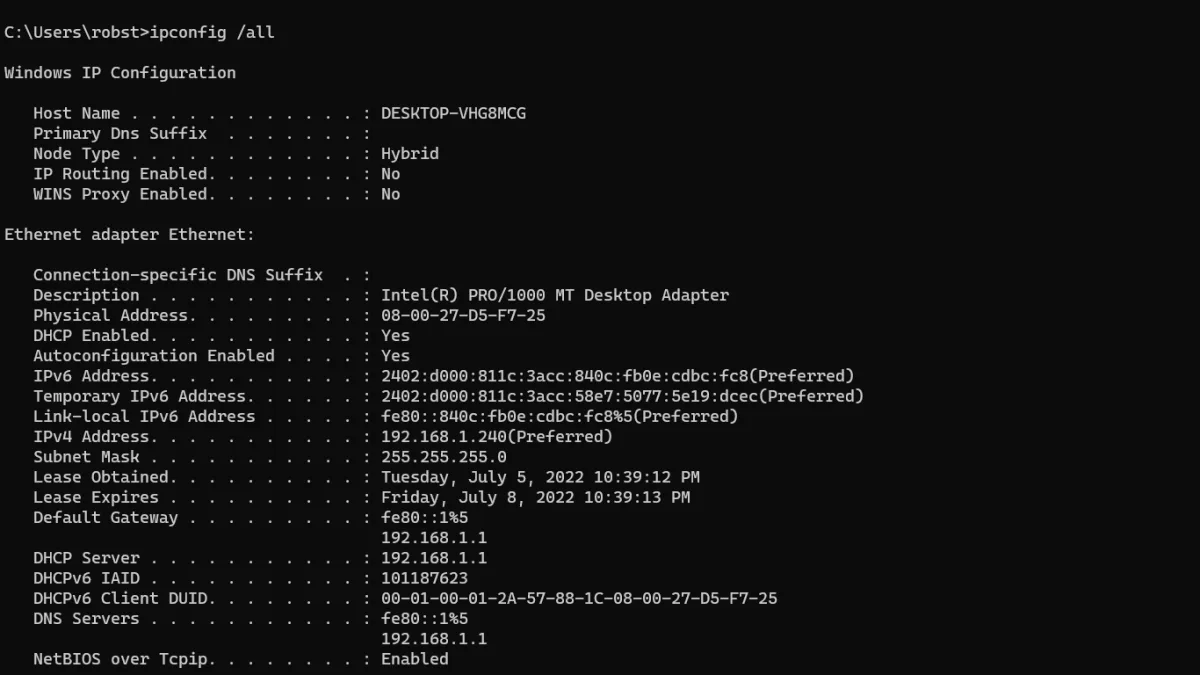
If your IP looks normal but pages still won't load, try flushing DNS with ipconfig /flushdns. You can also switch your DNS to a public resolver like Cloudflare's 1.1.1.1 or Google's 8.8.8.8. Per ICANN's addressing documentation, DNS resolution failures are a top cause of "connected but no internet" symptoms.
Update, Roll Back, or Reinstall the Wi-Fi Driver
Open Device Manager, expand Network Adapters, and right-click your Wi-Fi adapter. Choose Update Driver, or if the problem started after a recent update, choose Roll Back. A corrupt driver is a frequent culprit, especially right after a Windows Update.
Disable VPN, Proxy, and Third-Party Firewall Temporarily
VPN clients and proxy settings love to hijack your traffic. Turn off your VPN and check Windows Settings > Network & Internet > Proxy. Disable it if it's on.
Third-party firewalls and antivirus suites can also block the network stack, so pause those for a quick test.
Branch 2: Every Device on Your Network Is Affected
If nothing on your network can get online, the problem has moved off your laptop. Now it's about your router, modem, or ISP.
Power Cycle in the Right Order: Laptop, Router, Modem
Unplug the modem and router. Wait 30 seconds. Plug the modem back in first, wait for its lights to stabilize, then plug in the router.
The order matters because the router needs the modem to be online before it can hand out public IPs. Rushing this is one of the most common reasons a reboot "doesn't work."
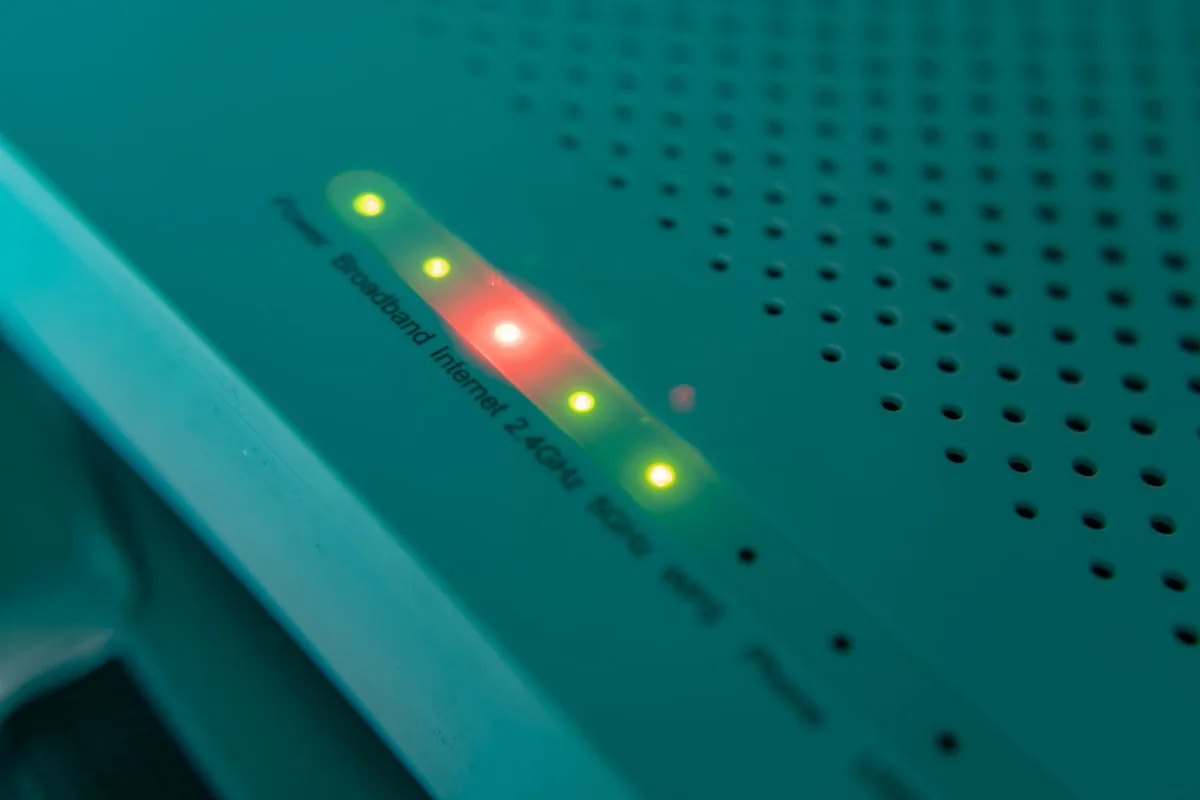
Check the Lights on Your Modem and Router
Look at the front panel LEDs. A solid power light, a solid or blinking "online" light, and activity on the LAN ports are all good signs. A red or orange "internet" light on your modem usually means the ISP signal isn't reaching you.
No lights at all points to a power or hardware problem.
Log Into the Router Admin Panel
Open a browser and go to 192.168.1.1 or 192.168.0.1 (the two most common gateway addresses). Log in with your admin credentials and check the WAN status, connected devices list, and DHCP pool. If the WAN shows "disconnected," your router isn't getting a signal from the modem.
Confirm Whether Your ISP Has an Outage
Check your ISP's official status page or app before you call support. A regional outage explains everything at once and saves you a 45-minute hold. As of 2026, most major ISPs (Comcast, BT, Sky, AT&T, Verizon) publish live outage maps.
Branch 3: Only One Network Is Failing (Hotel, Campus, Coffee Shop)
If your laptop works fine at home but fails on public or campus Wi-Fi, you're dealing with a different animal. Public networks have their own rules.
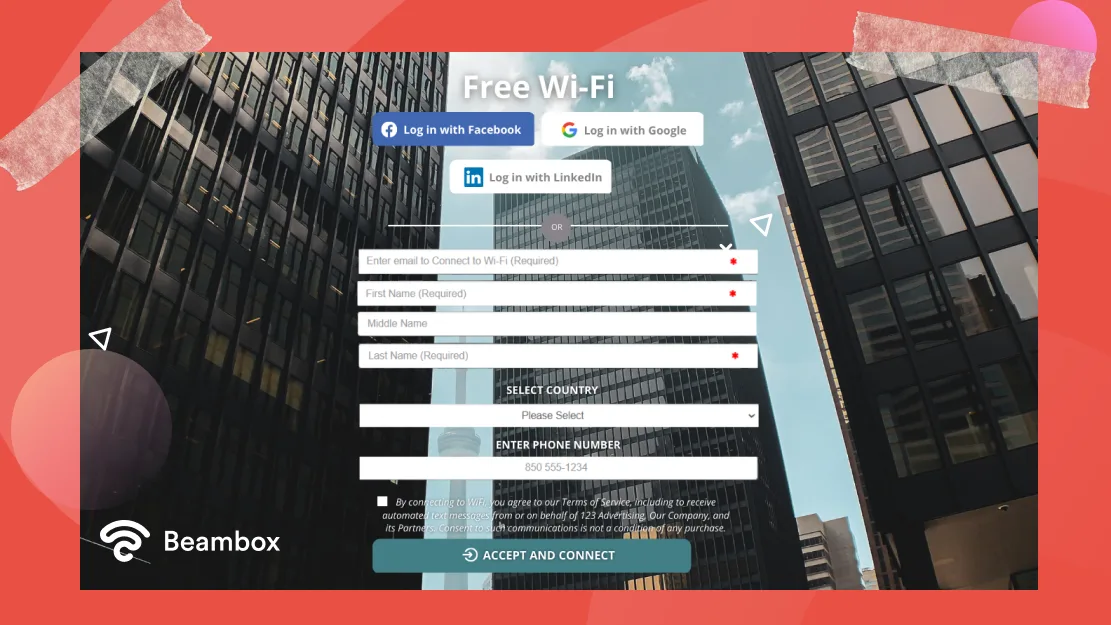
Captive Portals and Why They Don't Always Open
A captive portal is the login page hotels, airports, and coffee shops show before giving you internet access. Sometimes it doesn't pop up automatically. Open a browser and try to visit a plain HTTP site (like http://example.com) to force the redirect.
If that fails, type the gateway IP into your browser manually.
MAC Randomization Blocking You on Public Wi-Fi
Modern Windows, macOS, iOS, and Android devices randomize your MAC address for privacy. Some public networks tie access to a specific MAC, so a random one keeps getting rejected. Turn off "Private Wi-Fi Address" or "Random Hardware Addresses" for that specific network and reconnect.
802.1X and Campus Network Authentication
University and corporate networks often use 802.1X, a port-based authentication standard. You need correct credentials (often your student or staff login) and the right certificate. If authentication keeps failing, contact the campus IT helpdesk.
They can confirm whether your device is registered on the network.
Common Mistakes That Make Things Worse
A few innocent-looking moves actually make things harder to fix. Here are the ones we see most often.
- Factory resetting the router before trying a simple reboot. A full reset wipes your SSID, password, port forwards, and any custom DNS. You'll spend an hour rebuilding a network that just needed a 30-second power cycle.
- Reinstalling Windows before updating the Wi-Fi driver. A driver reinstall takes two minutes. A full OS reinstall takes hours and usually fixes nothing.
- Ignoring the modem and blaming the laptop. If every device is offline, your laptop isn't the problem. Check the modem first.
- Leaving a VPN or proxy running "just in case." These can silently block traffic even when they look idle. Disable them for a clean test.
- Assuming the ISP is down when your billing is current. Auto-pay failures, data caps, and account suspension can all kill your connection without warning.
If you catch yourself doing any of these, back up and start at Branch 1. The order you diagnose in matters as much as the fixes themselves.
Which Fix Fits Your Situation? A Decision Cheat Sheet
Use this table to jump straight to the right branch based on what you're seeing.
| What You're Seeing | Go To | Try First |
|---|---|---|
| Only laptop offline | Branch 1 | Forget and rejoin the network |
| "Connected, no internet" on laptop | Branch 1 | ipconfig /release and /renew |
| All devices offline | Branch 2 | Power cycle modem, then router |
| Modem "internet" light is red | Branch 2 | Call ISP or check outage page |
| Works on hotspot, not home Wi-Fi | Branch 1 | Delete the network profile |
| Hotel or campus Wi-Fi won't connect | Branch 3 | Force captive portal in browser |
| Wired works, Wi-Fi doesn't | Branch 1 | Update or roll back the driver |
Work top to bottom and stop as soon as your situation matches. That's your starting point, not your final answer. You may still need a second fix if the first doesn't take.
When Should You Stop Troubleshooting and Call for Help?
Call for help when the modem shows no signal, the ISP confirms an outage, or you've cycled through every branch with no luck. ISP support can test the line from their end in minutes. That's faster than one more reboot.
For campus or corporate networks, contact IT directly. They control the authentication server and can confirm whether your device is registered. Don't burn an hour guessing at 802.1X credentials you don't have.
Frequently Asked Questions
Why does my laptop say "connected, no internet"?
The laptop joined the Wi-Fi network but never received a working IP or DNS response. This usually means a DHCP failure, an expired lease, or a router that's stopped handing out addresses. Running ipconfig /release then /renew fixes most cases.
Why can other devices get online but my laptop can't?
Your laptop has a profile, driver, or adapter problem the other devices don't. Forget the network profile, update the Wi-Fi driver, and disable any VPN or proxy. If it still fails, try a USB Wi-Fi adapter to rule out dead hardware.
How do I fix a DNS server not responding error?
Flush your DNS cache with ipconfig /flushdns, then switch to a public resolver like 1.1.1.1 or 8.8.8.8. If that fails, restart your router. DNS errors often come from a stalled router-side resolver, not your laptop.
Why won't my laptop connect to public Wi-Fi?
Captive portals, MAC randomization, and 802.1X authentication are the usual blockers. Turn off private Wi-Fi addresses for that network, then force the login page by visiting a plain HTTP site in your browser.
Does restarting my router really fix internet problems?
Yes, more often than people expect. A reboot clears memory leaks, expired DHCP leases, and stalled connections. Power cycle the modem first, then the router, and wait for the lights to stabilize before testing.
Can a VPN stop my laptop from connecting to the internet?
Yes. VPN kill switches and misconfigured tunnels can block all traffic when the VPN can't reach its server. Disable the VPN, restart your laptop, and test the connection again before troubleshooting anything else.

Similar Posts