Mouse Not Working? Fix It Fast
why isn't my mouse working?
Nine times out of ten, the cause sits in one of three places: the physical connection, the power source, or the driver stack. In our research across manufacturer troubleshooting documentation and support forums, those three categories account for the overwhelming majority of dead-cursor complaints. The trick is figuring out which one you're dealing with before you start changing settings.
Manufacturer specifications confirm that a standard USB mouse draws roughly 100 mA at 5 V, well inside the 500 mA a USB 2.0 port supplies, so power starvation is rare unless you're on an unpowered hub. The real divider is simpler: does the mouse show any sign of life at all? That single yes-or-no answer splits the entire diagnostic path, which is exactly where we're starting.
why isn't my mouse working
Your mouse isn't working because of a physical connection fault, a power problem, or a driver issue. Check the port first. Swap in a fresh battery or cable second.
Then test the mouse on another computer. If it fails there too, the hardware is dead. If it works, the fault is in your PC's software or settings.
Start Here: The 30-Second Check That Tells You Where the Problem Lives
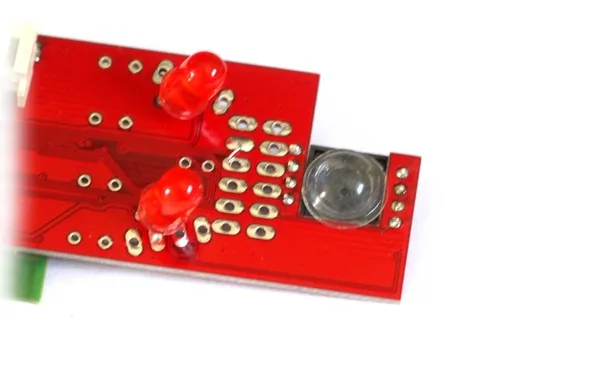
Look at the mouse before you touch a single setting. Is the optical sensor glowing underneath? Is there a power LED anywhere on the body?
Does the cursor budge at all when you move it?
That tiny visual check eliminates half your options in seconds. If there's no light and no cursor movement, you're chasing a power or connection fault. If the light glows but the cursor stays frozen, you're almost certainly in driver or software territory.
Here's the if/then logic we'd run, in order:
- No light, no cursor movement → power, cable, port, or battery fault. Go to the hardware section.
- Light glows, cursor frozen → driver, OS, or pairing issue. Go to the software section.
- Cursor moves, but clicks or scroll don't register → button hardware or driver conflict.
- Cursor jumps, stutters, or drifts → surface, interference, or sensor contamination.
Two minutes with a second computer settles more arguments than an hour of settings tinkering. Plug the mouse into a different machine. If it works, your original PC is the problem, not the mouse.
If it's dead there too, the mouse itself has failed and no driver reinstall will save it.
One more quick test while you're at it: boot into your BIOS or UEFI. If the cursor works there but dies once Windows loads, you've isolated the fault to the operating system layer. That's a genuinely useful result, and it takes about 30 seconds.
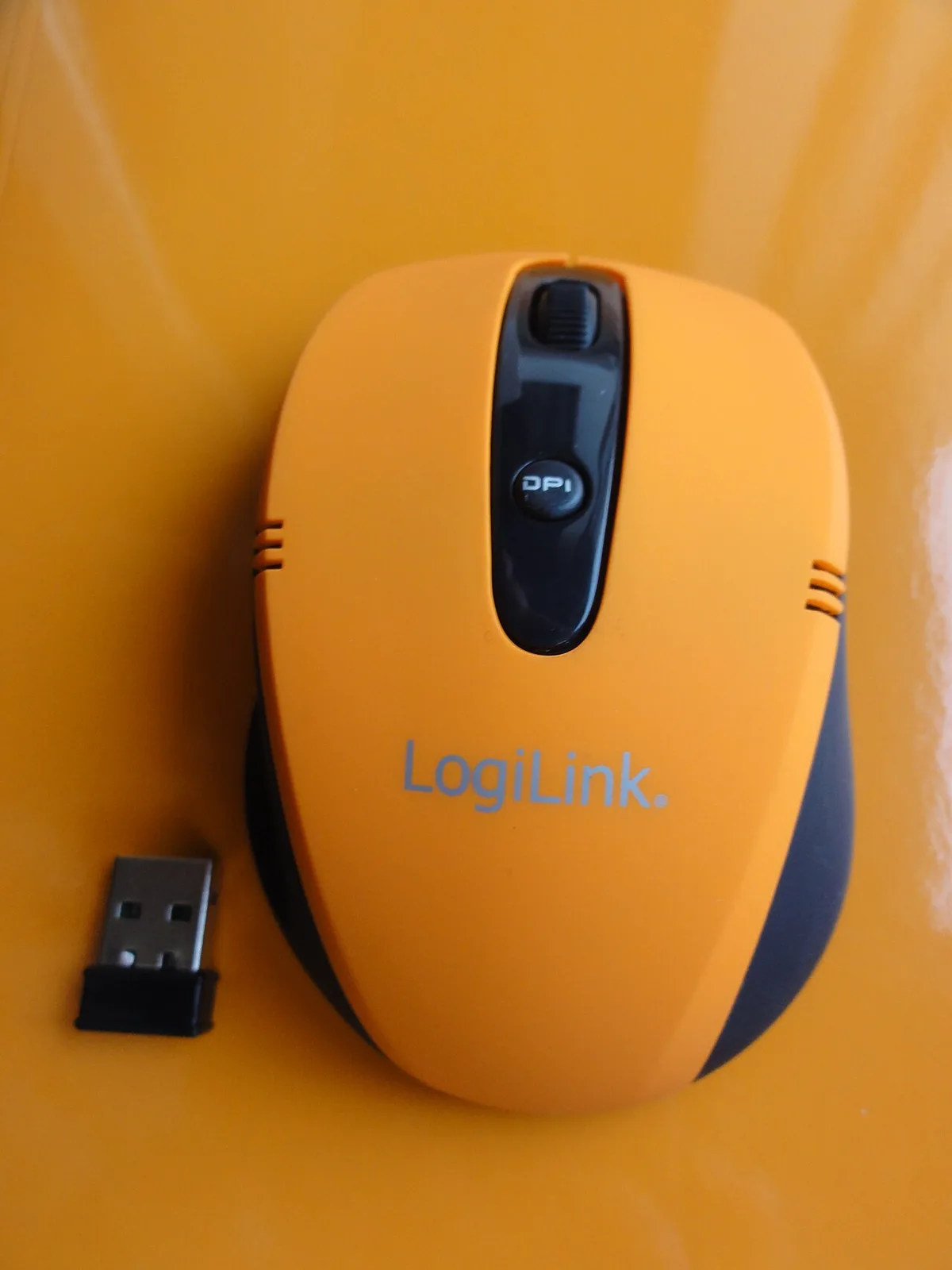
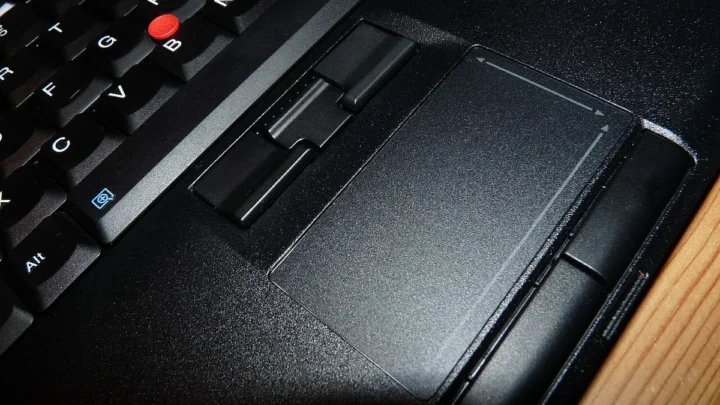
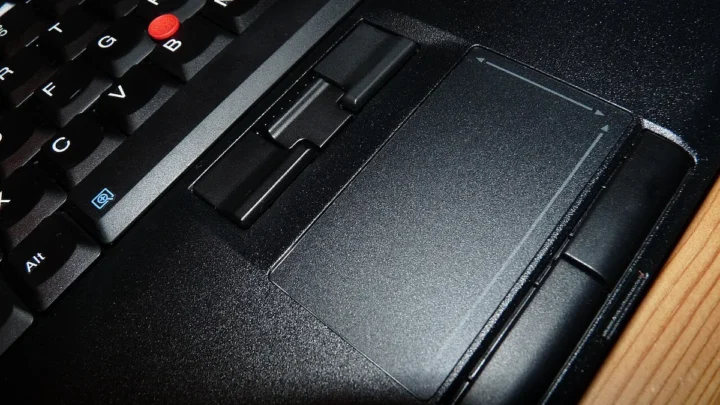
Image source: Wikimedia Commons / Mattes (CC BY-SA)
Wired, Wireless, or Bluetooth? The First Fork in the Road
Your connection type decides which tests even make sense. A wired mouse has no battery and no pairing, so its failure modes are narrower and often easier to pin down. A wireless mouse adds a receiver and a power cell to the equation.
Bluetooth removes the receiver but adds a pairing stack that can silently fall apart.
For wired mice, the suspects are the cable, the port, and the driver. Braided cables fray near the strain relief where they meet the housing. That's the spot to flex gently while watching the cursor.
If it flickers when you bend the cable, you've found your fault.
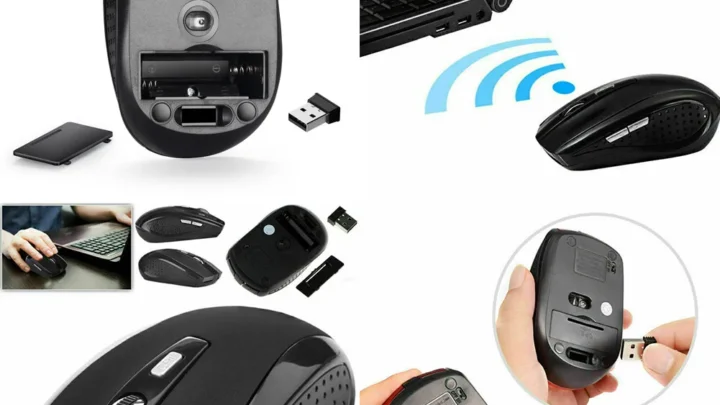
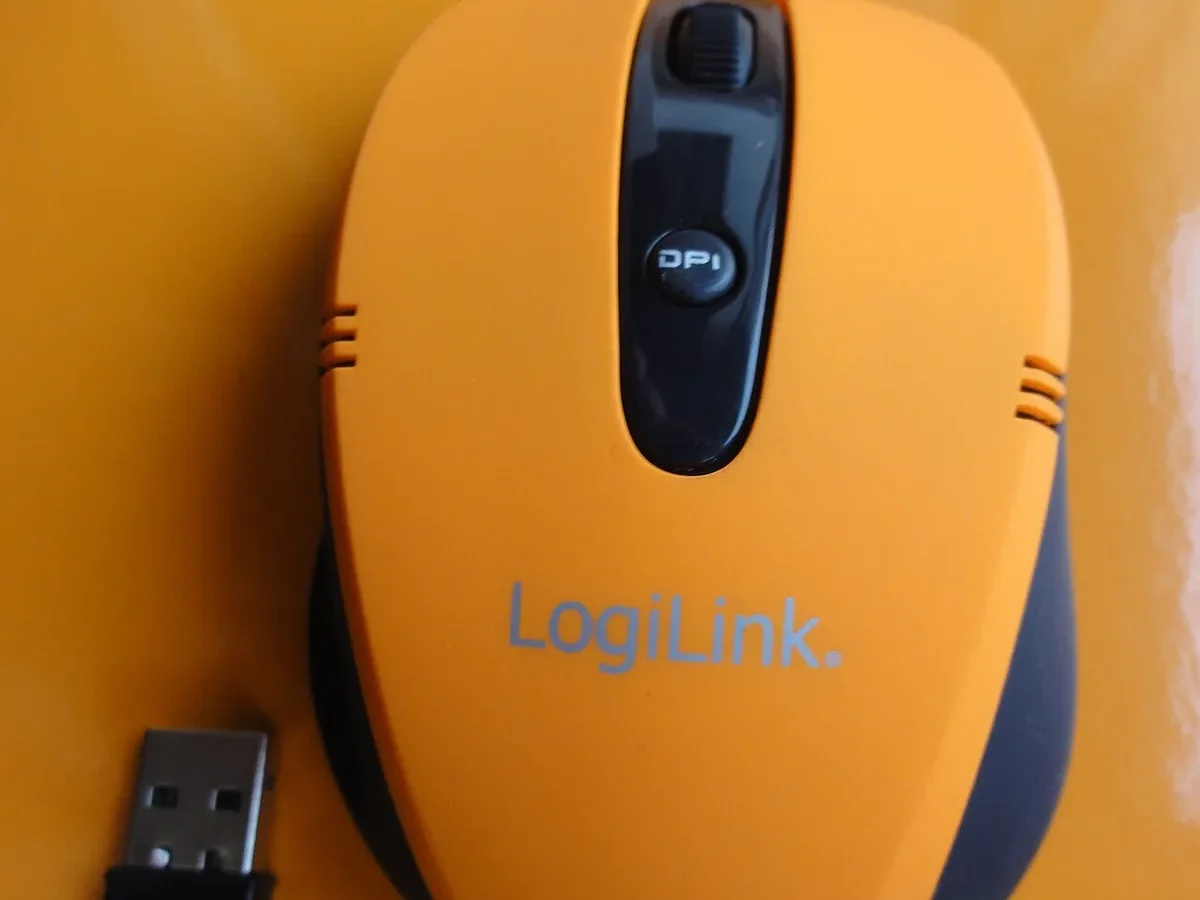
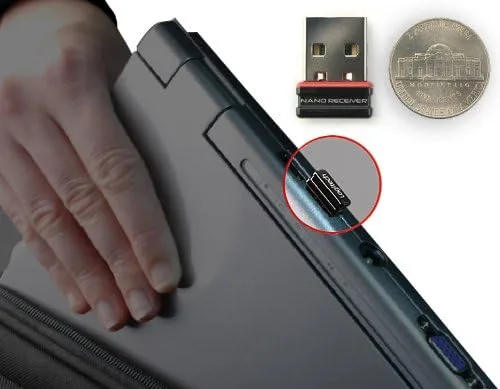
For 2.4 GHz wireless mice, the USB receiver is the weak link. Those tiny dongles get bent, overheated, or simply stop being recognized after a Windows update. Most manufacturers, including Logitech, publish receiver re-pairing utilities, and that's usually a five-minute fix once you find the right tool.
For Bluetooth mice, the pairing itself is the failure point. Bluetooth devices can drop their bond after a Windows feature update or a macOS upgrade. Removing the device and re-pairing from scratch fixes it more often than any driver rollback.
A quick comparison helps here:
| Connection Type | Most Common Fault | Fastest Test |
|---|---|---|
| Wired USB | Frayed cable or dead port | Swap ports, flex the cable |
| 2.4 GHz wireless | Receiver or battery | Re-pair receiver, new batteries |
| Bluetooth | Lost pairing bond | Remove and re-add device |
One thing worth knowing: USB 3.0 ports are known to emit radio frequency noise around 2.4 GHz, which can interfere with wireless receivers plugged in right next to them. If your receiver sits beside a USB 3.0 device, move it to a port away from the cluster. A short USB extension cable is the standard workaround, and it costs almost nothing.
Symptom-by-Symptom Walkthrough: Match What You're Seeing to What's Wrong
Symptoms are more honest than guesses. Match yours to the list below and you'll skip straight to the likely cause.
If the cursor is completely frozen and there's no sensor light, treat it as a power or connection fault. Check the cable, swap the port, replace the battery. This is the most common scenario and the easiest to fix.
If the cursor moves but clicks don't register, the left or right switch has likely worn out or the driver is misreading input. Test the same mouse on another PC. If clicks fail there too, the switch is dying and replacement is usually cheaper than repair.
If the cursor jumps or stutters, the problem is tracking, not connection. Dust on the sensor lens, a glossy desk surface, or a worn mousepad will all cause this. Cleaning the lens and switching to a cloth mousepad resolves most cases.
If the cursor is invisible but the mouse works, you've probably got a display or multi-monitor issue, not a mouse issue. The pointer may have drifted onto a disconnected secondary display. Windows key plus P cycles through display modes and often brings it back.
If scrolling goes the wrong direction, that's a software toggle, not hardware. Windows and macOS both have a "natural scrolling" setting that flips wheel behavior. Check that first before assuming the wheel is broken.
If the mouse double-clicks on a single press, the switch contacts are bouncing. That's a physical wear issue. Some manufacturers honor warranty claims for it, so check your coverage before buying a replacement.
Each symptom narrows the field. The mistake people make is treating all of these as "the mouse is broken" and jumping to a reinstall. Match the symptom first.
You'll save yourself a lot of pointless clicking.
Hardware Checks: Ports, Cables, Batteries, and That One Surprising Surface Issue
Hardware faults are the most common cause, and they're also the cheapest to fix. Work through these in order, and stop the moment something changes.
- Swap USB ports. Move from a front-panel port to one directly on the motherboard. Front-panel headers sometimes lose contact or deliver inconsistent power.
- Bypass any hub or dock. Plug the mouse straight into the computer. Unpowered hubs are a frequent culprit, especially with multiple devices attached.
- Test the cable. Flex it gently along its length, especially near the strain relief. Any cursor flicker means a broken conductor inside.
- Replace the batteries. For wireless mice, use fresh alkalines or a fully charged cell. Rechargeable batteries that read "full" can still fail under load.
- Re-pair the receiver. Use the manufacturer's utility. Logitech's Unifying software and similar tools handle this in a couple of clicks.
- Clean the sensor lens. A dry, lint-free cloth is all you need. Compressed air works too, but keep it brief and angled away from the housing.
- Change the surface. Glass and high-gloss desks break optical tracking. A plain cloth mousepad is the standard test.
That last point catches more people than you'd expect. Optical sensors rely on surface texture to detect movement, and a polished desk gives them almost nothing to work with. If your mouse tracks fine on a mousepad but dies on the bare desk, the surface is the problem, not the hardware.
Battery health deserves a mention too. Swollen or leaking cells can damage the contacts inside a wireless mouse. If you see any bulging or residue, stop using those batteries and clean the compartment with a dry cotton swab.
Never mix old and new batteries in the same device, since the weaker cell drains faster and can leak.
If every hardware check passes and the mouse still fails on a second computer, the fault is internal. At that point you're looking at a failed sensor, a cracked PCB, or a dead microcontroller. Repair is rarely cost-effective for a standard mouse.
Check the warranty first, then replace.
Software Fixes: Drivers, Device Manager, and the Windows Settings That Quietly Break Mice
Software faults look dramatic but they're usually straightforward to fix. The Windows device stack is the place to start.
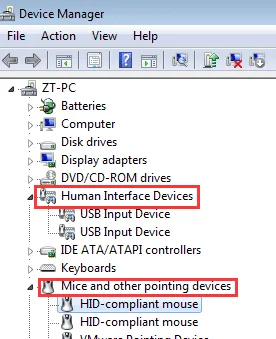
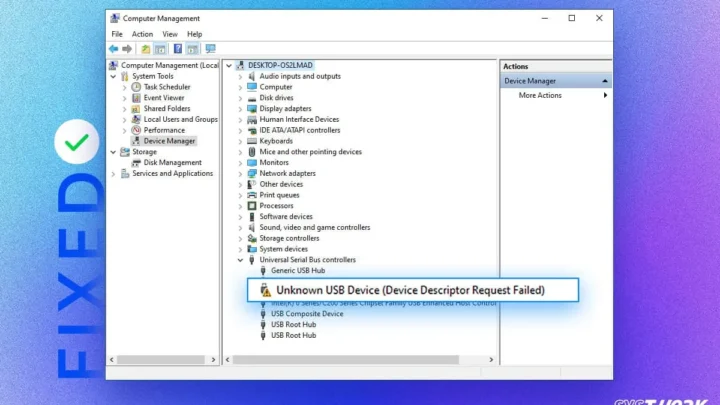
Open Device Manager by right-clicking the Start button. Look under "Mice and other pointing devices." If your mouse shows a yellow warning triangle, the driver has failed to load. Right-click it, choose Uninstall, then restart.
Windows reinstalls a clean HID-compliant driver automatically on boot. Microsoft's own support documentation covers this exact recovery path.
If the mouse doesn't appear in Device Manager at all, the OS isn't seeing it. That points back to hardware, not software. Don't waste time on drivers here.
Two Windows settings cause a surprising share of mouse failures:
- USB selective suspend. This power-saving feature can cut power to idle USB devices. If the mouse dies after a period of inactivity, this is a prime suspect. You'll find it under Power Options, then Advanced settings.
- Fast Startup. This hybrid shutdown mode can leave drivers in a stale state. Disabling it under Power Options resolves a range of "worked yesterday, dead today" cases.
Safe Mode is your clean-room test. Boot into it and try the mouse. If it works in Safe Mode but fails in normal mode, a third-party program is interfering.
Mouse utility software from one brand often conflicts with another brand's driver. Uninstall any mouse software you're not actively using.
For Bluetooth mice, the fix is usually re-pairing. Remove the device entirely, put the mouse into pairing mode, and add it again. Per Bluetooth SIG specifications, devices should re-bond cleanly, though Windows updates occasionally break the stored key.
If none of this works, roll the driver back rather than forward. A previous version that worked is more valuable than the newest one that doesn't.

Similar Posts