How to Dual Screen a Laptop: Easy Step-by-Step Guide
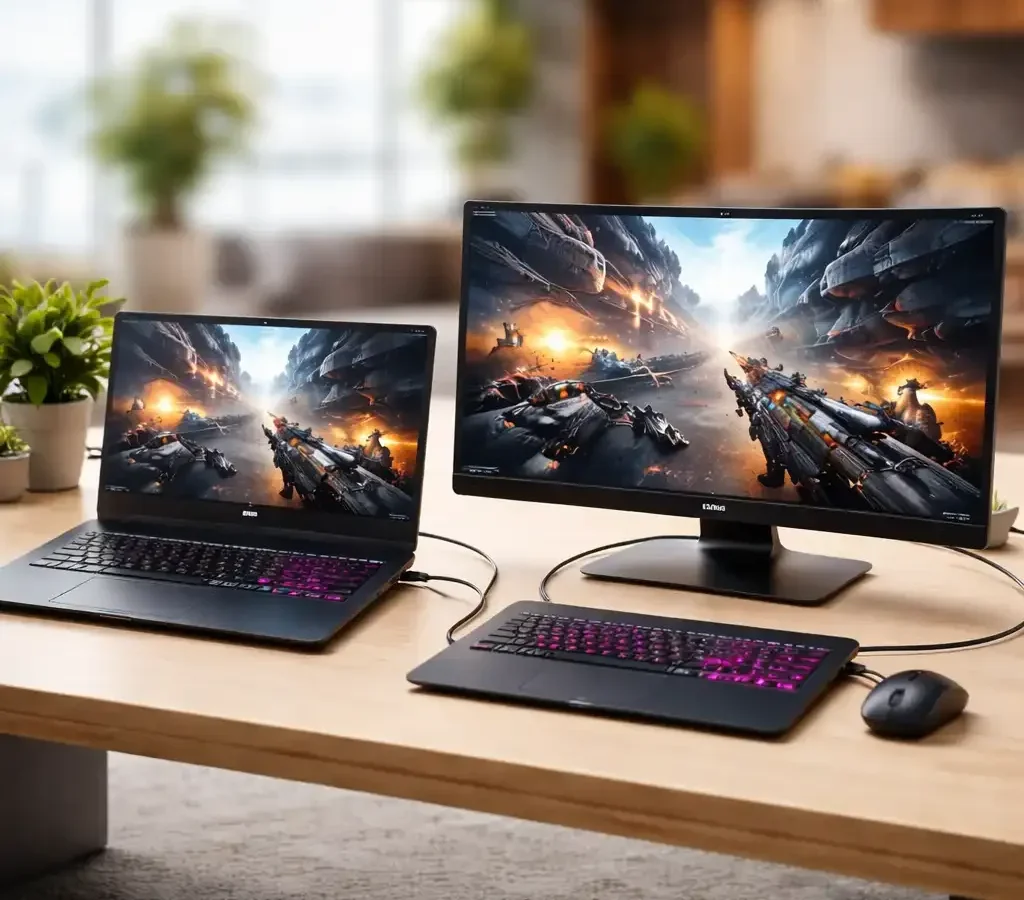
You’ve got a laptop. You’ve probably got a spare monitor tucked away somewhere. So why does wiring them together feel like solving a puzzle with missing pieces?
Learning how to dual screen laptop setups really comes down to three things: what ports you own, which operating system you’re running, and what you plan to do on that second display. Get those right and the rest is just plugging in a cable.
Manufacturer specifications indicate that a single 4K monitor at 60Hz needs roughly 12.54 Gbps of data throughput, which is why an old HDMI 1.4 port (10.2 Gbps) will leave you stuck at 30Hz. Understanding that bandwidth math is the difference between a crisp second screen and a headache.
how to dual screen laptop
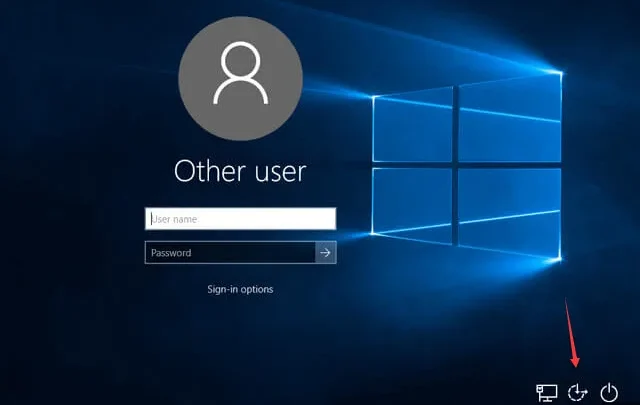
Connect your laptop to a second monitor using HDMI, DisplayPort, or a USB-C port that supports DisplayPort Alt Mode. Then press Win+P on Windows or open System Settings and Displays on macOS. Choose Extend, arrange the screens, and set your resolution.
Most setups take under five minutes once you have the right cable.
First, Answer Three Questions Before You Buy Anything
Skip these questions and you’ll waste money on the wrong gear. Answer them and you’ll know exactly which path to take.
What ports does your laptop actually have?
Open your laptop and look at the sides. You’re hunting for specific labels, not just shapes.
- HDMI: usually full-size, sometimes micro or mini on thin laptops.
- DisplayPort: full-size DP or Mini DisplayPort (common on older business laptops).
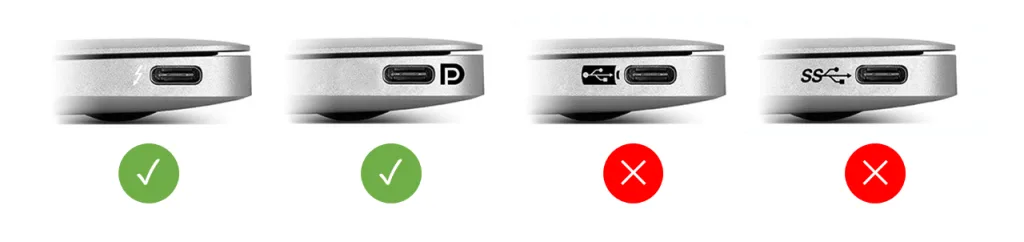
- USB-C with a lightning bolt, a “DP” icon, or Thunderbolt branding: this carries video.
- USB-C with nothing but a plain USB symbol: data and power only, no video signal.
That last one trips up more people than anything else. Two ports look identical and only one works for a monitor.
What OS are you running, Windows, macOS, ChromeOS, or Linux?
Each system handles multi-monitor detection differently. Windows uses Win+P as a quick switcher. macOS buries it under System Settings > Displays. ChromeOS mirrors or extends automatically in most cases.
Linux splits between Wayland and X11, and the experience varies by desktop environment.
What are you doing on that second screen?
A trader watching live charts needs different bandwidth than someone reading email. Gaming at 144Hz demands DisplayPort 1.4 or HDMI 2.1. Video calls and documents are fine at 1080p/60Hz over almost anything.
Know your workload before you buy a cable.
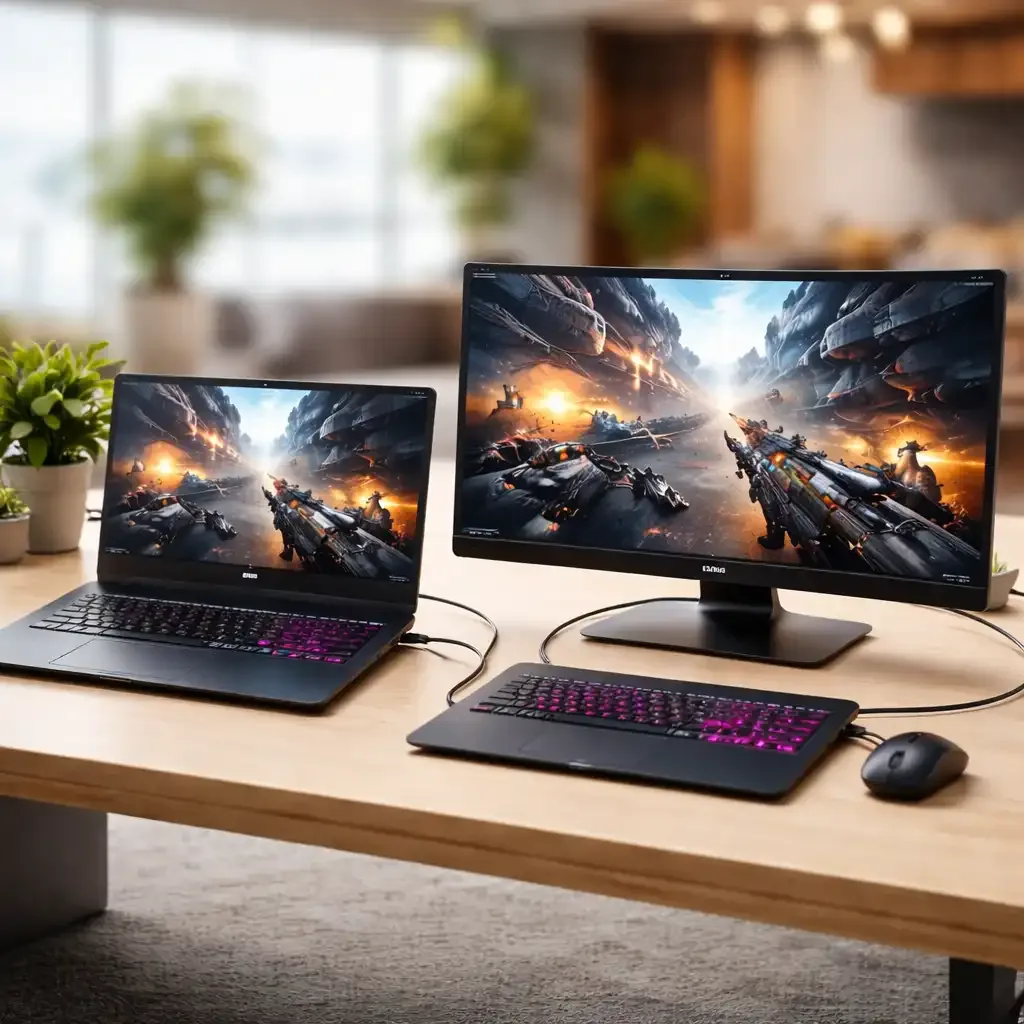
The Setup Path That Matches Your Situation
There’s no single correct answer here. There’s a branch that fits your hardware. Find yours below.
Branch 1: You have HDMI, DisplayPort, or a USB-C port with DP Alt Mode
This is the easy path. Plug a compatible cable straight from laptop to monitor and you’re done. If your laptop has a USB-C port marked with a DisplayPort icon or a Thunderbolt bolt, it supports DisplayPort Alt Mode, which sends video over the same connector used for data.
Match the cable to the ports. USB-C to HDMI, USB-C to DisplayPort, or straight HDMI to HDMI all work. As of 2026, most modern ultrabooks ship with at least one DisplayPort Alt Mode capable USB-C port.
Branch 2: You only have data-only USB-C or USB-A (DisplayLink territory)
If your USB-C port has no video icon and no Thunderbolt badge, it won’t output a signal. That’s not a dead end. A DisplayLink adapter or dock compresses video and sends it over regular USB, then a driver on your laptop reconstructs the image.
DisplayLink adds slight latency, so it’s fine for spreadsheets and browsing but not competitive gaming. It’s also the only way to add a third or fourth monitor to some laptops that cap native outputs.
Branch 3: You want it wireless (Miracast, AirPlay, or a tablet as a second screen)
Wireless works when you can’t run a cable or want to move around. Windows uses Miracast, macOS and iPad use AirPlay (or Sidecar), and apps like Duet Display or Luna Display turn a tablet into a monitor.
Expect some lag. On a congested Wi-Fi network, wireless mirroring can stutter during video calls. Fine for reading, risky for anything time-sensitive.
Branch 4: You’re on Apple silicon and need to know your external display limit
Apple silicon has specific limits. Per Apple’s official support documentation, base M1 and M2 chips support one external display. M1 Pro and M2 Pro support two.
M1 Max, M2 Max, and their successors support up to four.
If you’re on a MacBook Air M2 and want two external monitors, you’ll need a DisplayLink dock. There’s no cable trick that gets around the chip’s hardware limit.
Step-by-Step: Connecting and Configuring the Second Screen
Now that you’ve picked your branch, here’s the actual sequence.
Physical connection and cable choice
Connect the cable. Use the shortest reliable cable you own. Passive HDMI cables over 5 metres (about 16 feet) start dropping 4K signals.
For long runs, use an active cable or optical HDMI.
If you’re using a dock, plug the dock into power first, then the laptop, then the monitors. This order helps some systems detect displays cleanly on the first try.
Triggering detection: Win+P, macOS Displays, ChromeOS, Linux
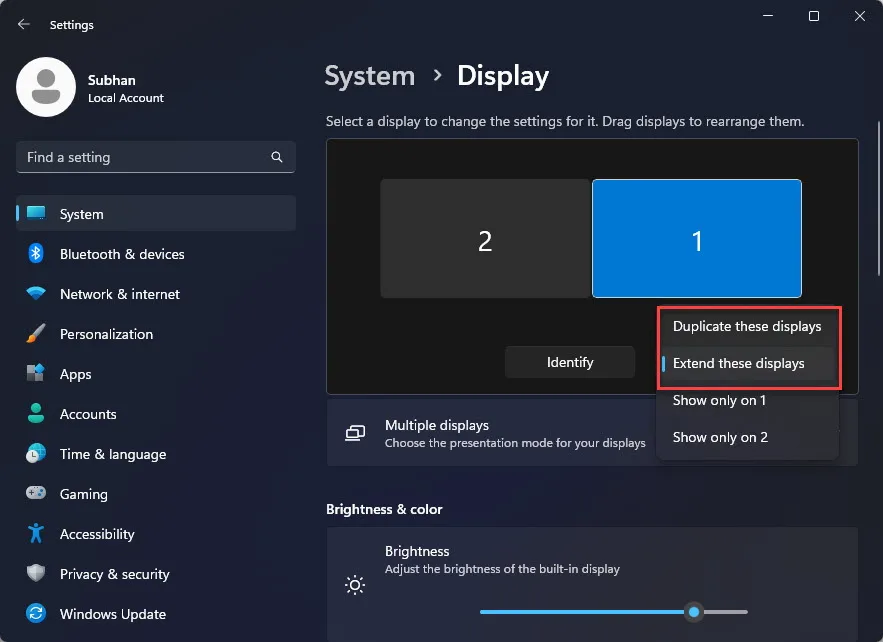
On Windows, press Win+P and pick Extend. On macOS, go to System Settings > Displays, then click the “+” or Arrange button. On ChromeOS, open Settings > Device > Displays and toggle Mirror or Extend.
On Linux, your desktop environment handles it, usually under Display settings.
If nothing shows up, unplug and replug the cable. Then try a different port.
Extend vs duplicate, arranging displays, and setting the primary screen
Extend gives you more desktop space. Duplicate mirrors the same image on both. Almost everyone wants Extend.
Drag the monitor icons in your display settings until they match your physical layout. That’s how the cursor moves naturally from one screen to the other instead of jumping oddly.
Resolution, refresh rate, and scaling so text isn’t blurry
Set the monitor to its native resolution. That’s the sharpest it gets. Then match refresh rate (60Hz minimum, 120Hz+ if the monitor supports it) and set scaling so text is comfortable.
A common trap: your laptop screen is 1080p and your monitor is 4K. Windows may scale them differently, and text looks fuzzy on one display. Adjust scaling per-display to fix it.
Docking Stations, Adapters, and Cables: What You Actually Need
Once you’ve outgrown a single cable, a dock makes life easier. Here’s how the three main types compare.
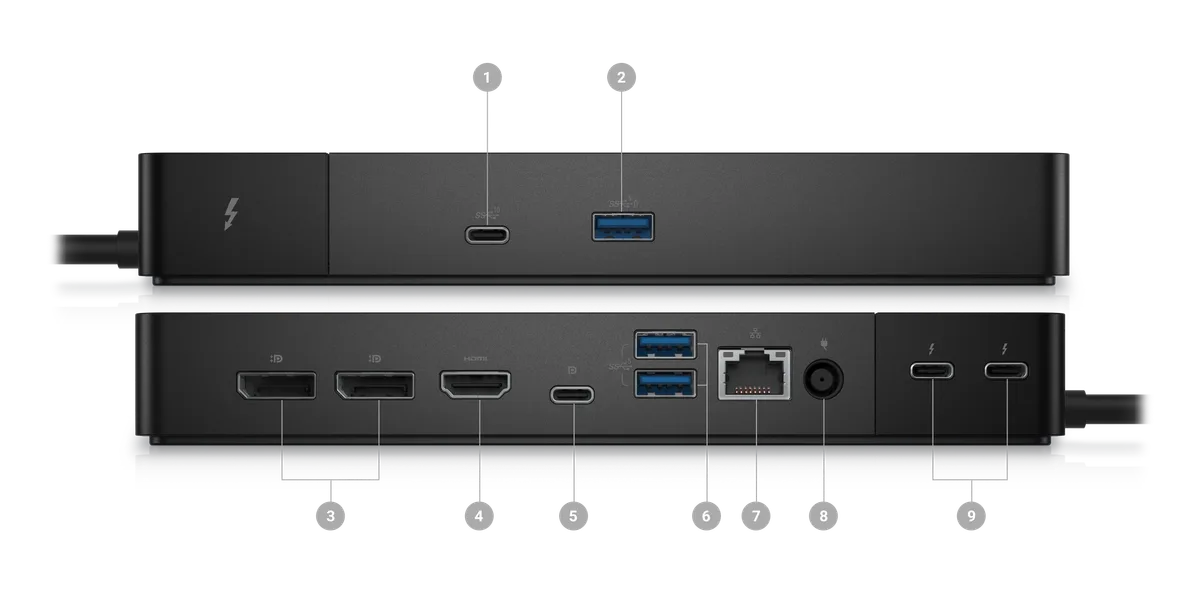
USB-C dock vs Thunderbolt dock vs DisplayLink dock
| Dock Type | Bandwidth | Best For | Typical Price |
|---|---|---|---|
| USB-C (DP Alt Mode) | Up to ~32 Gbps shared | One or two 1080p/1440p monitors | $80 to $250 |
| Thunderbolt 3/4/5 | Up to 40 to 80 Gbps | Dual 4K, daisy-chaining, fast storage | $200 to $400 |
| DisplayLink | Compressed over USB 3.x | Laptops with no video-capable USB-C | $100 to $250 |
USB-C docks are the sweet spot for most people. Thunderbolt docks make sense if you’re pushing dual 4K or need high-speed data. DisplayLink is the fallback when your laptop’s ports can’t natively output video.
Adapters and cables that don’t quietly cap you at 30Hz
Not all HDMI cables are equal. A cable rated for HDMI 1.4 caps 4K at 30Hz. You want HDMI 2.0 (4K@60Hz) or HDMI 2.1 (4K@120Hz, 8K@60Hz) for modern monitors.
Same story with DisplayPort. DP 1.2 handles 4K@60Hz. DP 1.4 pushes 4K@120Hz with DSC.
DP 2.1 goes higher still. Check the spec printed on the cable or adapter before you buy.
KVM switches and dual-laptop workflows
If you switch between a work laptop and a personal one, a KVM switch lets you share one keyboard, mouse, and monitor set. Hardware KVMs add a small amount of latency. Software options like Synergy or Mouse Without Borders skip the hardware but need both machines on the same network.
For most dual-laptop setups, a Thunderbolt dock per laptop plus a monitor with multiple inputs is simpler than a KVM. Just swap the input on the monitor.
What It Costs and What You Get for the Money
Here’s a rough price map as of 2026 for the core pieces.
- USB-C to HDMI adapter: $15 to $40.
- USB-C to DisplayPort cable: $15 to $35.
- USB-C dock (single monitor): $80 to $180.
- Thunderbolt dock (dual 4K): $200 to $400.
- DisplayLink dock: $100 to $250.
- 24-inch 1080p monitor: $100 to $180.
- 27-inch 1440p monitor: $200 to $350.
- 27-inch 4K monitor: $300 to $600.
- Ultrawide 34-inch 1440p: $400 to $800.
You can get a working dual-screen setup for under $150 if you already own a monitor. Most people spend $250 to $500 once they add a decent monitor and dock.
Mistakes That Break Dual-Screen Setups (and How to Fix Them)
Most dual-screen failures come down to a handful of repeat offenders. Here’s what to check first.
The USB-C port that looks right but carries no video
Two USB-C ports can look identical and only one carries video. If nothing shows up when you plug in, check for a DisplayPort icon or the Thunderbolt bolt symbol next to the port.
No icon means data-only. In that case, switch to a different port or reach for a DisplayLink adapter instead of another cable.
Monitor won’t wake, flickers, or drops after sleep
Sleep and wake issues are usually driver or firmware related. Update your GPU driver first, then check for a firmware update on your dock or monitor.
Cheap cables are the other common culprit. Swap to a certified HDMI 2.0 or DP 1.4 cable and the flicker often disappears. If the problem only happens on one port, that port may be bandwidth-limited or faulty.
Bandwidth limits when you add a second external display
Adding a second monitor can drop both from 60Hz to 30Hz. That’s bandwidth sharing, not a broken screen.
If you’re running two 4K monitors, you’ll want Thunderbolt or DisplayPort 1.4 with DSC. Base Apple silicon chips cap at one external display, so two 4K panels require a Pro, Max, or DisplayLink dock.
Ergonomics and eye-strain traps
The top of your monitor should sit at or slightly below eye level. OSHA’s workstation guidance recommends a viewing distance of 20 to 40 inches.
Scaling mismatches between a 1080p laptop and a 4K monitor cause eye strain fast. Match perceived text size across both screens and the fatigue drops.
Dual Screen Laptop FAQs
Can I dual screen a laptop without a dock?
Yes. A single cable from laptop to monitor works for most setups. You only need a dock when you want multiple monitors, extra ports, or a one-cable desk.
Why does my second monitor stay black?
Your laptop probably isn’t detecting it. Press Win+P and choose Extend on Windows. On macOS, open System Settings > Displays and click Detect Displays.
If that fails, swap the cable or try a different port.
Can I use a TV as a second monitor?
Yes. Any TV with HDMI works as an external display. Expect slower response times and possible overscan issues, so you may need to adjust scaling or set the TV to “PC mode” in its picture settings.
How many external monitors can a laptop support?
It depends on the GPU and chipset. Many Windows laptops handle two or three external monitors. Base Apple silicon chips support one, while Pro, Max, and Ultra variants support two to four.
Does dual screen drain laptop battery faster?
Yes, noticeably. Powering an external display over USB-C can add 5 to 15 watts of draw on top of normal use. Plug into wall power for long sessions.
Will dual screen slow down my laptop?
Not for everyday tasks. Spreadsheets, browsing, and video calls barely touch the GPU. Heavy gaming or video editing across two 4K panels can push a laptop GPU hard, so check your specs.
Final Decision Guide: Match Your Setup in Under Two Minutes
Here’s the short version. Find your situation and follow the arrow.
- You have HDMI, DisplayPort, or USB-C with DP Alt Mode: buy one good cable and you’re done.
- You only have data-only USB-C or USB-A: get a DisplayLink adapter or dock.
- You’re on base Apple silicon with two external monitors: DisplayLink dock is your only path.
- You want a one-cable desk with dual 4K: Thunderbolt dock plus certified DP 1.4 or HDMI 2.1 cables.
- You switch between two laptops daily: monitor with dual inputs beats a KVM for simplicity.
- You need true portability: Sidecar, Duet Display, or a portable USB-C monitor.
Two rules cover almost every failure. Match your cable to your port, and match your cable to your resolution and refresh rate. Get those right and dual screen stops being a puzzle.

Similar Posts