How to Factory Reset Xbox Series X: Step-by-Step Guide
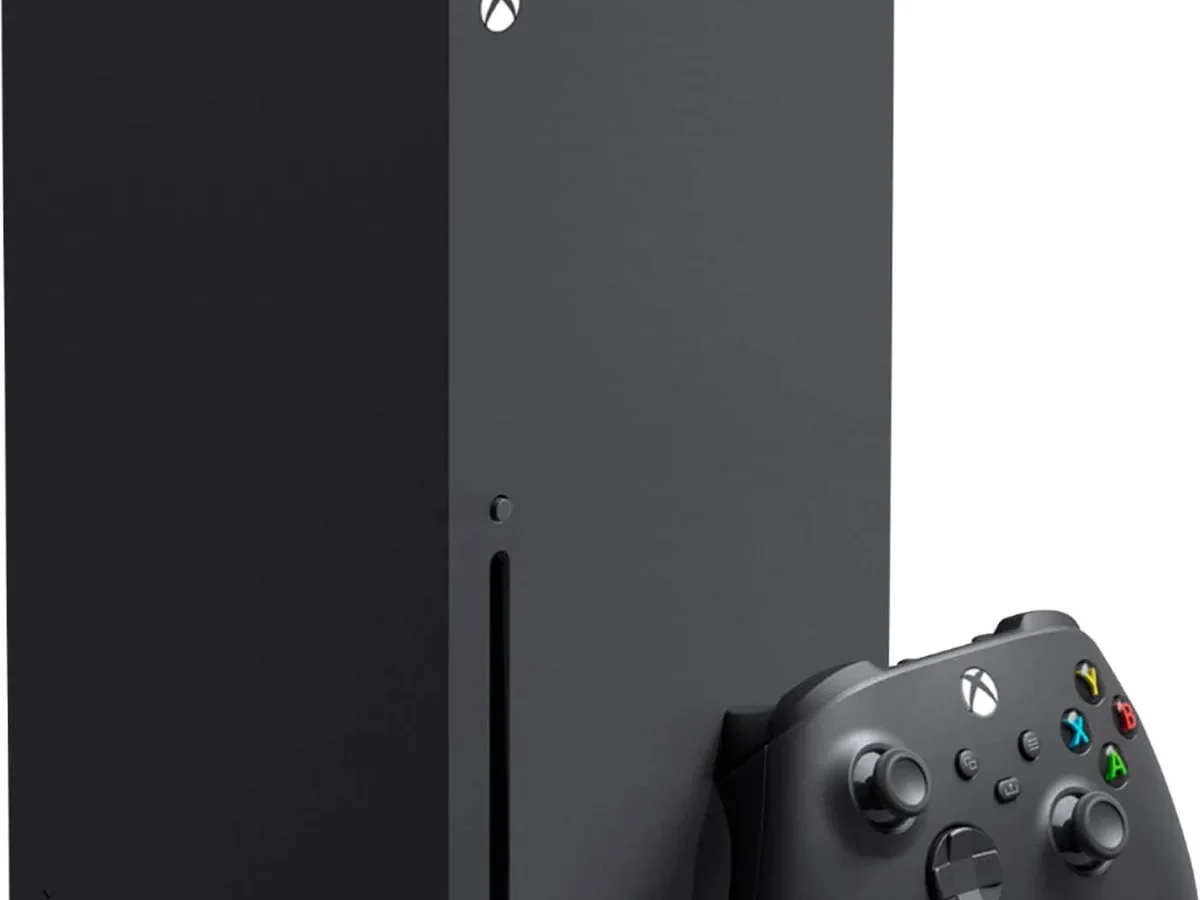
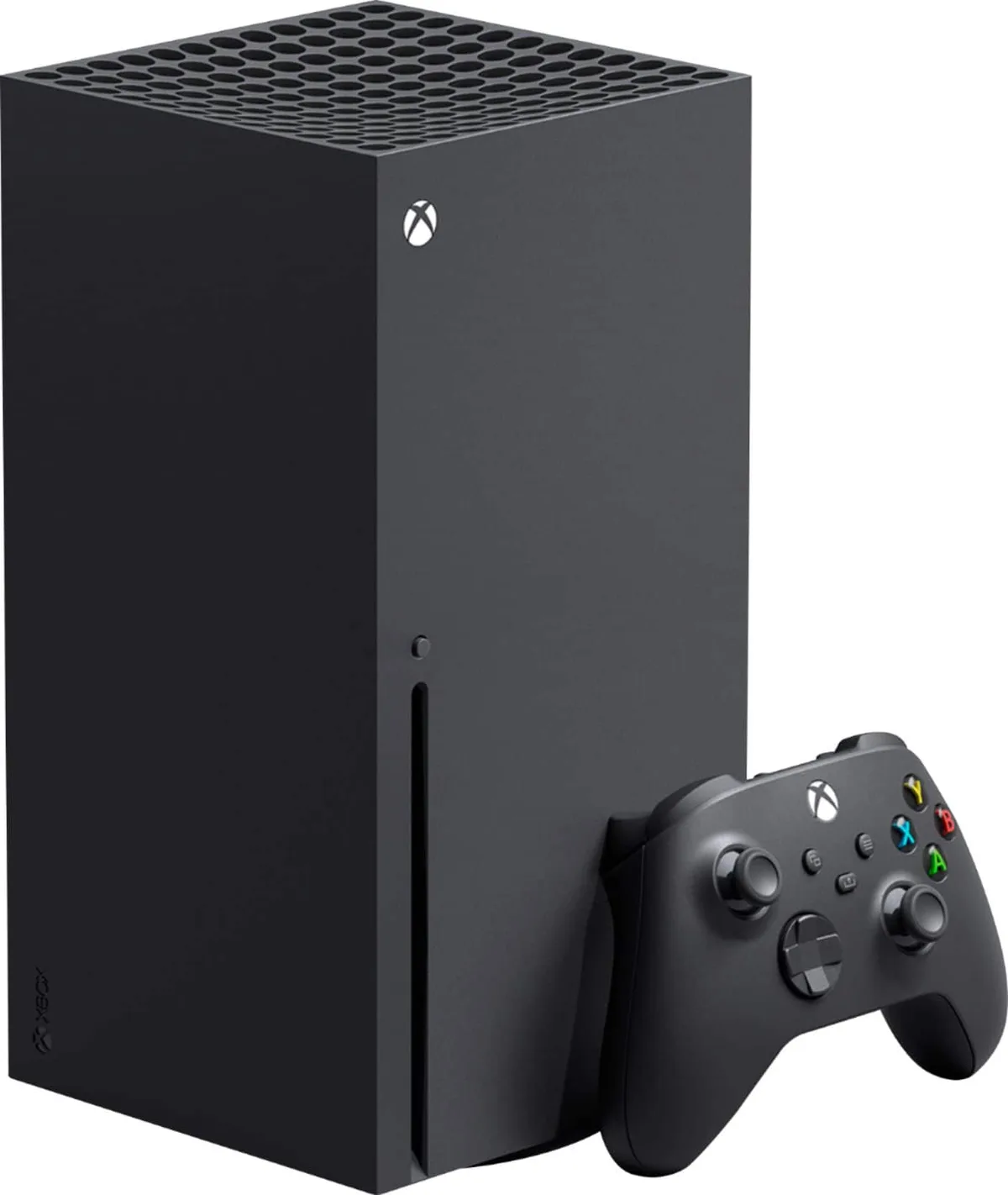
If your Xbox Series X is glitching, acting up, or heading out the door to a new owner, learning how to factory reset xbox series x the right way can save you hours of re-downloading and a lot of grief. The catch? "Factory reset" isn't one thing.
It's three, and picking the wrong one is how people lose captures, saves, and cloud profiles they weren't ready to part with.
Per Microsoft's own support documentation, the console offers two reset paths inside Settings: "Reset and keep my games & apps" and "Reset and remove everything." There's a third path too, tucked inside the Xbox Startup Troubleshooter for consoles that won't boot. Let's figure out which one you actually need before you touch anything.
how to factory reset xbox series x
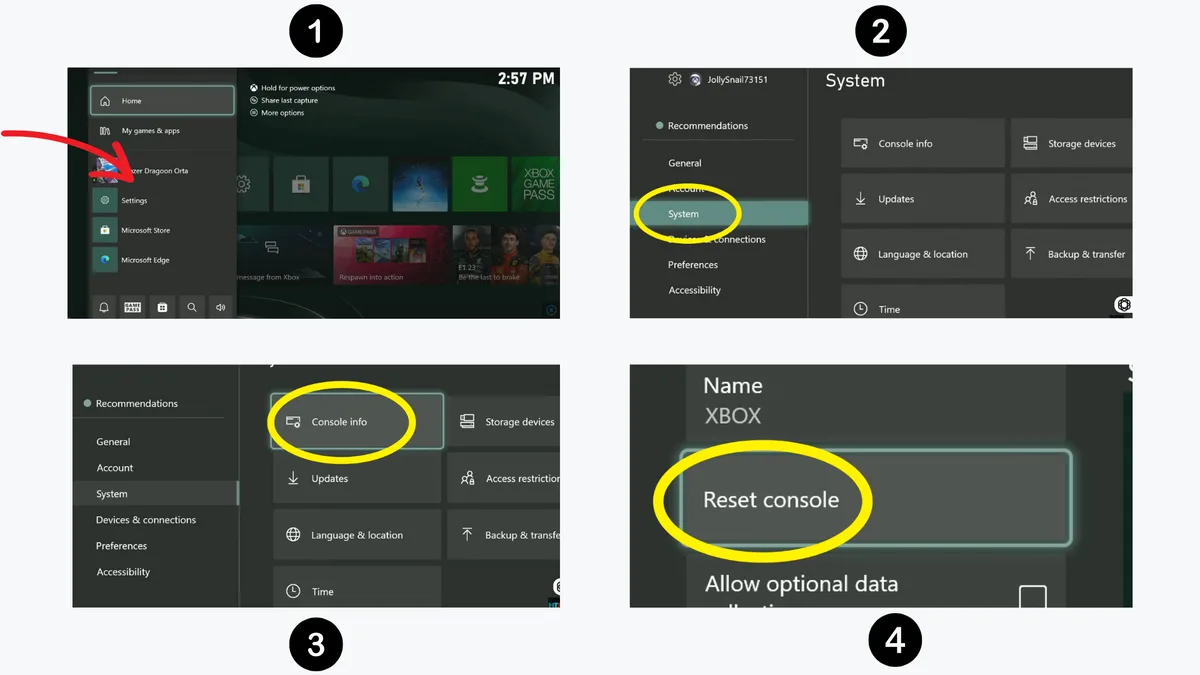
Here's the short version. Turn on your Xbox Series X. Press the Xbox button, then go to Profile and system > Settings.
Choose System > Console info > Reset console. Pick "Reset and keep my games & apps" for glitches, or "Reset and remove everything" if you're selling or gifting the console.
Quick Answer: Which Reset You Actually Need
Start here, because this is where most people go wrong. A full wipe isn't always the answer, and it's rarely the fastest fix.
If your console is running fine and you just want a clean handoff, reach for the full wipe. If it's misbehaving, reach for the lighter option first. If it won't boot at all, you're in Recovery Mode territory, and we'll get to that.
Properly wiping also matters legally in some regions. If you're in the EU or UK, GDPR rules mean you're responsible for personal data left on a device you sell.
If you're selling, trading in, or gifting the console
Choose "Reset and remove everything." This removes your Microsoft account, profiles, saved games stored locally, and all installed content.
If you're troubleshooting a glitch, bug, or crash
Choose "Reset and keep my games & apps." It reinstalls the Xbox operating system and clears settings but leaves your library intact.
If the console won't boot past the Xbox logo
Head to Recovery Mode (the Xbox Startup Troubleshooter). From there you can reset, remove the last system update, or do an offline update via USB.
If you just want to remove one profile
Don't reset at all. Remove the profile from Settings > Account > Remove accounts. It takes 30 seconds.
Before You Touch Anything: The 10-Minute Prep That Saves Hours
Prep is boring. Skipping it is expensive. Here's the checklist we'd run through before any reset.
Confirm your Microsoft account password and 2FA codes
You cannot complete a reset without signing in to your Microsoft account first. If you've forgotten the password or lost your 2FA device, recover access before starting.
Check whether your saves are cloud-synced
Xbox network cloud saves are automatic for most games, but not all. Boot each game you care about once and confirm it shows a recent save before resetting.
Move captures off the console
Screenshots and game clips do not live in the cloud. They sit on the internal SSD. Upload them to OneDrive or copy them to a USB drive first.
Note your Home Xbox setting
Your "Home Xbox" governs game sharing with family. If you set it on this console, you'll need to set it again on the new one after resetting.
Decide now: keep games or wipe everything
Changing your mind mid-reset isn't an option. Pick your path before you start.
| Prep Step | Why It Matters | Time |
|---|---|---|
| Confirm Microsoft account + 2FA | Reset requires sign-in | 2 min |
| Verify cloud saves | Prevents lost progress | 5 min |
| Move captures to OneDrive/USB | Captures aren't cloud-backed | 3 min |
| Note Home Xbox setting | Restores game sharing | 1 min |
The In-Console Reset, Step by Step
This is the everyday reset flow, and it works on both Series X and Series S. The menus are nearly identical across both consoles.
Step-by-step reset flow
- Power on the console and sign in to your Microsoft account.
- Press the Xbox button on your controller to open the Guide.
- Go to Profile and system > Settings.
- Select System > Console info.
- Choose Reset console.
- Pick either "Reset and keep my games & apps" or "Reset and remove everything."
- Confirm with your account password when prompted.
- Wait 10 to 20 minutes while the console restarts and begins initial setup.
What each option actually does
"Reset and keep my games & apps" reinstalls the Xbox operating system, clears all settings, and removes profiles, but preserves installed games, apps, and cloud-linked saves. It's the go-to for troubleshooting.
"Reset and remove everything" does all of the above and wipes installed content too. The console returns to a truly out-of-box state.
What to expect during the restart
The screen goes black, the console powers down, and it reboots into the green Xbox startup animation. You'll see a progress indicator, then the initial setup wizard asking for language, region, network, and account sign-in. Don't unplug anything during this window.
When the Console Won't Boot: Recovery Mode and the Offline USB Reset
If your Series X won't reach the dashboard, the in-console reset won't help. You need the Xbox Startup Troubleshooter, which Microsoft treats as the official recovery environment.
Reaching the Xbox Startup Troubleshooter with the Pair button
Per Microsoft's support guidance, power the console off and unplug it for 30 seconds. Plug it back in. Hold the Pair button and the Xbox button on the console together.
Wait for two power-up tones, about 10 to 15 seconds apart, then release both. The console boots straight into the troubleshooter.
Reset this Xbox vs. Remove updates vs. Offline system update
"Reset this Xbox" is the Recovery Mode version of a full wipe, with the same keep-or-remove choice. "Remove updates" rolls back the last system update, which fixes a lot of bad-update boot loops. "Offline system update" reinstalls the OS from a USB drive when the console can't fetch it over the network.
Formatting the USB drive and placing the OSU file correctly
Download the Offline System Update file from Xbox Support. Format a USB 3.0 drive as NTFS, minimum 6GB. Create a folder named $SystemUpdate at the root and drop the OSU file inside it.
Plug it into the console and follow the on-screen prompts.
When to stop and call Xbox Support instead
If the console shows E101, E102, or similar error codes after a reset, or if the troubleshooter itself won't load, stop. Repeated failed resets can indicate failing hardware, and DIY attempts may void your warranty. Contact Xbox Support directly.
After the Reset: Signing Back In, Re-Downloading, and Handing the Console Off
The reset isn't the finish line. What you do next determines whether you lose data, share your account, or leave the device attached to your Microsoft profile.
Re-pairing controllers and reconfiguring network, display, and audio
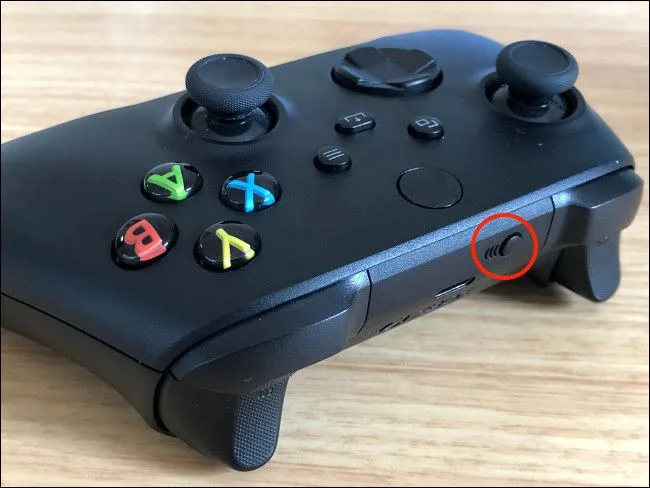
Controllers usually reconnect automatically if they were paired before. If not, hold the Pair button on the controller and the Pair button on the console until both blink. Then re-enter your Wi-Fi password, and reset display and audio options to match your TV.
Re-setting Home Xbox and Family Safety profiles
If you were the Home Xbox on this console, sign in and go to Settings > General > Personalisation > My home Xbox to set it again. For child accounts, re-apply Family Safety restrictions via the Microsoft Family Safety app, since resetting wipes them.
Removing the device from your Microsoft account before selling
This is the step almost everyone forgets. A factory reset does not remove the console from your Microsoft account's device list. Sign in to account.microsoft.com/devices and remove the console manually.
Otherwise, the buyer could theoretically see it listed as your device.
Mistakes That Cost People Games, Captures, and Accounts
Most reset disasters aren't caused by the reset itself. They're caused by skipping a step that felt obvious in hindsight. Here are the ones we see come up again and again in support threads and user reports.
Resetting for a problem a soft reset would've fixed
A soft reset (hold the power button for 10 seconds, unplug for 30 seconds, plug back in) fixes a surprising number of crashes, frozen dashboards, and controller pairing glitches. Try it first. It costs nothing and preserves everything.
Wiping everything when a profile removal was enough
If your goal is to hand the console to someone else in your household, removing your profile is often all you need. Go to Settings > Account > Remove accounts. Save the full wipe for when ownership is actually changing.
Forgetting the device stays linked to your account
We covered this in the post-reset section, and it's worth repeating because it's the single most common oversight. A factory reset does not unlink the console from your Microsoft account. You have to do that manually at account.microsoft.com/devices.
Assuming an external drive gets erased too
It doesn't. A reset removes the console's pairing with your USB drive, but the drive's contents stay put. If you're selling the console, unplug the drive and keep it.
If you're keeping both, just re-point the console to it after setup.
Skipping cloud save verification before wiping
Xbox network cloud saves are automatic for most titles. Not all. Some older backward-compatible games and a handful of indie titles don't sync.
Boot each save you care about before you reset, and confirm it registers a recent timestamp.
FAQs
Does a factory reset delete my Xbox games?
No, not always. "Reset and keep my games & apps" preserves everything installed. "Reset and remove everything" wipes games, apps, profiles, and settings.
You choose which one during the reset flow.
Will I lose my saved games after a factory reset?
Only if they weren't synced to the cloud. Xbox network cloud saves are automatic for most titles. Local-only saves are gone after a full wipe with no backup.
How long does an Xbox Series X factory reset take?
Ten to twenty minutes for the reset itself. Re-downloading your library afterward takes hours to days, depending on your connection and how many games you own.
Can I factory reset my Xbox Series X without a controller?
Yes. From the Xbox Startup Troubleshooter, you can drive the Reset this Xbox option using the console's Pair button and the on-screen prompts. A USB keyboard also works in some menus.
What happens to my Home Xbox setting after a reset?
It's cleared. You'll need to sign back in and set it again under Settings > General > Personalisation > My home Xbox. This affects game sharing with family members.
Does a factory reset remove my Microsoft account?
No. The reset removes the account from the console, but your Microsoft account itself stays intact. To fully unlink the console, visit account.microsoft.com/devices and remove it there.
Decision Guide: Five Scenarios, Five Different Answers
Here's the whole thing boiled down. Find the line that matches your situation, follow it, and you're done.
| Your Situation | The Reset You Need | What You Lose |
|---|---|---|
| Selling, gifting, or trading in | Reset and remove everything | Everything: games, apps, profiles, settings |
| Dashboard glitches, crashes, or freezes | Reset and keep my games & apps | Settings and profiles only |
| Console won't boot past the Xbox logo | Recovery Mode: Reset this Xbox | Depends on your keep-or-remove choice |
| Bad system update, boot loop | Recovery Mode: Remove updates | The last update only |
| Just want a specific profile off | Settings > Account > Remove accounts | That profile only |
Scenario 1: Selling the console tomorrow
Do the full wipe, then unlink the device from your Microsoft account. Move captures off first. If you're in the EU or UK, GDPR rules make you responsible for personal data on a sold device, so don't skip the unlink.
Scenario 2: One stubborn bug, everything else fine
Try a soft reset first. If that fails, go with "Reset and keep my games & apps." It reinstalls the OS without touching your library. You'll re-enter Wi-Fi and display settings, and that's it.
Scenario 3: Console is bricked on the startup screen
Boot into the Xbox Startup Troubleshooter with the Pair button method. Try "Remove updates" first, since it's the least destructive. If that fails, move to "Reset this Xbox."
Scenario 4: Bad update caused a boot loop
Jump straight to "Remove updates" in Recovery Mode. It rolls back the last system update and usually boots right up. You can reinstall the update later once Microsoft patches it.
Scenario 5: Handing the console to a sibling or partner
You don't need a full factory reset. Remove your profile, keep the games and apps installed, and let them sign in with their own Microsoft account. Twenty seconds of work, no re-download required.
Before you start, in one line
Sign in, check your cloud saves, move your captures, note your Home Xbox setting, then pick your reset. Assemble that in ten minutes and the whole job goes smoothly.
As of 2026, Xbox Support remains the authoritative source for anything reset-adjacent, including OSU file downloads and current error-code troubleshooting. If your console throws a code you don't recognize, check there before assuming the hardware is dead.
One last thing worth knowing. Resetting won't fix HDMI handshake problems, dead controller batteries, or failing internal storage. Those look like software faults but aren't.
If a reset doesn't solve your issue, the problem almost certainly lives in the hardware, and that's a warranty or repair conversation, not a settings one.

Similar Posts