How to Reset a PS5 Controller (Easy Steps)
Stick drift, dead buttons, and a controller that just won't connect. If your DualSense has gone quiet on you, learning how to reset ps5 controller properly saves you a re-purchase and a headache. Most "broken" controllers aren't actually broken.
They just need the right reset for the right fault.
Here's the catch: a reset isn't one thing. Sony engineers built three separate reset behaviors into the DualSense, plus a firmware re-flash path and a physical stick-module swap for the Edge model. According to Sony's official PlayStation Support documentation, the recessed reset button on the back requires a roughly 5-second hold, and it wipes your custom button assignments.
Skip that detail and you'll clear settings you actually wanted to keep.
how to reset ps5 controller
Press and hold the PS button for 10 seconds to force a soft reset. If that fails, insert a paperclip into the pinhole on the back and hold 5 seconds. Then reconnect via USB-C and press the PS button.
The controller will re-pair automatically. Nothing more is usually required.
First, Figure Out What's Actually Wrong
The reset you need depends entirely on the symptom. So before you reach for a paperclip, name the fault. In our research across PlayStation Support forums and aggregate user reports, four symptoms cover about 90% of DualSense complaints.
Here's the if/then logic:
- If the controller won't turn on at all, it's likely a charging or battery fault, not a pairing fault.
- If it turns on but the console ignores it, that's a Bluetooth pairing drop.
- If a stick moves on screen without input, that's stick drift, which resets almost never fix.
- If buttons lag or double-press, it's firmware or a bad mechanical contact.
The trick most people miss: pairing faults and power faults look identical. Both leave you staring at a controller with no light. Check the LED first.
A blinking blue light means it's trying to pair. No light at all means it's dead or off.
Is It a Reset Problem or a Hardware Problem?
Here's the honest truth. A reset fixes software state. It does not fix worn-out analog sticks.
The DualSense uses carbon-film potentiometers in the stick assembly, and those wear down mechanically over hundreds of hours of play. Sony's own stick-drift class-action filings in the US made this painfully public.
So run this quick test. Power on the console with no controller paired, then watch the cursor or menu. If the cursor drifts on its own, that's hardware drift.
No pinhole reset will cure it.
If the cursor sits still but the controller won't connect, that's software. Resets help here.
The Three Kinds of PS5 Controller Resets (and What Each One Does)
Sony gives you three distinct reset behaviors, plus a firmware path. Each one clears a different layer of state. Mixing them up is the fastest way to waste 20 minutes.
- Soft reset: Hold the PS button 10 seconds. Turns the controller off without wiping anything.
- Pairing reset: Pinhole press for 5 seconds. Clears Bluetooth memory. Wipes custom profiles.
- Console-level reset: Boot PS5 into Safe Mode. Forces the console to forget and re-scan controllers.
- Firmware re-flash: Reconnect via USB-C and re-run the update.
The pinhole reset is the one people call "the reset." It's the most aggressive of the software options. Per Sony's support pages, that single 5-second press deletes your custom button assignments, trigger dead-zone settings, and lightbar color choices.
What Each Reset Actually Wipes
| Reset Type | Clears Pairing | Wipes Custom Profiles | Fixes Drift |
|---|---|---|---|
| Soft reset | No | No | No |
| Pinhole reset | Yes | Yes | No |
| Console Safe Mode | Yes | No | No |
| Firmware re-flash | No | No | No |
Notice the pattern. Nothing in that table touches drift. That's because drift is physical, and software can't rebuild a worn potentiometer.
So use the table as a filter. Match the symptom to the reset that actually addresses it. Don't throw a pinhole reset at a pairing issue, and don't throw any reset at drift.
Step-by-Step: Running Each Reset the Correct Way
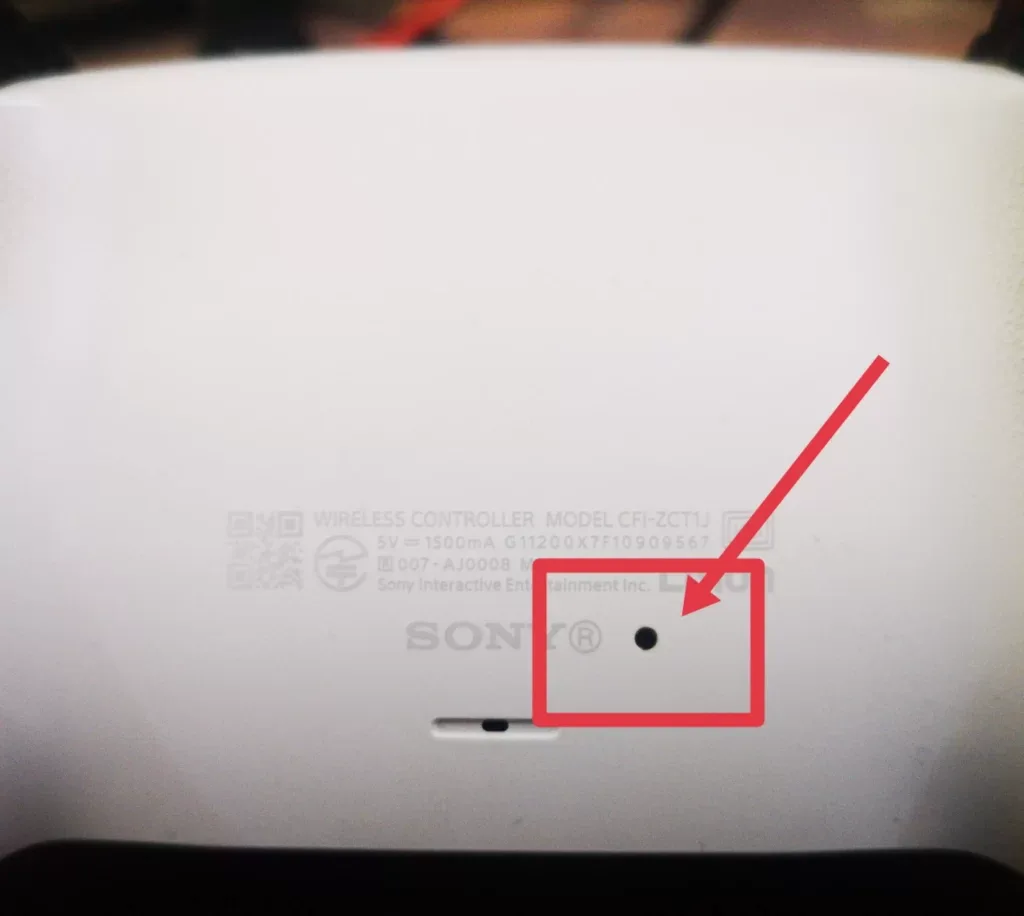
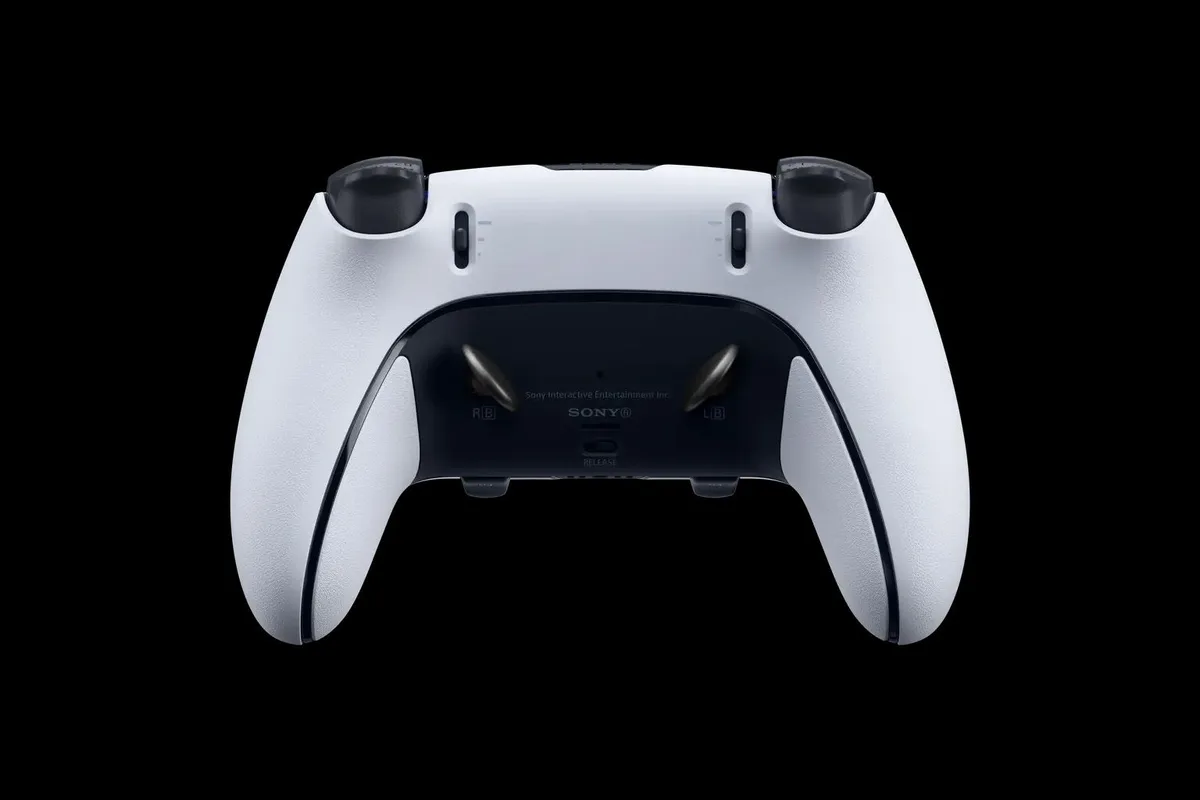
The DualSense reset button sits on the back panel, just below the PS logo and above the screw hole. It's recessed, which is why you need a thin tool. A paperclip, SIM ejector, or plastic spudger all work.
A metal pin works too, but be gentle.
Soft Reset Steps
- Hold the PS button for 10 seconds.
- Watch for the lightbar to turn off.
- Release.
- Press the PS button again to re-pair.
That's it. Takes about 15 seconds. If the controller was just hung up on a stale Bluetooth state, this clears it.
Pinhole Reset Steps
- Power off the PS5 console.
- Flip the controller over, find the pinhole near the screw hole.
- Insert your paperclip or SIM tool until you feel a soft click.
- Hold for 5 seconds.
- Remove the tool.
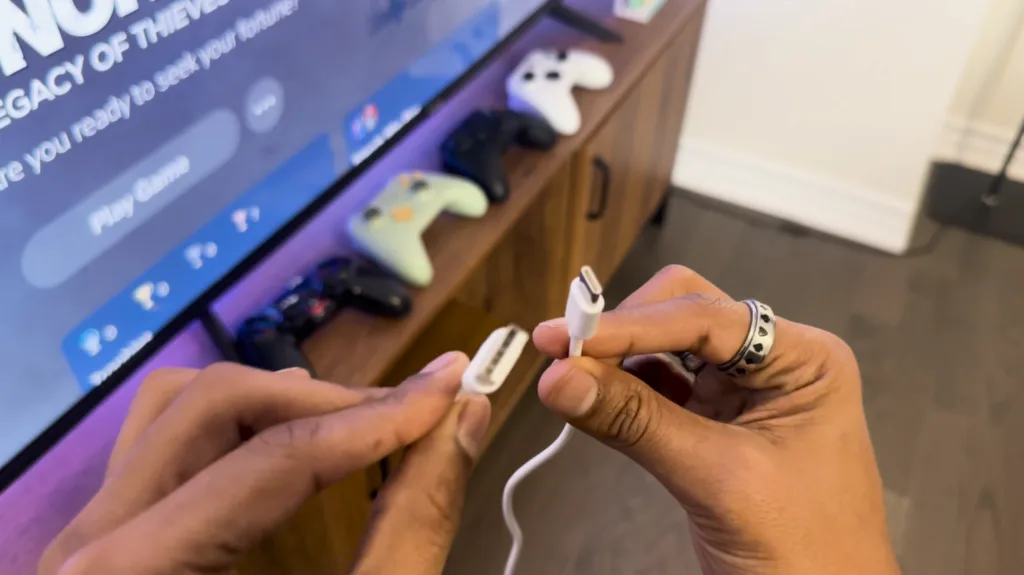
- Connect the controller to the console with a USB-C cable.
- Press the PS button to pair.
Sony's spec sheet lists USB-C as the pairing anchor. Bluetooth won't re-establish until the controller and console shake hands over the wire at least once.
Console Safe Mode Reset Steps
If the pinhole reset won't do it, the console may be holding a corrupt Bluetooth cache.
- Power off the PS5 fully.
- Hold the power button for about 7 seconds until you hear a second beep.
- Connect the controller via USB-C.
- Press the PS button.
- Choose "Restart PS5" from Safe Mode.
This forces the console to rebuild its controller registry. It does not wipe game data or accounts.
When a Reset Won't Work, and What to Do Instead
Sometimes the reset just doesn't stick. You run it, re-pair, and five minutes later the controller drops again. That pattern points to a deeper issue than a stale Bluetooth cache.
Here's the triage.
- Cursor drifts on its own: hardware drift. Resets are pointless.
- Controller drops every few minutes: Bluetooth interference or a failing radio.
- Buttons double-press: worn dome switches under the face buttons.
- Controller charges then instantly dies: battery degradation, not firmware.
- Firmware update fails repeatedly: corrupted internal flash. Re-flash via PC.
The PC re-flash route is worth a shot. Sony publishes a PlayStation Accessories app for Windows that lets you update DualSense firmware over USB. It's the same install path as the console, but it can recover from a stuck update the console can't.
What If the Controller Is Under Warranty?
If your DualSense is less than 12 months old, stop tinkering. Sony's standard warranty is one year from purchase in the US and typically two years in the EU. A DIY teardown almost certainly voids it.
Contact PlayStation Support and file a claim before you touch a screwdriver.
Mistakes That Waste Your Time (or Wipe Your Settings)
Most reset failures come from four predictable mistakes. Every one of them is avoidable once you know the trap.
- Using the pinhole reset first. It's the aggressive move. Try the soft reset before you wipe your profiles.
- Pressing the reset button with the controller powered on. Sony's guidance is to power down first. Resetting during a live session can leave the controller in a half-paired state.
- Assuming drift is fixable with software. It isn't. The analog stick's carbon-film tracks wear out physically. That's a replacement job, not a reset job.
- Disconnecting the USB-C during pairing. The initial handshake takes a few seconds. Pull the cable too early and you'll land right back where you started.
A Quick Note on the DualSense Edge
If you own the DualSense Edge (CFI-ZCP1), the reset story changes slightly. The Edge has swappable stick modules and a magnetic faceplate. A pinhole reset still works the same way, but you also get a firmware-level recalibration option in Settings that the standard DualSense doesn't offer.
We'll cover that next.

Similar Posts