How to Restart Your Mac: Step-by-Step Guide
Two clicks. That's usually all it takes to restart a Mac, yet the wrong move at the wrong moment can cost you an unsaved document or push a struggling system into a boot loop. If you're asking how to restart my Mac, the honest answer is that "restart" means four or five different things depending on what's actually wrong with your machine.
In our research, most people reach for the power button far too early.
Getting it right starts with matching the symptom to the right restart method. Apple's own documentation confirms that a normal restart resolves most temporary glitches, including sluggish performance, frozen apps, and network hiccups. The trick is knowing when a regular restart is enough and when you need to escalate to Safe Mode, Recovery, or a forced shutdown.
Here's how to figure that out, step by step.
how to restart my mac
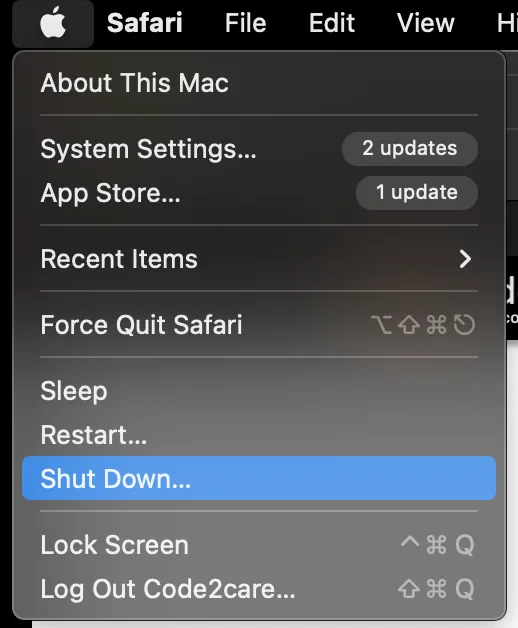
To restart a Mac normally, click the Apple menu in the top-left corner and choose Restart. You can also press Control plus the Power button. Confirm the dialog, and your Mac shuts down and boots back up.
Save your work first. The whole process usually takes 30 to 90 seconds.
Normal Restart vs. Force Restart vs. Safe Mode — What Each One Fixes
Pick your method based on what's broken, not on habit. A normal restart clears memory and reloads the system cleanly. A force restart is for when the normal route won't respond at all.
Safe Mode is a diagnostic boot that strips out third-party software so you can isolate what's causing trouble.
If the Mac responds to clicks at all, start with a normal restart. If it won't respond, use Force Quit on a single app before forcing the whole system down. If the problem comes back after every normal restart, drop into Safe Mode.
The Apple Menu Restart (Start Here)
This is the clean, intended way to reboot. Click the Apple menu, pick Restart, and confirm the prompt. The "Reopen windows when logging back in" checkbox saves your open apps and documents for the next session.
It's checked by default and worth leaving on when you're mid-project.
A normal restart safely closes apps, flushes caches, and lets macOS run its shutdown routines. That's why it's the lowest-risk option and the one Apple recommends first in its support documentation.
Keyboard Shortcuts That Skip the Menu
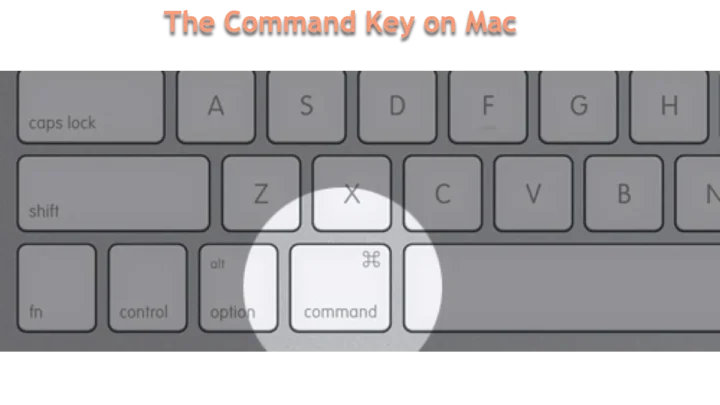
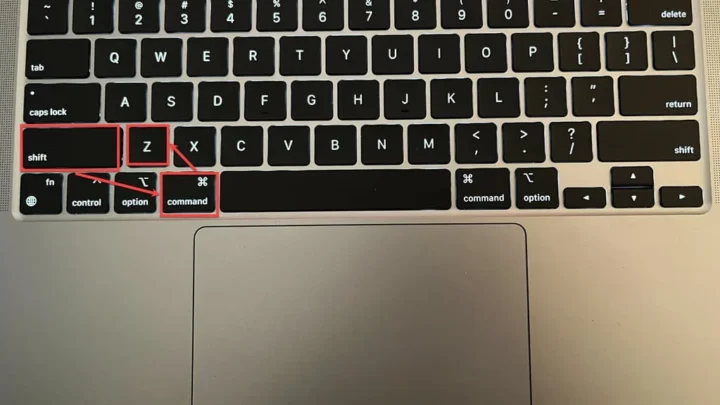
If you'd rather not touch the menu, macOS has shortcuts. Press Control plus Command plus the Power button to restart immediately. On older Macs with an optical drive, Command plus Control plus Eject does the same thing.
On laptops, you can also hold Touch ID briefly to bring up the shutdown dialog.
These shortcuts run the same safe shutdown as the menu. They don't skip steps, they just skip the clicking.
When Force Quit Is Enough (and When It Isn't)
Is the whole Mac frozen, or just one app? Force Quit handles the second case. Press Command plus Option plus Escape, select the unresponsive app, and click Force Quit.
Most "frozen Mac" complaints turn out to be one misbehaving app, not the system itself.
If Force Quit clears the problem, you don't need to restart at all. If two or more apps are locked up, or the menu bar itself won't respond, then it's time for a full restart.
Forcing a Shutdown With the Power Button
When the Mac is completely unresponsive, hold the power button for about 10 seconds until the screen goes black. Then wait a few seconds and press it again to boot up. This is a hard shutdown, and it's a last resort.
It's a last resort because it cuts power mid-write. Any app holding an unsaved file, a backup in progress, or a disk operation can end up corrupted. Use it only when nothing else works.
Booting Into Safe Mode
Safe Mode loads only the essential system software. It skips login items, disables third-party fonts, and clears some caches on boot. If your Mac behaves normally in Safe Mode, the culprit is usually a third-party app or login item.
Entering Safe Mode differs by chip. On Intel Macs, hold Shift at startup. On Apple Silicon Macs, shut down, then press and hold the power button until you see "Loading startup options."
Recovery Mode — Your Last Stop Before Apple Support
If Safe Mode doesn't fix it and the Mac won't boot normally, Recovery Mode is next. It gives you Disk Utility to repair the startup disk, a reinstall option for macOS, and access to Apple Diagnostics. On Apple Silicon, hold the power button through startup.
On Intel, hold Command plus R.
| Method | Use It When | Risk Level |
|---|---|---|
| Apple menu Restart | Mac responds, need a clean reboot | Very low |
| Force Quit (Command+Option+Esc) | One app is frozen | Very low |
| Power button hold (10s) | Whole system unresponsive | High (data loss) |
| Safe Mode | Recurring crashes after restart | Low |
| Recovery Mode | Mac won't boot normally | Low |
Restarting an Apple Silicon Mac vs. an Intel Mac: What's Different
The restart itself is identical on both chip families. What differs is the troubleshooting depth underneath. Apple Silicon Macs (M1 through M4) handle memory and power management on the chip itself.
Intel Macs route some of that through separate hardware controllers.
That architectural split means some classic fixes simply don't exist on modern Macs. Knowing which machine you have saves you from chasing resets that won't do anything.
Why There's No SMC or NVRAM Reset on M-Series Chips
On Intel Macs, an SMC reset fixes power, fan, and charging quirks. An NVRAM reset clears certain startup and display settings. On Apple Silicon, there's no separate SMC or NVRAM to reset.
Those functions are baked into the chip.
If you're on an M-series Mac and something power-related is off, Apple's guidance is simply to restart. That single reboot performs the equivalent of those Intel-era resets. Trying to hold the old key combos does nothing.
The Intel-Only Resets Worth Knowing
On an Intel Mac, two resets still matter. For NVRAM, shut down, then power on holding Option plus Command plus P plus R for about 20 seconds. For the SMC, the key combo depends on the model: on many MacBooks it's Shift plus Control plus Option plus the power button.
Do these only when a plain restart hasn't fixed display, power, fan, or charging symptoms. They're targeted fixes, not routine maintenance.

Step-by-Step: How to Restart Your Mac in Every Situation
Match the fix to the symptom. Here's the decision path, from the mildest problem to the most severe, so you don't jump straight to a hard shutdown.
Mac Is Frozen or Unresponsive
Start with Force Quit. Press Command plus Option plus Escape and close the app that's stuck. If the menu bar and dock respond, do a normal restart from the Apple menu.
Only if the entire screen is locked do you move to the power button.
Mac Won't Shut Down at All
If you click Restart and nothing happens, give it 30 seconds, some large apps take time to close. If it's still stuck, hold the power button for 10 seconds to force it off. Don't hold it for less, that may just trigger Sleep.
Mac Stuck on the Apple Logo or a Progress Bar
Wait at least 10 minutes first, a macOS update can legitimately take that long. If the bar hasn't moved, force a shutdown, then boot into Safe Mode. If it still won't boot, go to Recovery Mode and run First Aid in Disk Utility.
Mac Keeps Restarting in a Loop
A boot loop usually points to a software or disk problem. Boot into Safe Mode and see if it stays up. If it does, remove recent login items or apps.
If it loops even in Safe Mode, run Disk Utility from Recovery or reinstall macOS. Persistent loops with hardware errors mean it's time for Apple Support.

| Symptom | First Move | Next Step |
|---|---|---|
| One app frozen | Force Quit | Normal restart |
| Whole Mac frozen | Power button (10s) | Safe Mode if recurring |
| Stuck on Apple logo | Wait 10 min | Force off, then Recovery |
| Boot loop | Safe Mode | Disk Utility, then reinstall |
For verified boot and disk procedures, Apple's official support site is the definitive reference: Apple Support.
Mistakes That Cost People Data (and How to Avoid Them)
The biggest mistake is forcing a shutdown when a normal restart would've worked. A hard power-off during a macOS update, a Time Machine backup, or any disk write can corrupt open files. If the Mac responds to anything at all, use the menu.
The second mistake is forgetting FileVault. If you've enabled FileVault disk encryption, every restart requires your password or a recovery key before the Mac finishes booting. That's not a bug, it's the encryption working.
Make sure you know your password before you reboot.
The third is ignoring the "reopen windows" checkbox. If you uncheck it, your last session's apps and documents won't relaunch. For a quick troubleshooting reboot, leave it checked so you don't lose your place.
A few more to keep in mind:
- Don't pull the plug on a desktop Mac during boot.
- Eject external drives before you restart, not after.
- Don't hard-reset just because an app is slow, give it a minute.
- Don't assume an M-series Mac has an SMC to reset, it doesn't.
The rule of thumb: the gentlest method that fixes the problem is always the right one.
The Escalation Ladder: When to Stop and Call Apple
The rule is simple: climb one rung at a time, and stop the moment the problem clears. Most Macs never make it past the first two rungs. Only a small slice of issues ever need Recovery Mode or a trip to the Genius Bar.
Here's the ladder in order, so you know exactly where you stand.
- Rung 1: Normal restart from the Apple menu. Fixes caches, memory pressure, and most glitches.
- Rung 2: Force Quit a single stuck app. Fixes isolated freezes without a reboot.
- Rung 3: Safe Mode. Fixes recurring crashes caused by third-party login items or apps.
- Rung 4: Force shutdown with the power button. Only for a fully locked screen.
- Rung 5: Recovery Mode, Disk Utility, First Aid. For disk errors and boot problems.
- Rung 6: Reinstall macOS. For stubborn software faults that survive everything else.
- Rung 7: Apple Support or an Apple Store. For hardware faults, boot loops, and kernel panics.
If you've reached rung 5 or 6 and the Mac still misbehaves, the problem is likely hardware. Repeated kernel panics, a startup disk that First Aid can't repair, or a machine that refuses to boot at all all point the same way. That's a call to Apple, not another restart.
One quick check before you dial: run Apple Diagnostics. On Apple Silicon, hold the power button at startup until you see the options, then press Command plus D. On Intel, hold D at startup.
It flags failing RAM, storage, or battery in a couple of minutes and gives Apple Support a head start.
Real Scenarios: Three Restarts, Three Outcomes
Every restart complaint tends to fall into one of three buckets. Seeing how they play out makes the ladder click.
Scenario one: a designer's MacBook Air feels sluggish after a week of heavy browser tabs. Free memory is low, apps are stuttering, but nothing is frozen. A single normal restart clears the memory pressure and the machine feels new.
Total time: about a minute. No data lost because the "reopen windows" box stayed checked.
Scenario two: a student's Mac won't wake from sleep. The screen stays black, the trackpad won't respond, and the fan is silent. After 30 seconds of nothing, they hold the power button for 10 seconds.
The Mac shuts down, boots back up, and works. The risk here is real: any app holding an unsaved essay loses it. That's why we always save first, when we can.
Scenario three: a developer's iMac restarts itself every few minutes. A normal restart doesn't help, and Safe Mode keeps the machine stable. That points to a bad login item or a corrupted app.
Removing the recently installed software and rebooting fixes it. If it had looped even in Safe Mode, the next step would be Recovery and First Aid.
The pattern is consistent: match the fix to the symptom. Don't skip rungs, and don't stay on a rung that isn't working.
Maintaining a Healthy Mac So You Restart Less Often
The best restart is the one you don't need. A little routine care keeps your Mac responsive so reboots stay rare, not weekly.
Start with startup items. Open System Settings, go to General, then Login Items, and remove anything you don't recognize or need at launch. Too many login items is the number one cause of a slow, glitchy Mac.
Trim the list and you'll feel the difference immediately.
Keep macOS updated. Apple ships security patches and stability fixes through Software Update, and an out-of-date system often shows up as random freezes or stutters. Let updates install, then do a clean restart afterward.
Watch your storage. macOS needs free space for swap files. If your drive is nearly full, performance drops and apps crash more. Keep at least 10 to 15 percent of your drive free, and empty the Trash regularly.
Finally, don't force-quit or hard-shutdown as a habit. Save your work, quit apps properly, and restart from the menu when you need to. Those small habits prevent the file corruption that sends people hunting for fixes in the first place.
A well-maintained Mac, in our research, goes weeks between restarts without issue. When it does need one, it'll be quick and painless.
Frequently Asked Questions
Is restarting my Mac the same as shutting it down?
No, they're different. Shutting down powers the Mac off completely, so it won't wake for scheduled tasks or updates. Restarting shuts down and immediately boots back up, refreshing memory and system processes.
For everyday glitches, a restart is usually the better choice.
How long should a Mac take to restart?
Most modern Macs restart in 30 to 90 seconds. Apple Silicon models tend to be quicker. If yours takes more than a few minutes, wait 10 minutes before worrying, especially right after a macOS update.
A restart that hangs well beyond that points to a boot problem.
Will I lose my open documents when I restart?
Not if you use the normal Apple menu Restart. Keep "Reopen windows when logging back in" checked and your apps and documents return. You will lose unsaved work in a forced shutdown, so always save before holding the power button.
Why does my Mac ask for my password after every restart?
That's FileVault disk encryption working as intended. When FileVault is on, the startup disk is locked until you enter your password or recovery key. It's a security feature, not a fault.
Just make sure you know your password before you reboot.
Can I restart a Mac remotely?
Yes, if it's managed. IT admins use MDM tools like Jamf or Mosyle to push restarts to managed Macs. On a personal Mac, you can restart over Screen Sharing or Apple Remote Desktop if it's enabled.
Regular users can't remotely restart an unmanaged Mac.
Does restarting fix a slow Mac every time?
Often, but not always. A restart clears memory pressure and temporary glitches, which fixes a lot of slowness. If your Mac stays slow right after a reboot, the cause is deeper.
Check storage space, login items, and background apps before assuming a restart will help.

Similar Posts