How to Undo on a Mac: Easy Steps to Recover Anything
You just watched your Mac close a window. Or you typed over a paragraph you meant to keep. Or a file went somewhere you didn’t intend.
Learning how to undo on a Mac is the fastest way out of that pit, and the answer is simpler than most people think.
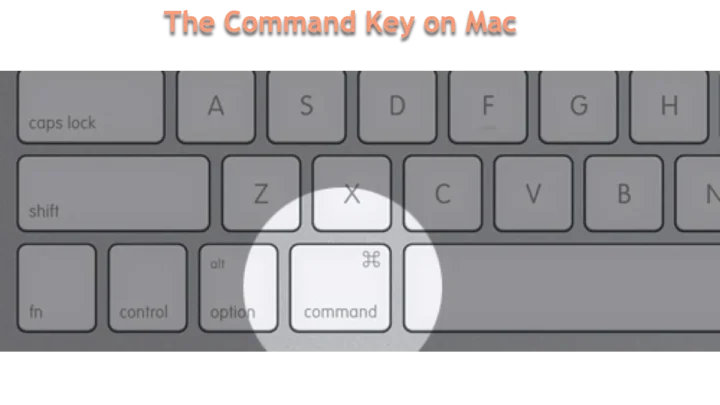
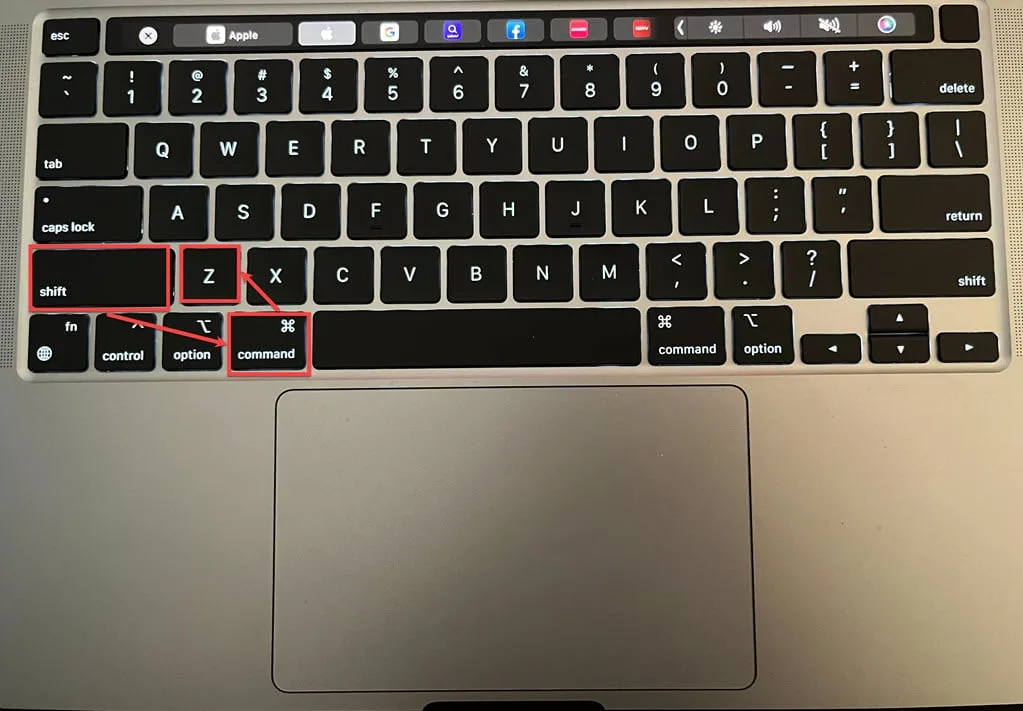
The core command is ⌘Z, standardized across nearly every macOS app since the system’s earliest days. But undo isn’t one tool. It’s a family of recovery methods, and the right one depends on where your mistake happened.
Here’s how each one works.
how to undo on a mac
Press ⌘Z to undo your last action on a Mac. Press ⌘⇧Z to redo it. In Finder, deleted files go to the Trash.
Open Trash, right-click the file, and choose Put Back. If the app already closed, use File > Revert To > Browse All Versions instead. Undo history resets when you quit an app.
You just typed or edited something: Cmd+Z
This is the everyday case, and it’s the easiest to fix.
Press the Command key and the Z key together. That’s it. The last thing you typed, pasted, or deleted in that text field vanishes, and your previous version comes back.
Press it again to undo the action before that. Native macOS apps like TextEdit, Notes, Pages, Mail, and Messages generally support multi-level undo, meaning you can walk backward through dozens of edits in a row.
Watch the Edit menu for context. Open it and you’ll see the exact action you’re about to reverse. It might say “Undo Typing,” “Undo Paste,” or “Undo Move.” That label is your confirmation you’re about to undo the right thing, and it’s a good habit to check when you’re working in something you don’t know well.
Redo works the same way, just with the Shift key added. Press ⌘⇧Z to bring back what you just undid. Some apps, particularly Microsoft Word for Mac, also accept ⌘Y.
If ⌘⇧Z doesn’t respond, try ⌘Y before assuming redo is broken.
When Cmd+Z stops working mid-edit
If nothing happens when you press it, one of three things is usually going on.
- The app has no undo history for that action. Some modal dialogs and system prompts don’t support undo at all.
- You’re in the wrong window. Undo only applies to the active text field or document.
- A third-party app has overridden the shortcut. Check the app’s own Preferences or Keyboard settings.
Switching from Windows? Your muscle memory will reach for Ctrl+Z. That does nothing on a Mac in most apps.
Retrain the reflex to Command and the rest falls into place.
You deleted or moved a file in Finder: Put Back or Trash
Finder handles undo differently from text apps, and this trips up a lot of people.
Press ⌘Z in Finder and you can reverse certain actions like a rename, a move, or a tag change. But the moment you delete a file, ⌘Z won’t bring it back. Deleted files go to the Trash, and the Trash has its own recovery flow.
Open the Trash from your Dock. Find the file. Right-click it and choose Put Back.
The file returns to its original folder, exactly where it lived before. You can also drag it out manually if you remember the location, but Put Back is cleaner and faster.
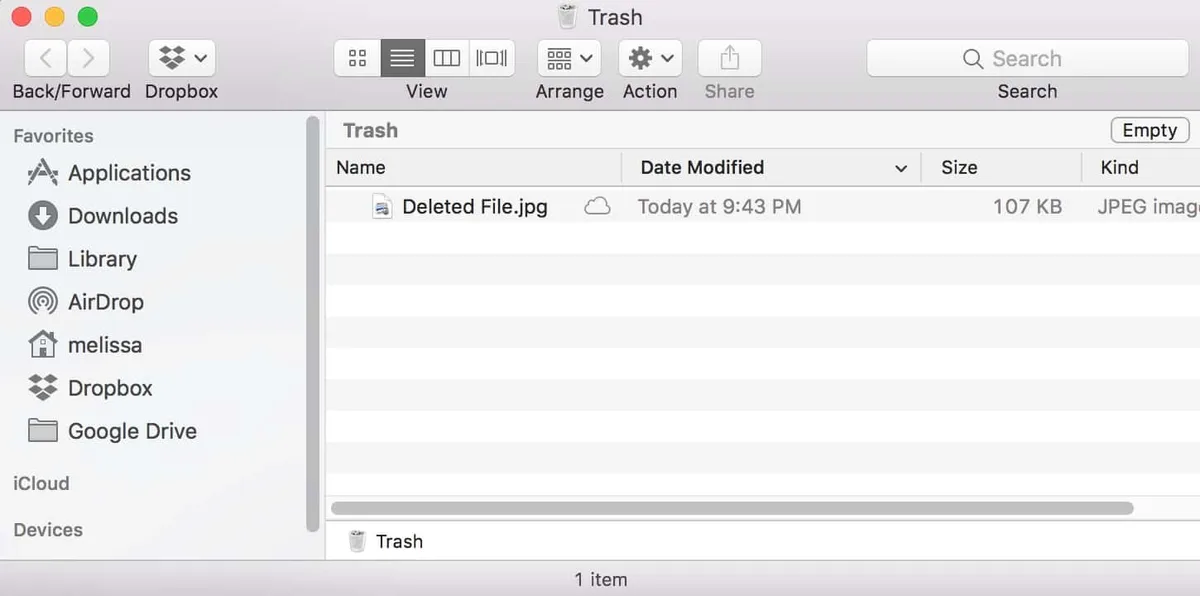
If you empty the Trash, ⌘Z cannot save you. That’s a permanent delete at the file-system level. Apple removed the old Secure Empty Trash option in macOS El Capitan, so recovery after emptying now depends on backups or third-party data-recovery software.
Recoverability isn’t guaranteed.
Recovering a file you already emptied
If the Trash is gone and you have Time Machine running, you’re fine. Open Time Machine, browse back to when the file existed, select it, and click Restore. Your Mac’s APFS snapshots often hold hourly versions from the last 24 hours, even without an external drive attached.
If you’re using iCloud Drive, log into iCloud.com and open Recently Deleted. Files stay recoverable there for 30 days. After that window, they’re gone from Apple’s servers.
You closed the app (or it crashed): AutoSave, Versions, or Time Machine
This is the scenario that catches people out, and it’s the one worth understanding before you need it.
When you quit an app, its undo history disappears with it. There is no system-wide undo stack that survives a relaunch. Close TextEdit and reopen it, and ⌘Z has nothing to work with.
The same applies after a crash or a Force Quit.
But native macOS document-based apps have a backup mechanism called Versions that fills that gap. If you’re in Pages, Numbers, Keynote, TextEdit, or Preview, open the File menu and choose Revert To > Browse All Versions. Your document opens in a side-by-side view, with a stack of snapshots you can scroll through.
Apple’s version retention works on a rolling schedule. Hourly saves for the last 24 hours, daily saves for the past month, then weekly saves beyond that. Pick the version you want and click Restore.
The current version gets saved first, so you can’t lose anything by browsing.
For files outside that system, particularly ones you created in third-party apps or saved to external drives, Time Machine is your fallback. Plug in your backup drive if it isn’t already connected, open Time Machine, and browse to the date you need.
As of 2026, iCloud Drive and AutoSave cover most day-to-day work in native Mac apps. The gap is Xcode projects and Terminal sessions, where you’re on your own unless you’ve enabled Xcode’s Source Control or a version-control system like Git.
You need to undo in a specific app: Photoshop, Word, Terminal, Xcode
The ⌘Z shortcut holds across apps, but the depth and behavior vary a lot. Here’s how the major ones compare.
| App | Undo shortcut | Default undo depth | Notes |
|---|---|---|---|
| TextEdit, Notes, Pages | ⌘Z | Effectively unlimited in a session | Multi-level, resets on close |
| Microsoft Word for Mac | ⌘Z, redo ⌘Y or ⌘⇧Z | 100 steps (configurable) | AutoSave integrates with Versions |
| Adobe Photoshop | ⌘Z | 1 step by default | Use History panel for full control |
| Adobe Illustrator | ⌘Z | Depends on Preference setting | Larger history uses more RAM |
| Xcode | ⌘Z | Deep, per editor | Editor > Undo Typing for granular control |
| Terminal | Ctrl+_ or app-specific | Depends on editor | vim, nano, and bash differ |
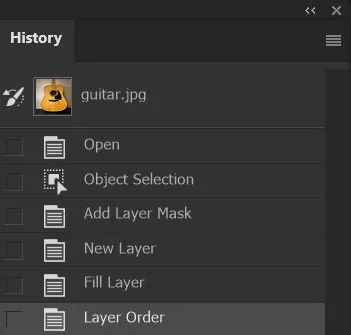
Photoshop is the big one people get wrong. Press ⌘Z there and you undo one action. Press it again and you redo it.
That’s the default behavior, and it drives people mad if they’re used to multi-level undo elsewhere.
The fix lives in the History panel. Open Window > History and see every action you’ve taken since opening the file. Click any state in the list to jump back to it.
You can raise the history depth up to roughly 1,000 states via Preferences > Performance > History States, though Photoshop warns that each state eats RAM.
Word for Mac works more like you’d expect. It stores up to 100 undo levels by default, and AutoSave saves versions continuously to OneDrive or your local drive depending on your setup. If you lose work, check File > Info > Version History for older saves.
Terminal is the exception to everything. The ⌘Z shortcut doesn’t apply, because Terminal isn’t a document app. If you’re in vim, use u to undo.
In nano, press Alt+U. If you’re just running shell commands, there is no undo. The command already executed.
The Decision Tree: Match Your Situation to the Right Recovery Move
Here’s the quick-reference version. Find your situation, take the action.
You just typed or edited something
Press ⌘Z. Press it again for multiple steps back. Check the Edit menu if you’re unsure what will be undone.
You deleted a file, closed the app, or it crashed
Open the Trash and right-click > Put Back if the file is still there. If the Trash is empty, use Time Machine or iCloud Recently Deleted. If a document is lost, use File > Revert To > Browse All Versions.
Your app crashed with unsaved work
Reopen the app. Many native Mac apps prompt with “Reopen windows?” or auto-restore the last document. If that fails, Versions usually has a snapshot from the last hour.
You undid the wrong thing
Press ⌘⇧Z to redo. If it doesn’t respond, try ⌘Y. Repeated presses step forward through everything you undid.
If none of those apply, you’ve hit the one case where undo can’t help. That’s the topic of the next section.

Similar Posts