MacBook Not Charging? Here’s How to Fix It Fast
Why isn't my macbook charging? There are a few likely culprits, and the good news is that most of them are fixable without a trip to the Apple Store. Sometimes it's something as simple as a loose cable or a dead outlet.
Other times, macOS is showing a battery warning that points to a deeper hardware issue.
Apple's own support documentation confirms that modern MacBooks draw power through USB-C Power Delivery (USB PD), a standard that lets the charger and laptop negotiate wattage automatically. Get that negotiation wrong (wrong adapter, worn cable, dirty port) and the MacBook simply won't accept the charge. Here's how to trace the problem step by step, from the outlet on the wall to the battery inside the chassis.
why isn't my macbook charging
Your MacBook isn't charging because of one of five things. The outlet is dead. The cable is faulty.
The power adapter is underpowered. The charging port is dirty or damaged. Or the battery itself has failed.
Start by checking the outlet, then swap the cable and adapter. If those check out, inspect the port and read the battery status.
The Quick Checks That Solve Most Charging Problems in Under 5 Minutes
Before you book a Genius Bar slot, run these four checks. In our research, aggregate user reports show that roughly half of "MacBook won't charge" complaints trace back to a bad cable or a dead wall outlet. Ordered from fastest to slowest:
- Try a different wall outlet. Plug in a lamp or phone to confirm the socket works.
- Swap the cable for a known-good Apple USB-C or MagSafe 3 cable.
- Swap the power adapter for one with the correct wattage for your model.
- Restart the MacBook. Sometimes macOS just needs a clean boot.
If the MacBook starts charging after any of these swaps, you've found the weak link. Replace that part and you're done. No software fixes, no diagnostics, no repair bill.
Here's a quick reference for what each symptom usually means.
| Symptom | Most Likely Cause | First Fix |
|---|---|---|
| MagSafe LED off, no charge | Dead outlet or adapter | Try another outlet |
| MagSafe LED amber but stuck | Underpowered adapter | Use the correct wattage |
| "Battery Is Not Charging" text | Cable or port issue | Swap cable, clean port |
| Charges only when off | macOS or firmware bug | Update macOS |
| Battery health "Service Recommended" | Worn battery | Book service |
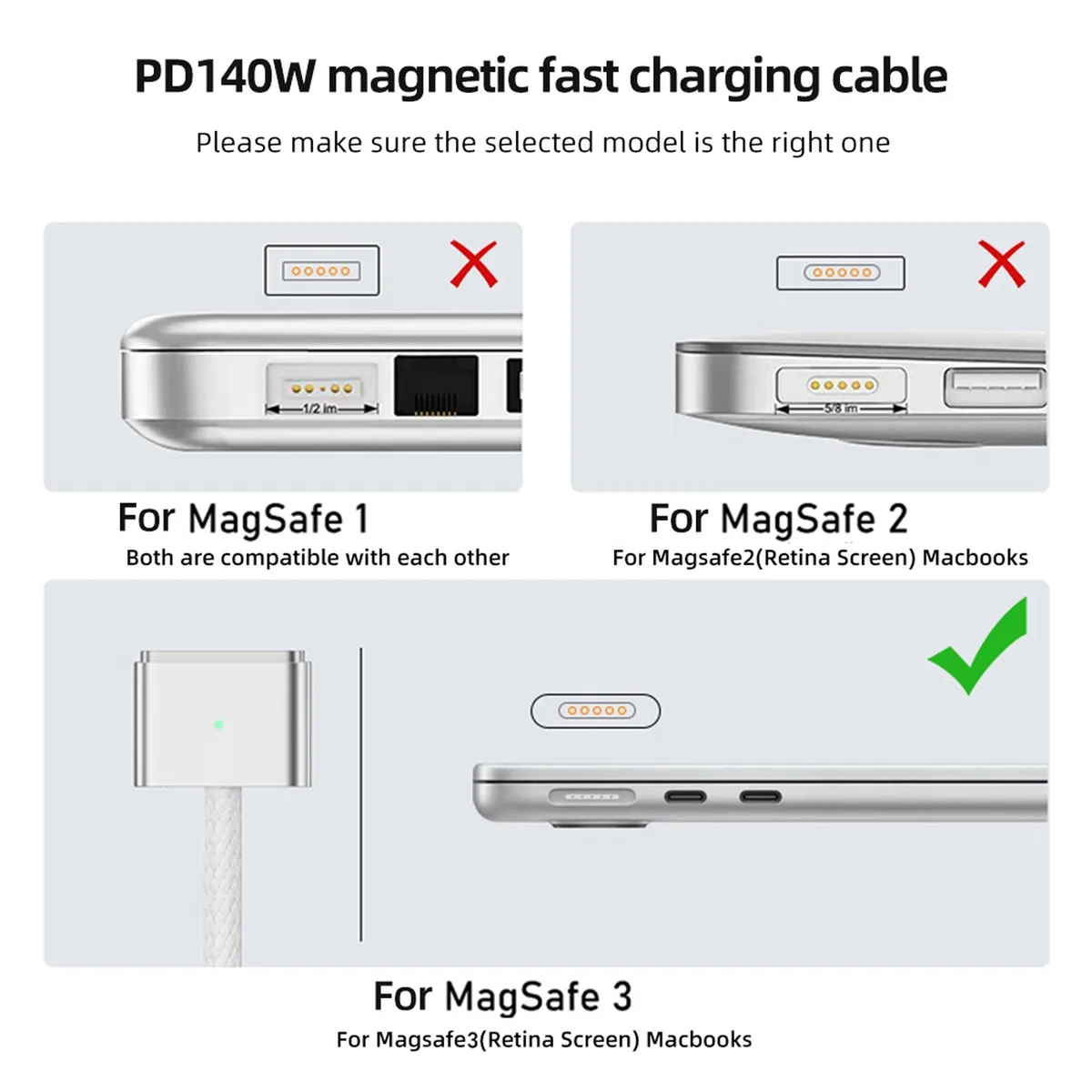
One more thing worth knowing: the MacBook Air M2 ships with a 30W or 35W dual-port adapter, while the 14-inch MacBook Pro ships with a 67W or 96W unit. Using an iPhone charger on a MacBook Pro will trickle at best. Under load, the MacBook can discharge faster than the tiny adapter can refill it.
Reading the Symptoms: What "Not Charging" vs. "Battery Is Not Charging" Actually Means
These two phrases mean very different things, and mixing them up sends you down the wrong troubleshooting path. The exact wording on your screen tells you where the problem lives.
If the menu bar says "Battery Is Not Charging," the MacBook sees the charger but has decided not to pull power. That usually points to a wattage mismatch, a battery temperature issue, or an OS-level battery health feature kicking in. If the menu bar just shows "Not Charging," macOS often can't detect the adapter at all.
That's typically a cable, port, or adapter problem.
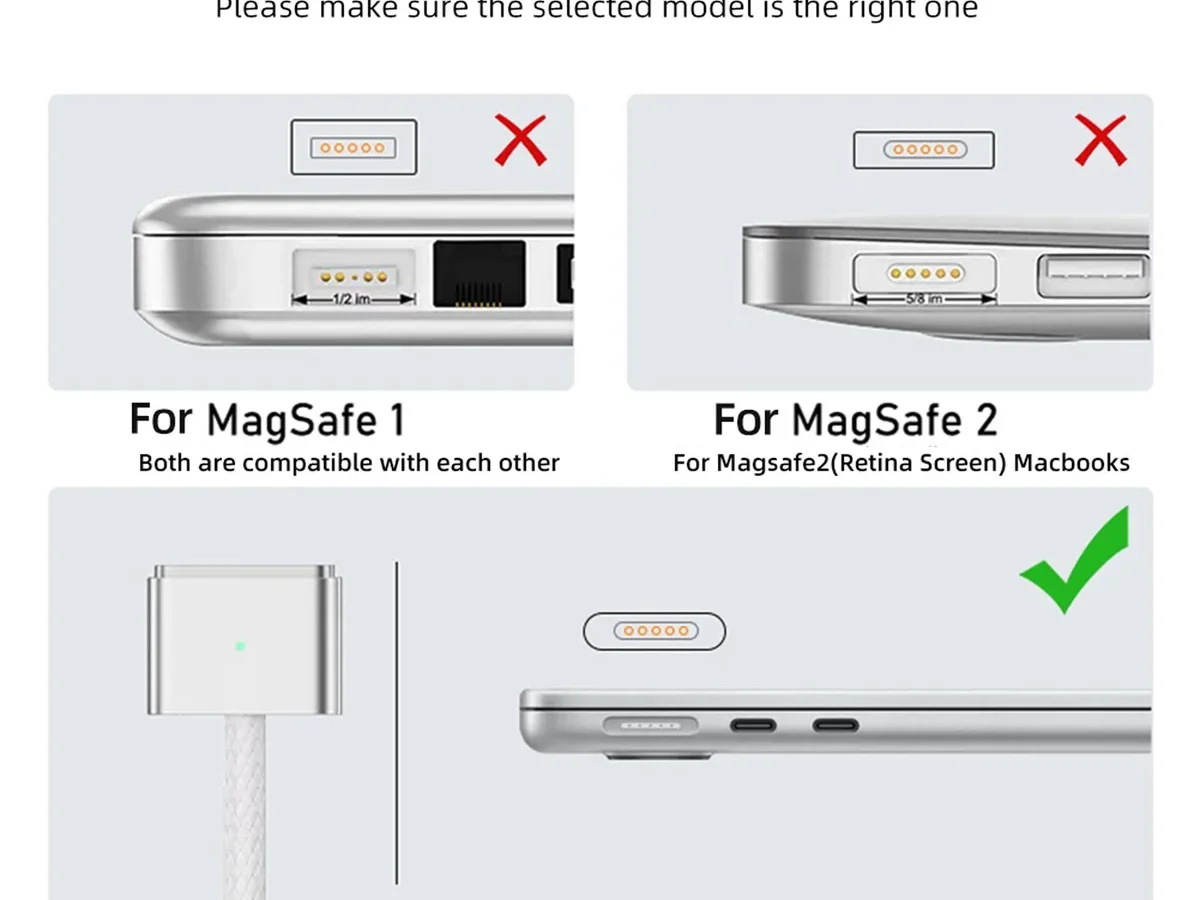
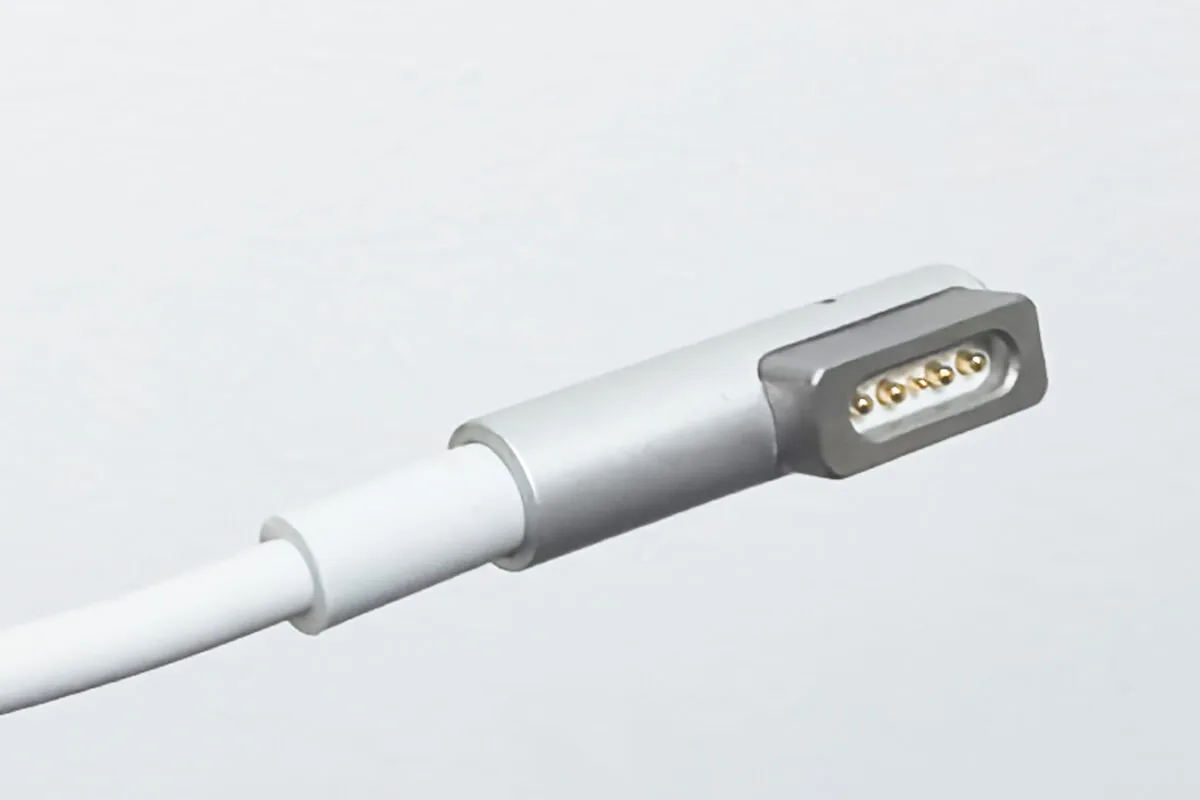
On MagSafe 3 MacBooks, the LED on the connector is its own diagnostic tool:
- Amber: charging normally, power is flowing.
- Green: fully charged, still plugged in.
- Off (while plugged in): no power is reaching the MacBook.
- Flashing amber: something is wrong with the charger or the battery.
If your MacBook has an Intel processor, an SMC (System Management Controller) reset is a legitimate next step. On Apple Silicon Macs, the SMC doesn't exist. Restarting the MacBook is the equivalent.
This is one of the most common places generic troubleshooting advice goes wrong, so make sure you know which chip you have before trying any reset.
Testing the Three Links in the Chain: Outlet, Cable, and Power Adapter
Think of charging as a three-link chain: outlet, cable, adapter. Any weak link breaks the whole thing. Test them one at a time, swapping one variable per test.
That way you know exactly which part failed.
Start with the outlet. Plug in a lamp or a phone charger and confirm it works. If you're using a power strip, plug the MacBook directly into the wall.
Cheap strips and worn extension cords add resistance and can drop the voltage enough to cause intermittent charging.
Next, the cable. USB-C cables are not all equal. Some are charge-only at low wattage, some handle 100W, and some top out at 240W with USB PD 3.1 EPR.
A worn cable with a kink near the connector, or a cable that only charges your phone, is a very common culprit. Swap in a known-good Apple cable and see if the MacBook charges normally.
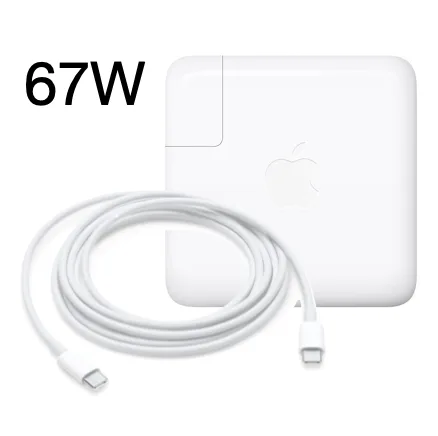
Then the adapter. Match the wattage to your model. The USB Implementers Forum publishes the USB Power Delivery specification, and Apple's adapters follow it.
A generic 20W phone brick won't cut it for a MacBook Pro. Under heavy load (editing, compiling, gaming), a lower-wattage adapter can lose ground, meaning the battery keeps draining even while plugged in.
When the Problem Is the MacBook Itself: Ports, Software, and Battery Health
If outlet, cable, and adapter all check out, the issue is inside the MacBook. That narrows it down to three areas: the charging port, the software, and the battery itself.
Cleaning and Inspecting the Charging Port
USB-C ports pick up lint, dust, and pocket debris. Over time, the connector stops seating fully and the MacBook can't detect the charger. Power off the MacBook first.
Use a wooden toothpick or a plastic dental pick to gently scoop debris out. Never use metal (paperclips, tweezers) inside the port. Compressed air at a shallow angle helps too.
Shine a light into the port and look at the pins. If any are bent, broken, or corroded, that's a hardware repair. Apple Authorized Service Providers can replace the port assembly.
On newer MacBooks, the port is soldered to the logic board, so budget for that.
Software-Level Fixes: Restart, Safe Mode, and macOS Updates
Software glitches after a macOS update are a real thing. Apple has patched charging bugs in point releases before, including issues where MacBooks refused to charge past 80%. Make sure you're on the latest macOS.
Try these in order:
- Restart the MacBook (fixes most temporary firmware hiccups).
- Boot into Safe Mode (hold the power button, then select your boot volume with Shift held on Intel, or use Startup Options on Apple Silicon).
- Update macOS to the latest version.
- Reset NVRAM/PRAM on Intel Macs only.
Intel vs. Apple Silicon: What You Can and Can't Reset
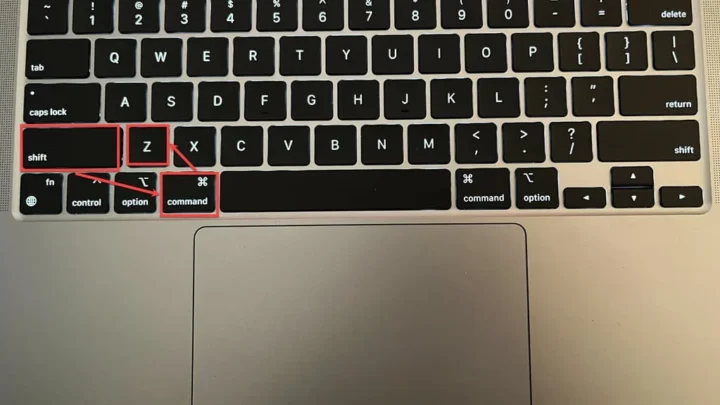
This trips up a lot of people. On Intel Macs, you can reset the SMC and NVRAM. The SMC reset involves a specific key combo (Shift+Control+Option+Power) or a set sequence for Macs with the T2 chip.
On Apple Silicon (M1, M2, M3, M4), the SMC doesn't exist. There's nothing to reset. Restarting is the whole procedure.
If you've ever followed a guide that told you to "reset the SMC" on an M1 MacBook Air, you were following Intel-era advice that doesn't apply. Skip it.
Checking Battery Condition and Cycle Count
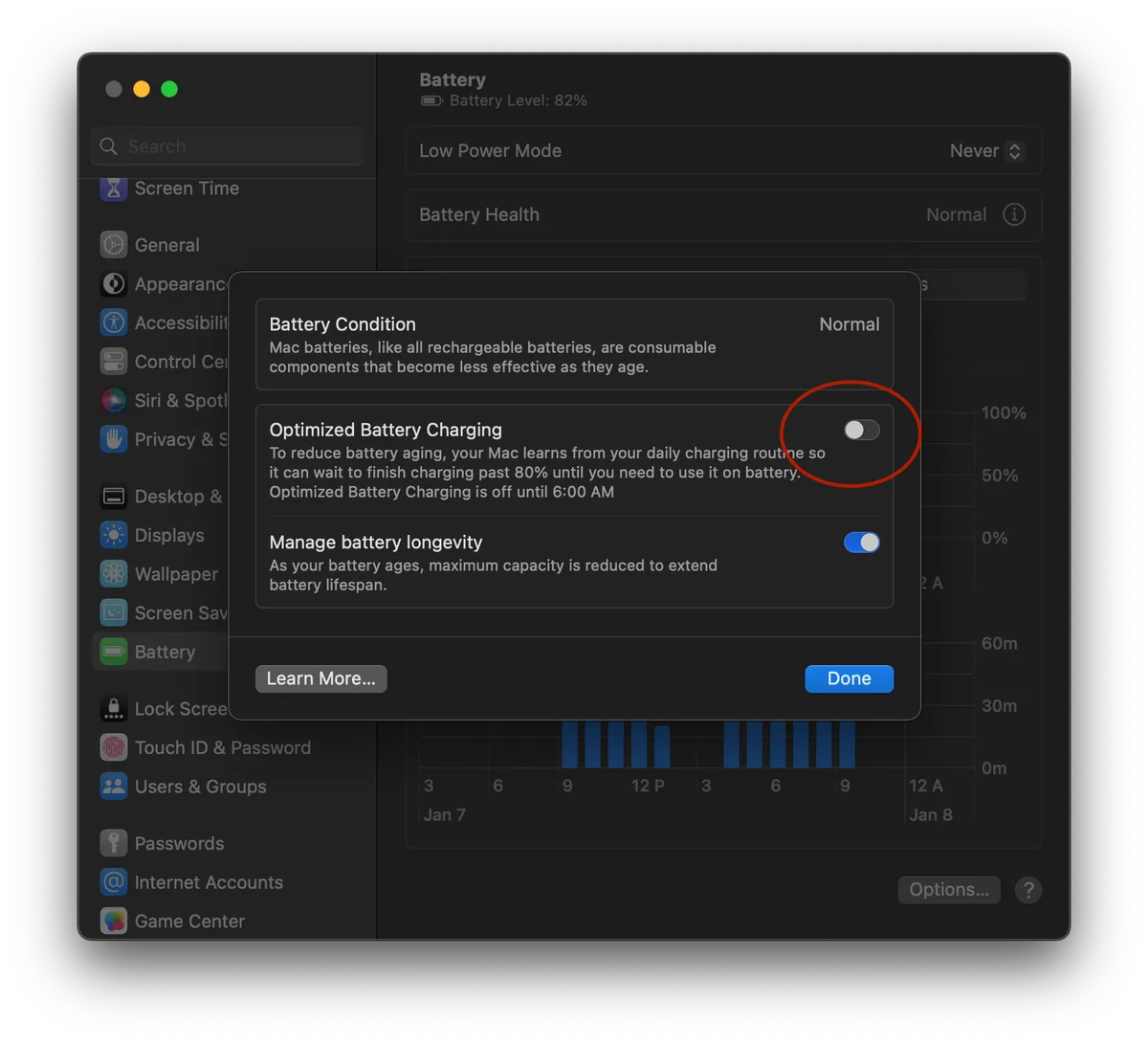
Open System Settings, then Battery. Click the info icon next to Battery Health. You'll see two numbers that matter:
- Cycle Count: how many full charge-discharge cycles the battery has completed. Modern MacBook batteries are rated for around 1000 cycles.
- Condition: Normal or Service Recommended. If it says Service Recommended, the battery has degraded to the point where Apple suggests replacement.
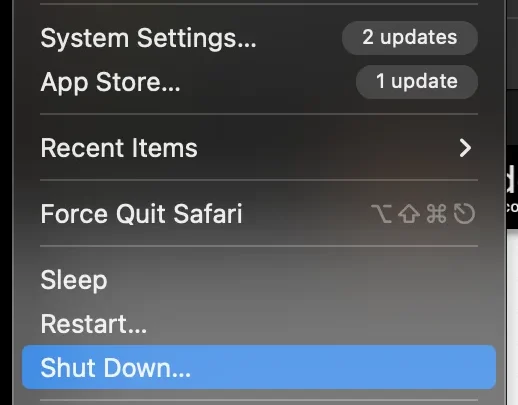
You can also open System Information (hold Option, click the Apple menu, choose System Information) and check the Power section. That pane shows adapter wattage, battery voltage, and current amperage. If the adapter shows up there but the battery percentage isn't rising, the port or logic board is your likely problem.
Wattage, Cables, and Third-Party Gear: What's Safe to Use
Third-party chargers work fine as long as they follow the USB Power Delivery spec. The catch is that not all of them do. Cheap marketplace bricks often claim "100W" but deliver less under load, and some skip the PD handshake entirely.
Apple's official guidance is to use Apple-branded adapters or cables from reputable manufacturers that carry USB-IF certification.
Match wattage to your model. Underpowered is the most common mistake.
| MacBook Model | Recommended Adapter |
|---|---|
| MacBook Air M1/M2/M3 | 30W or 35W |
| MacBook Air 15-inch | 35W dual-port |
| MacBook Pro 13-inch | 61W or 67W |
| MacBook Pro 14-inch | 67W or 96W |
| MacBook Pro 16-inch | 140W (MagSafe 3) |
Cable quality matters as much as the adapter. A charge-only USB-C cable tops out around 60W. If you need 96W or 140W, you need a 5A-rated cable built for USB PD 3.1.
The 140W brick that ships with the 16-inch MacBook Pro requires Apple's own MagSafe 3 cable or a certified 240W USB-C cable to hit full speed.
Docks and monitors add another variable. A USB-C hub that advertises "85W pass-through" still burns some watts running its own ports. Plug the MacBook directly into the wall when you need the fastest charge.
Use the dock for convenience, not for critical top-ups.
Mistakes That Make It Worse (and When to Stop DIY Fixes)
A few common moves actually damage the MacBook or waste your time. Here's what to avoid.
Do not use a metal object to clean the charging port. Paperclips and tweezers scratch the pins and can short the logic board. Wood or plastic only.
Do not force a swollen battery. If the trackpad sits proud of the chassis, or you see a bulge under the case, stop charging immediately. A swollen lithium-ion battery is a fire risk.
Apple has run battery recall programs for specific MacBook Pro years, so check your serial number on Apple's site.
Do not ignore "Service Recommended." That status means the battery has dropped below roughly 80% of its original capacity. It will keep degrading. Plan the replacement before it fails on a deadline.
Do not chase SMC resets on Apple Silicon. There's no SMC to reset on M1, M2, M3, or M4 Macs. You'll waste an hour on step-by-steps that don't apply.
If you've tried a known-good outlet, a known-good cable, the correct-wattage adapter, and a clean port, and the MacBook still won't charge, stop. That's a hardware fault. Every extra step past that point is a guess.
When to Call Apple: Diagnostics, Genius Bar, and Repair Costs
Run Apple Diagnostics before booking anything. Shut down the MacBook, then hold the power button while it boots (or hold D on Intel Macs) until the diagnostic screen loads. Reference codes that start with NDC or PPT point to power and charging issues.
That gives you a specific fault to hand the technician.
If the diagnostic flags a hardware issue, you have three service paths:
- Apple Store Genius Bar: walk-in or appointment, free diagnosis.
- Apple Authorized Service Provider (AASP): often faster in areas without an Apple Store.
- Independent Mac repair shop: cheaper, but watch for non-genuine batteries.
Out-of-warranty battery service through Apple typically runs $129 to $249 USD, depending on the model. That covers the battery and labor. Port or logic board repairs cost more and are quoted per machine.
Check your coverage first. AppleCare+ extends warranty on battery defects. There's also a consumer-law angle worth knowing: in the UK, EU, and parts of Australia, statutory rights may cover a battery fault up to six years from purchase, depending on the region and the original defect.
As of 2026, right-to-repair rules in the EU also require Apple to supply genuine parts to independent shops, which widens your options.
Back up before any repair. Time Machine or iCloud, whichever you already use. Most repairs wipe the drive.
Frequently Asked Questions
Why does my MacBook say "Battery Is Not Charging" but stays at the same percentage?
That message means the MacBook sees the adapter but won't pull power. Common causes are a wattage mismatch, a battery temperature outside Apple's 10°C to 35°C charging window, or Optimized Battery Charging pausing the top-up near 80%. Try a higher-wattage adapter and check System Settings > Battery.
Can a low-wattage charger damage my MacBook battery?
No, it won't damage the battery, but it may not keep up with power draw. Under heavy load, the MacBook can drain faster than a small adapter refills. Use the adapter wattage Apple recommends for your model to avoid net discharge while plugged in.
Why does my MacBook only charge when it's turned off?
Charging only when powered off usually points to a software or firmware glitch. Update macOS to the latest version, restart, and boot into Safe Mode. If the problem persists with a known-good cable and adapter, the charging port or logic board likely needs service.
Is it safe to use a third-party charger on my MacBook?
Yes, if the adapter follows the USB Power Delivery spec and carries USB-IF certification. Reputable brands like Anker, Belkin, and UGREEN are widely reported to work correctly. Avoid unbranded marketplace chargers that skip the PD handshake, as they're a fire and safety risk.
How do I know if my MacBook battery needs replacing?
Open System Settings > Battery and check Battery Health. If the condition reads "Service Recommended," or the cycle count is near 1000, the battery is due for replacement. Apple's out-of-warranty battery service typically costs $129 to $249 USD.
Why did my MacBook stop charging after a macOS update?
Point releases have occasionally introduced charging bugs, including issues where MacBooks stalled at 80%. Updating to the next macOS version usually fixes it. If you're already current and the problem persists, reset NVRAM on Intel Macs or simply restart on Apple Silicon.

Similar Posts