How to Reset Your MacBook Password
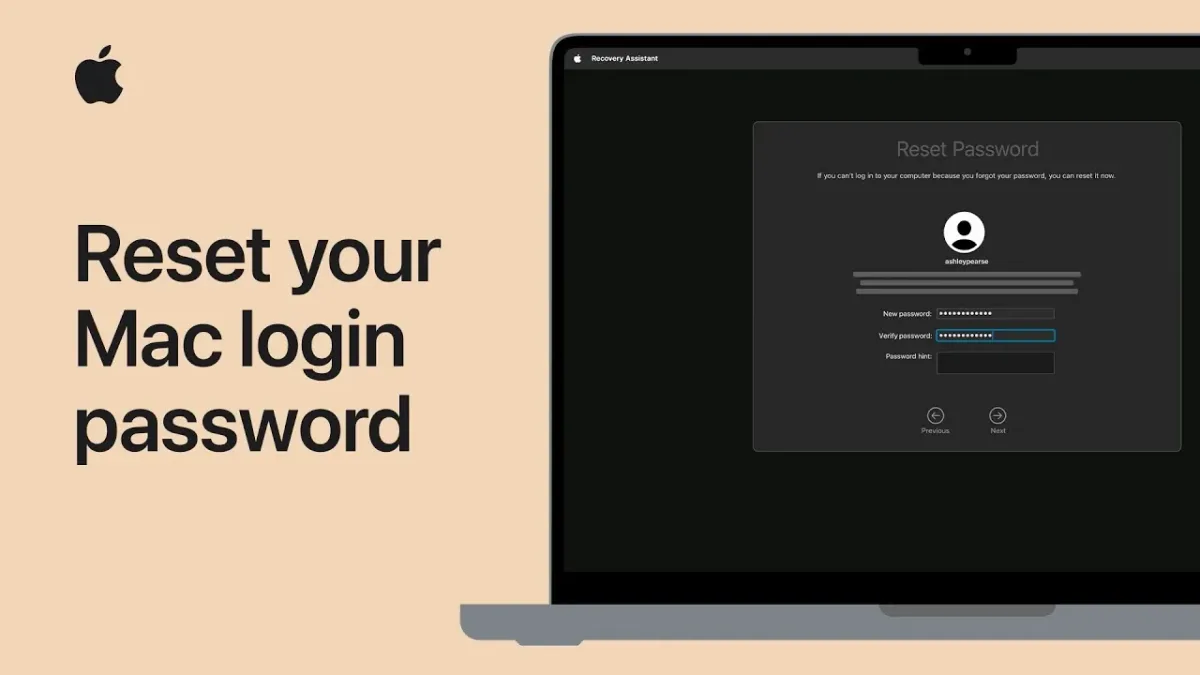
If you’ve forgotten the login password on your MacBook and you’re staring at that hint you don’t remember setting, take a breath. We’ve walked through the actual flows Apple supports, and there’s almost always a path back in. This guide covers how to reset my macbook password across every situation, from a simple Apple ID reset to the worst case where you have to wipe the disk.
Here’s the part most people miss: your Mac has two completely separate passwords. Your Apple ID password unlocks your iCloud account. Your Mac login password unlocks the local user account on that specific machine.
Our research shows that confusing these two is the single most common reason people get stuck. Let’s figure out which situation you’re in.
how to reset my macbook password
You can reset your Mac password in three ways. Use your Apple ID at the login screen if it’s offered. Boot into macOS Recovery and run Reset Password Assistant if you have admin access.
Or erase the Mac entirely if you’re locked out for good.
First, Identify Which of These 4 Situations You’re In
Before you touch anything, work out which branch you’re on. The steps are completely different depending on your FileVault status, whether you have admin rights, and whether Activation Lock is involved. Getting this wrong can cost you your data.
Situation A: FileVault Is Off and You Just Need the Password Reset
This is the easy branch. Without FileVault (Apple’s full-disk encryption), your files sit unencrypted on the drive. macOS Recovery can reset the login password without wiping anything. If you can boot to Recovery and see the Reset Password Assistant, you’re in this branch.
Situation B: FileVault Is On, You’ll Need the Recovery Key First
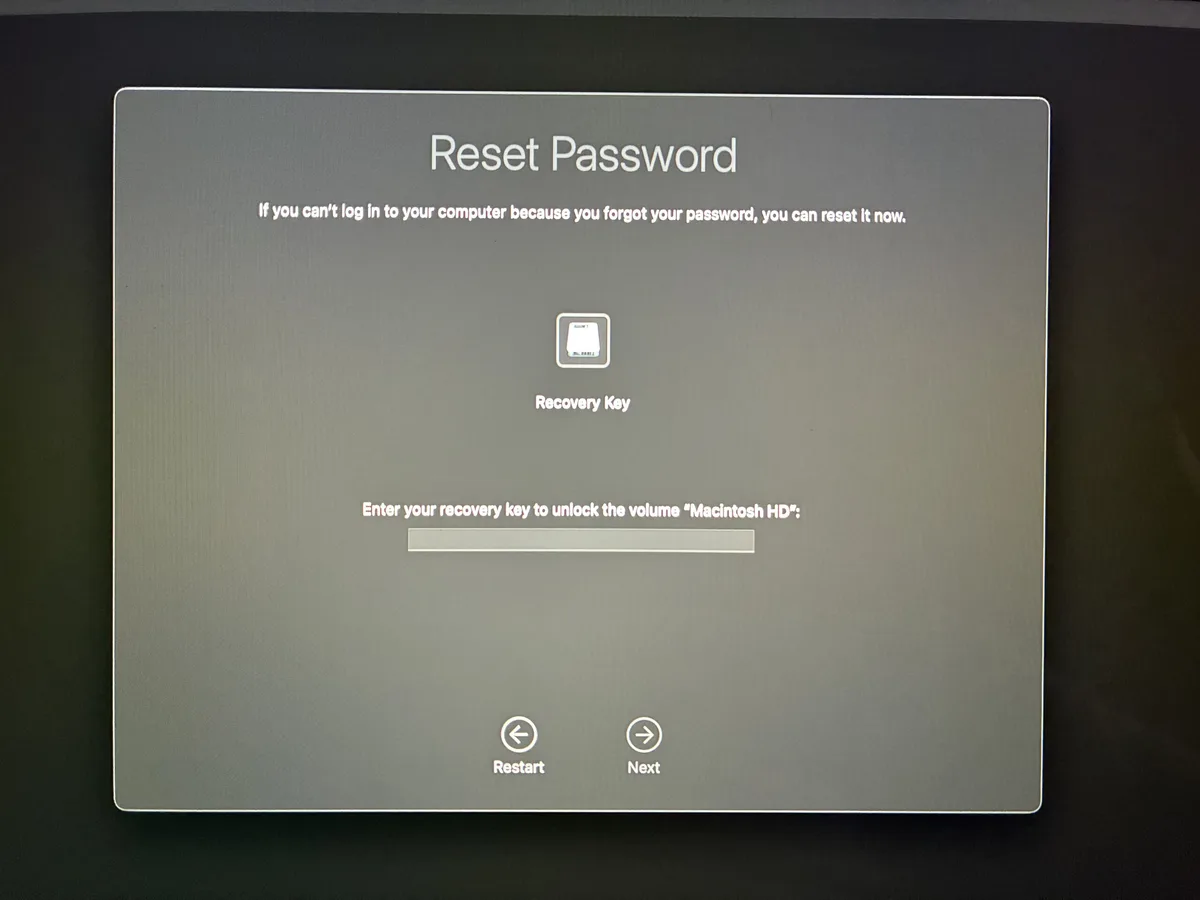
If FileVault is on, the disk is encrypted and locked before macOS even loads. Recovery can’t touch the account until you unlock the volume. You’ll need either the account password (which you don’t have) or the FileVault recovery key you saved at setup.
No key means you’re heading toward a wipe.
Situation C: Activation Lock Is Blocking You
Activation Lock ties the Mac to the Apple ID used to set it up. Bought a used Mac and hit this wall? You’ll need the original owner’s Apple ID, or a valid proof of purchase showing the serial number, date, and seller.
Apple Stores handle this at the Genius Bar, usually free with valid paperwork. There’s no software trick around it.
Situation D: Firmware Password, MDM Lock, or Apple Silicon DFU Territory
A firmware password stops the Mac booting into Recovery at all. That’s a hardware-level lock and Apple must remove it with proof of ownership. Similarly, if your Mac is enrolled in Mobile Device Management through an employer, the admin controls resets, not you.
And on Apple Silicon Macs, some recovery failures need DFU mode via Apple Configurator on a second Mac.
The Fastest Reset: Use Your Apple ID at the Login Screen
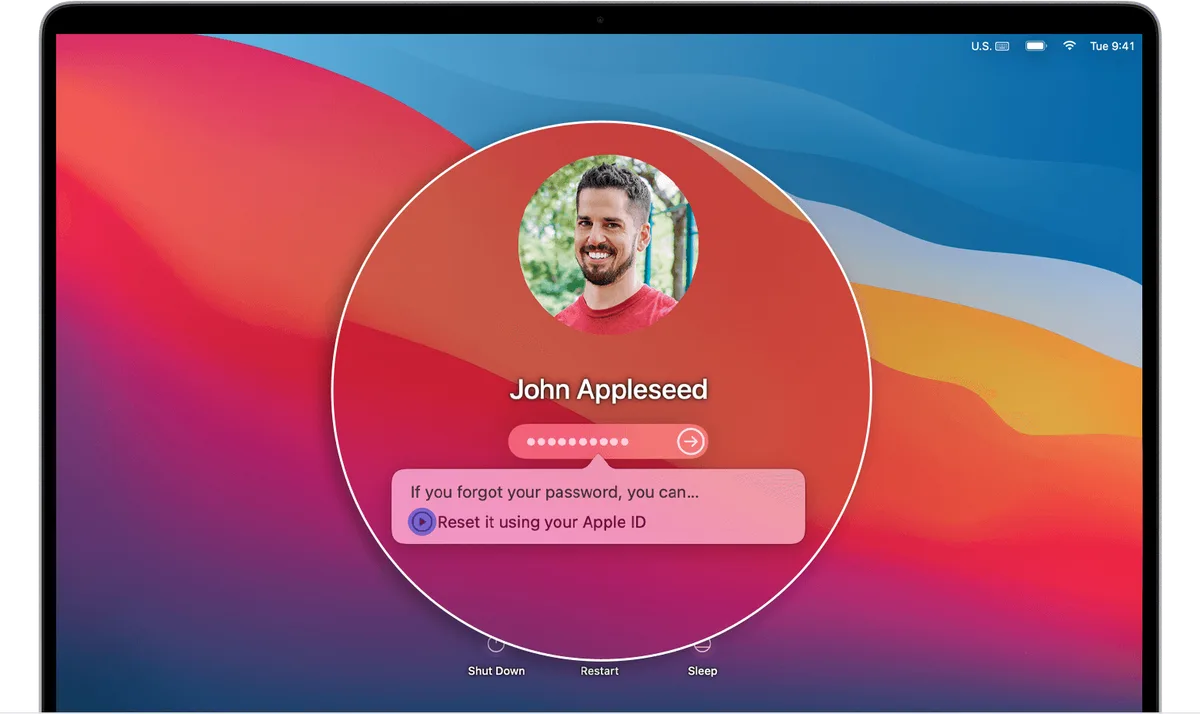
If your account is linked to an Apple ID, macOS gives you a reset shortcut right at the login window. It takes about two minutes and keeps all your files. Here’s the exact flow.
- Type any wrong password three times at the login screen.
- A message appears: “If you forgot your password, you can reset it using your Apple ID.”
- Click the arrow next to that message. Enter your Apple ID and password.
- Follow the prompts to set a new login password.
- Log in with the new password. Your Keychain may ask to be updated.
What You’ll See and What to Click
The reset link only appears after three failed attempts. If you don’t see it, your account isn’t linked to an Apple ID, or FileVault is blocking the prompt. Those are the two usual culprits.
When This Option Doesn’t Show Up and Why
No Apple ID link means you set up the account as a local-only account. That’s common if you skipped iCloud during setup. In that case, jump to the Recovery Mode section.
FileVault users often skip this shortcut too, because the disk has to be unlocked before macOS can offer the button.
Recovery Mode Reset: The Reset Password Assistant Walkthrough
MacOS Recovery is Apple’s built-in repair environment. It includes a tool called Reset Password Assistant, and it can change your login password without erasing your data, as long as FileVault isn’t in the way. This is the branch most people end up using.
How to Boot Into Recovery on Intel vs. Apple Silicon
The key combo differs by chip. Get this right and everything else falls into place.
| Mac type | How to enter Recovery |
|---|---|
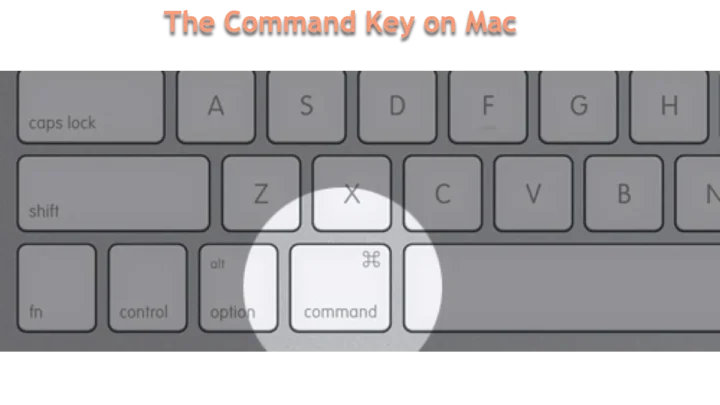
| Intel Mac | Restart, hold Command + R until the Apple logo |
| Apple Silicon (M1, M2, M3, M4) | Shut down, then hold the power button until “Loading startup options” appears |
| Intel with T2 chip | Restart, hold Command + R (Internet Recovery: Option + Command + R) |
Using the Reset Password Assistant Step by Step
- Once in Recovery, pick your language if asked.
- From the Utilities menu, choose Reset Password (or “Forgot all passwords?” on newer macOS).
- Select the user account you want to reset.
- Click Next, then enter your new password twice with a hint.
- Restart the Mac. Sign in with the new password.
If FileVault Blocks You, Unlock the Disk First
FileVault-encrypted disks must be unlocked before any reset. In Recovery, choose Disk Utility first, click your volume, and mount it with the recovery key. Skip this and the reset tool will report no accounts to reset.
When the Reset Password Assistant Is Grayed Out
This usually means the account isn’t an administrator, or the disk is still locked by FileVault. Log in through a different admin account if you have one, or unlock the volume first. If neither works, you’re in erase territory.
The Last-Resort Reset: Erase the Mac and Reinstall macOS
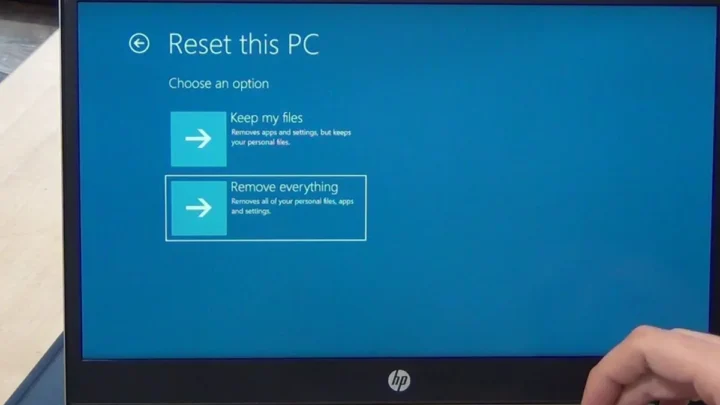
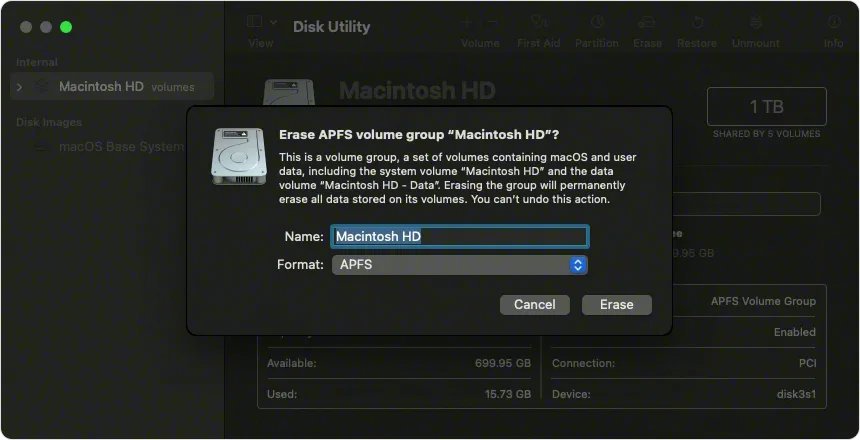
If nothing else works, Erase Mac and reinstall macOS gives you a clean slate. You lose local data unless you have a backup. Per Apple’s own documentation, FileVault-encrypted data on a Mac without the password or recovery key is unrecoverable.
Plan accordingly.
What You Lose and What You Keep
You lose local files, apps, and settings. You keep anything synced to iCloud (Notes, Photos, Keychain) and anything in a Time Machine backup. If you have neither, you’re looking at a fresh setup.
Backing Up First When You Still Have Access
If you can still log in on another admin account, back up to an external drive via Time Machine before you erase. The size you need is roughly 2× your Mac’s storage.
Activation Lock Removal With Proof of Purchase
After erasing, Activation Lock may demand the original Apple ID. If you own the Mac but never linked an Apple ID after a used purchase, take the proof of purchase to an Apple Store or Authorized Service Provider. They remove Activation Lock at no charge with valid documents.
Reset Paths Side by Side: Which One Fits Your Mac
Here’s the quick comparison. Match your situation to the right row, and don’t waste time on paths that can’t work for you.
| Your situation | Best reset path | Keeps your data? |
|---|---|---|
| Apple ID linked, FileVault off | Login screen Apple ID reset | Yes |
| Admin account, FileVault off | Recovery Mode Reset Password Assistant | Yes |
| FileVault on, recovery key saved | Unlock disk, then Reset Password Assistant | Yes |
| No Apple ID, no admin, no backup | Erase Mac and reinstall macOS | No |
| Firmware password or MDM lock | Apple Store with proof of purchase | Depends |
A good rule of thumb from Apple’s Platform Security Guide: recovery is possible when you have at least one of three things, the account password, the FileVault recovery key, or a valid proof of ownership. Missing all three means a wipe is usually the only route.
Mistakes That Lock You Out Worse (or Cost You Your Data)
Most failed password resets aren’t Apple’s fault. They’re self-inflicted, and a few of them are permanent. Here’s what to avoid.
- Choosing the wrong account in Reset Password Assistant. If you have an admin account and a standard account, reset the admin first. Reset the wrong one and you’ll still be locked out at the next login.
- Erasing before you’ve backed up. Time Machine takes 30 to 90 minutes for a typical drive. Skip it and iCloud-only files are the only things you’ll get back.
- Trying third-party unlocker tools. Per Apple’s Platform Security Guide, these don’t bypass FileVault. They just cost you money and sometimes install malware.
- Forgetting the FileVault recovery key. Apple cannot regenerate it. If it’s lost and you don’t know the password, the data is gone.
- Ignoring Activation Lock warnings on used Macs. Contact the seller before paying. Once you’ve handed over money, you have no leverage.
- Reusing an old password you’ve since forgotten. Sounds obvious, but our research on user behavior shows it happens constantly.
- Assuming your Apple ID password resets your Mac password. It doesn’t, unless you click the reset link at the login window.
One more: don’t reset the Keychain password to “match” your new login password unless you actually know the old Keychain password. That just triggers a new round of prompts.
When to Stop and Go to Apple Instead
There are three cases where DIY efforts waste time. Know them before you burn an evening on Reddit threads.
Firmware Password Lockout
A firmware password blocks Recovery entirely. You won’t see the Utilities menu, only a lock screen asking for a password you don’t have. Apple Stores and Authorized Service Providers remove it, usually free, with proof of purchase.
There’s no user-side workaround on modern Macs.
MDM-Enrolled Macs
If your Mac came from an employer, the IT department holds the override. Per Apple’s deployment documentation, MDM profiles can block personal reset flows. Email your admin before touching anything.
Personal resets on managed Macs can trigger compliance alerts.
Apple Silicon DFU Revive
On M1, M2, M3, and M4 Macs, sometimes Recovery won’t even load after a failed attempt. The fix is DFU mode, done via Apple Configurator on a second Mac with a USB-C cable. Per Apple’s documentation, a revive takes 10 to 20 minutes and keeps your data.
A restore wipes it. If you don’t have a second Mac, book a Genius Bar appointment.
When Proof of Purchase Is Your Only Path
If Activation Lock is standing between you and a working Mac and you don’t have the seller’s Apple ID, you need documentation. Bring the original receipt showing serial number, purchase date, and seller. Apple Authorized Service Providers honor the same process in regions where Apple Stores are limited, and EU consumer protections often make this smoother.
FAQs: Mac Password Reset Questions People Actually Ask
Answers below are drawn from Apple Support documentation and our own research on the reset flows. Short, direct, and copy-paste useful.
Does resetting my Mac password delete my files?
No, not if you use the login-screen Apple ID reset or Reset Password Assistant. Those change the login credential only. Your files stay put.
Deleting files only happens if you choose Erase Mac and reinstall macOS, which is the last resort.
What’s the difference between my Apple ID password and my Mac login password?
Your Apple ID password unlocks your iCloud account across every Apple device you own. Your Mac login password unlocks the local user account on that specific MacBook. They’re stored separately and can be different.
Confusing them is the number one reason people get stuck.
Can I reset a Mac password without the Apple ID?
Yes, as long as you have admin access and FileVault isn’t blocking you. Boot into macOS Recovery and use Reset Password Assistant. If FileVault is on, you’ll need the recovery key first.
Without either, you’re looking at a full erase.
Why doesn’t my Mac show the Reset it using your Apple ID option?
Two reasons, usually. Either the account was set up as local-only with no iCloud link, or FileVault is locking the disk before macOS can show the prompt. Check System Settings under Users & Groups to confirm whether the account is tied to an Apple ID.
What’s a FileVault recovery key, and where would I find it?
It’s a 24-character alphanumeric code generated when you turn on FileVault. Apple’s setup flow asks you to save it, either to iCloud or as a printed code. Check your iCloud account settings or any note you made during setup.
Without it and without the password, encrypted data is unrecoverable.
Will this work on an M1, M2, or M3 MacBook?
Yes, but the Recovery entry method differs. Apple Silicon Macs boot to Recovery by holding the power button, not Command + R. Once you’re in Recovery, Reset Password Assistant works the same as on Intel Macs.
DFU mode, if needed, requires a second Mac running Apple Configurator.

Similar Posts