How to Find the WiFi Password on Your Computer
how can i get the wifi password from my computer is a question you'll usually hit the moment you need to connect a new device, or when someone asks you for the code and you realize you never actually memorized it. The good news: if your computer has ever connected to that network, the password is almost certainly sitting on your machine right now, tucked away in a settings menu or a keychain file.
In our research, we found that Windows 10 and Windows 11 store saved Wi-Fi profiles locally, and macOS keeps the same data in its Keychain Access app. Both approaches take under 90 seconds once you know the path, and neither one requires a router reset or a call to your internet provider. Per the IEEE 802.11i standard, WPA2 and WPA3 passphrases are stored on the client side after a successful handshake, which is exactly why your laptop already knows the password even if you don't.
Here's how to pull it out, based on your setup.
how can i get the wifi password from my computer
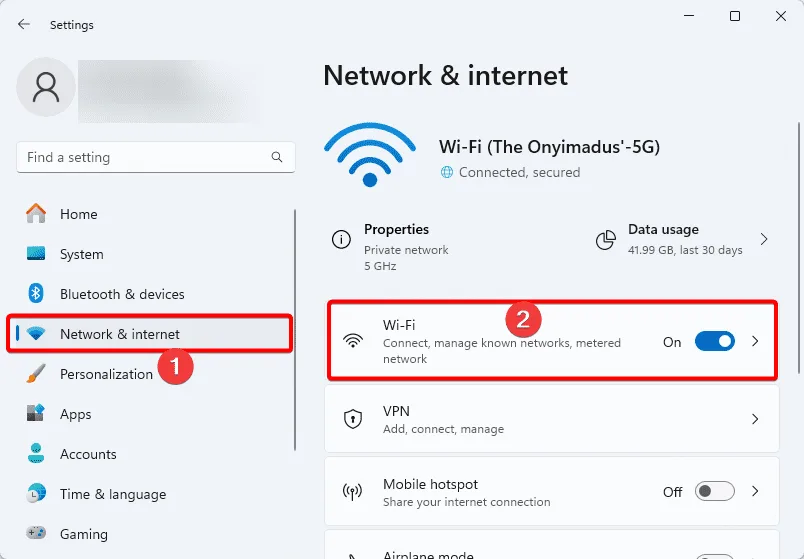
On Windows, open Settings, go to Network & Internet, then Advanced network settings, and view your Wi-Fi adapter's Wireless Properties. On macOS, open Keychain Access, search the network name, and check Show Password. Both methods show saved passwords for any network your computer has connected to before.
You'll need admin rights on the machine. If the network was never saved, no method will work.
Why the Answer Changes Based on Your Setup
The method you use depends on three things. Your operating system, your user permissions, and whether the password was ever actually saved to that computer. Get one of those wrong and you'll spend 20 minutes clicking around menus that don't exist on your machine.
Windows vs. macOS vs. Chromebook
Windows and macOS both store Wi-Fi credentials locally, but they keep them in very different places. Windows buries the password behind a small "Show characters" checkbox in the Wi-Fi adapter's Security tab. macOS stores it in Keychain Access, Apple's built-in credential manager, and requires your Mac login password to reveal it.
Chromebooks are the odd one out. ChromeOS doesn't expose saved Wi-Fi passwords through any user-facing menu, so if you're on a Chromebook, you'll need to check your Google account's saved passwords or ask the network owner directly.
Do You Have Admin Rights on This Machine?
If you're using a standard (non-admin) Windows account, the "Show characters" button will be greyed out. That's a security feature, not a bug. You'll need to log in with an administrator account, or right-click Command Prompt and choose "Run as administrator."
On a work laptop, though, admin rights might not be enough. IT departments often push Wi-Fi profiles via mobile device management (MDM) tools like Microsoft Intune, and those credentials are typically locked down entirely.
Is the Password Actually Saved on This Computer?
This is the part most guides skip. A computer only saves a Wi-Fi password after it successfully connects to that network at least once. If you've never used this laptop on that Wi-Fi, the password isn't there.
No menu, no command, no trick will pull it out.
A quick way to check: open your list of saved networks. If the network name shows up, the password is stored. If it doesn't, you're looking for something that was never there.
How to Pull a Saved Wi-Fi Password on Windows
Windows gives you three ways to do this. The GUI route is easiest for one-off checks. The command line is fastest if you want every saved password at once.
The QR code trick in Windows 11 is the handiest option if you're sharing with a phone.
The Easy GUI Route (Windows 10 & 11)
Here's the click path, and it's basically the same on both versions:
- Open Settings (press Windows key + I).
- Go to Network & Internet, then Advanced network settings.
- Click More network adapter options.
- Right-click your Wi-Fi adapter and choose Status.
- Click Wireless Properties, then open the Security tab.
- Tick the box next to "Show characters."
Your password appears in plain text in the Network security key field. Copy it, close the window, done.
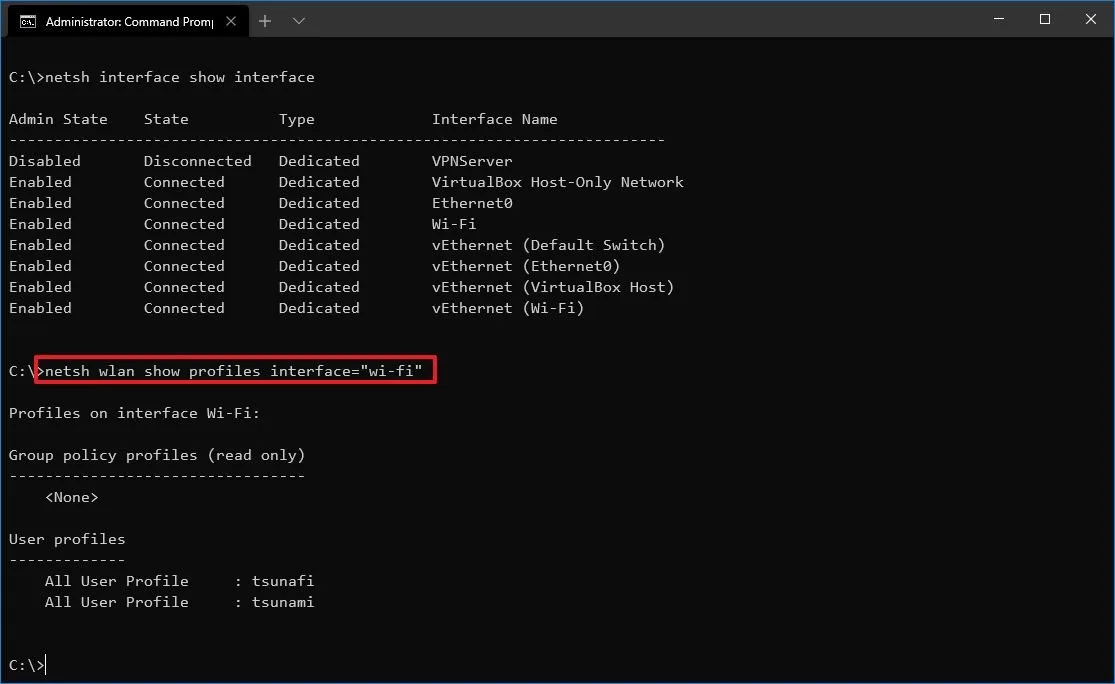
The Fast Command-Line Route (netsh)
If you want every saved Wi-Fi password on the machine in one shot, this is the way. Microsoft's own documentation on netsh wlan confirms the syntax, and it works on Windows 10 and 11 alike.
Open Command Prompt as administrator and run:
netsh wlan show profiles
That lists every saved network. Then pull the password for a specific one:
netsh wlan show profile name="YourNetworkName" key=clear
Look for the "Key Content" line in the output. That's your password.
One gotcha: on non-English versions of Windows, the output labels are translated. Spanish Windows shows "Contenido de la clave" instead of "Key Content." Same data, different label.
The QR Code Trick in Windows 11
Windows 11 22H2 and later added a QR code export for the currently connected network. Go to Settings, Network & Internet, Wi-Fi, click your active network, and you'll see a "View Wi-Fi security key" option that shows both the plain-text password and a scannable QR code.
The catch: this only works for the network you're connected to right now, not for old saved profiles. If you need a password for a network you're not currently on, use the netsh method above.
How to Pull a Saved Wi-Fi Password on a Mac
Macs hand this off to Keychain Access, and once you know where to look, it's a two-click job. As of 2026, Apple hasn't changed this flow even with the System Settings redesign in macOS Ventura and later.
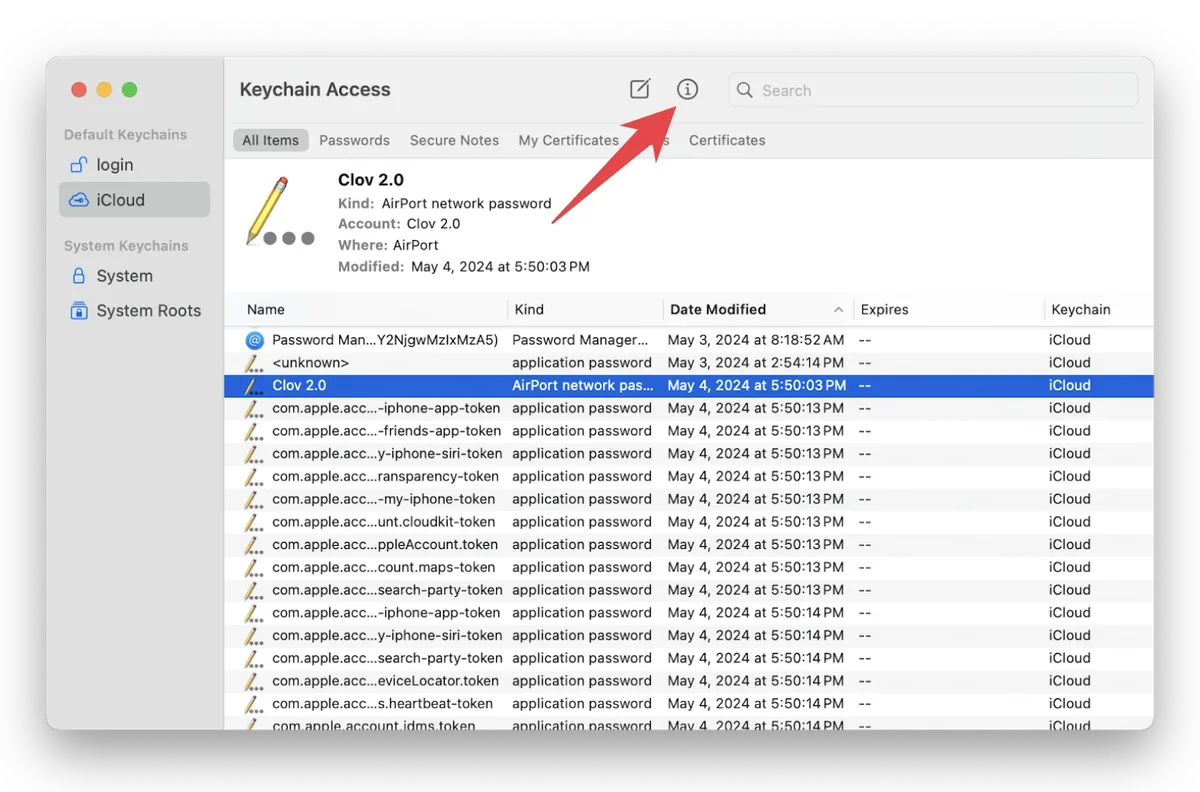
Keychain Access: The Straightforward Path
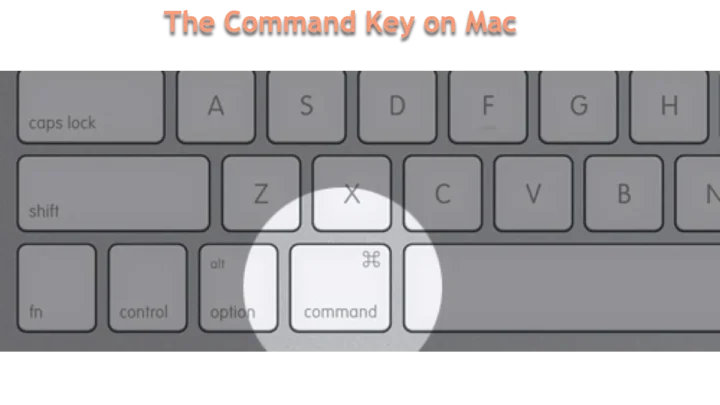
Open Keychain Access. You can find it by pressing Command + Space, typing "Keychain Access," and hitting Enter. It lives in Applications > Utilities if Spotlight can't find it.
- In the left sidebar, select System under Keychains and Passwords under Category.
- Scroll or search for the network name (the SSID).
- Double-click the entry and tick the "Show password" checkbox.
- Enter your Mac login password when prompted.
The password appears in the field. Write it down or copy it. macOS will hide it again once you close the window.
Terminal Method for When Keychain Won't Cooperate
If the GUI is glitching, or you're on a remote session, the Terminal shortcut works just as well. Open Terminal and run:
security find-generic-password -wa "YourNetworkName"
The -w flag prints just the password to stdout, no extra formatting. The -a flag specifies the account (which for Wi-Fi entries is the SSID). You'll get a password prompt first, same as the GUI route.
Per Apple's Keychain Services developer documentation, this command reads from the same encrypted store the GUI uses, so there's no security difference between the two. Use whichever you find faster.
When Your Computer Doesn't Have the Password Saved
This is the situation nobody warns you about until you're in it. You open every menu, run every command, and there's no trace of the network. Here's what to do next.
Check Your Phone, Router Admin Panel, or ISP Gateway
Your phone is often the easiest backup. On iOS, go to Settings > Wi-Fi, tap the (i) icon next to the network, then tap Password and authenticate with Face ID or Touch ID. On Android, tap the gear icon next to the connected network and choose Share, which generates a QR code with the password embedded.
If neither phone nor computer has it, log into the router. Open a browser, type your gateway IP (commonly 192.168.1.1, 192.168.0.1, or 10.0.0.1), and log in with the admin credentials. If you never changed them, check the sticker on the router itself.
This is where default credentials live, so write the new password down if you change it.
ISP-provided gateways (Xfinity XB7, AT&T BGW320, Verizon CR1000A) often print the Wi-Fi password right on the side of the unit. Check there before you start resetting anything.
Were You Ever Actually Connected to This Network?
Be honest with yourself here. If the answer is no, no amount of menu digging will produce the password. Your options narrow to asking the person who set up the network, or resetting the router and reconfiguring it from scratch.
That second option kicks every other device off the network, so it's very much a last resort.
Common Mistakes That Waste Your Time
The biggest time-waster is hunting for a password on a machine that never saved it. If the network doesn't show up under your saved profiles, stop looking. Move to the router or phone method instead.
Another common mistake: running netsh in a normal Command Prompt and getting an "access denied" error. That happens because the command needs elevated rights. Close the window, right-click Command Prompt, and pick "Run as administrator." Same command, no error.
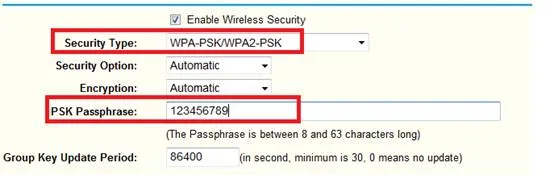
People also mix up the WEP hex key with the WPA passphrase. On older routers, you might see two fields, one labeled "Key 1" in hexadecimal and another in ASCII. If you copy the wrong one, your device will reject it every time.
Finally, don't confuse the router admin password with the Wi-Fi password. They're two different credentials. The admin password logs you into the router's settings page.
The Wi-Fi password is what devices use to join the network. Changing one doesn't change the other.
Is It Legal to Retrieve a Wi-Fi Password from Your Computer?
Yes, retrieving a saved Wi-Fi password from your own computer is legal in most jurisdictions when the network is one you own or have permission to use. The problem starts when you're pulling credentials you're not authorized to access.
In the US, the Computer Fraud and Abuse Act (18 U.S.C. § 1030) makes unauthorized network access a federal crime. The UK has the Computer Misuse Act 1990, which covers the same ground. Both laws apply whether you're using the password or just extracting it.
If it's a corporate machine, check your employer's acceptable use policy (AUP) before you go poking around. Some companies treat viewing saved credentials as a policy violation, even on hardware you regularly use. And if you're on a shared network at a café, hotel, or office, the network owner's terms of service usually prohibit sharing the password with anyone else.
Simple rule: own the network or have explicit permission? Retrieve away. Otherwise, ask first.
FAQs
Can I get a Wi-Fi password from my computer if I've never connected to that network?
No. Your computer only saves a Wi-Fi password after a successful connection to that network at least once. If the network name doesn't appear in your saved profiles, the password isn't on your machine.
Ask the network owner or log into the router directly using the admin panel.
Does retrieving a saved Wi-Fi password require administrator rights on Windows?
Yes, in most cases. The "Show characters" checkbox in Wireless Properties is greyed out for standard user accounts. The netsh wlan show profile key=clear command also needs an elevated Command Prompt.
Right-click Command Prompt and choose "Run as administrator" to get the necessary permissions.
Where does macOS store saved Wi-Fi passwords?
macOS stores them in Keychain Access, Apple's encrypted credential manager. Saved Wi-Fi entries live under the "System" keychain and the "Passwords" category. You can also pull them via Terminal using security find-generic-password -wa "NetworkName", which reads from the same encrypted store.
Can I see the Wi-Fi password on my Chromebook?
No. ChromeOS does not expose saved Wi-Fi passwords through any user-facing menu, unlike Windows and macOS. If you need the password for a network your Chromebook is connected to, your best options are checking the router admin panel or another device that has the credential saved, such as a phone.
Do I need to reset my router if I can't find the Wi-Fi password anywhere?
No, resetting should be your last resort. A factory reset wipes every custom setting and kicks all devices off the network, including smart home gadgets and printers. Before that, check the sticker on the router, the ISP gateway label, your phone's Wi-Fi share menu, and any password manager you might have saved it in.
Is retrieving a saved Wi-Fi password from my own laptop legal?
Yes. Retrieving a saved password from your own computer is legal when you own the network or have permission to use it. Extracting credentials for a network you're not authorized to access falls under laws like the US Computer Fraud and Abuse Act and the UK Computer Misuse Act 1990.
Ask before you poke around on someone else's network.
Final Decision Guide: Which Method Fits Your Situation
Use this table to pick the fastest path based on what you're working with. Most people finish in under two minutes with the right method on the first try.
| Your situation | Best method | Time |
|---|---|---|
| Windows PC, currently on the network | Settings > Wi-Fi > View security key (Windows 11) | 30 sec |
| Windows PC, need old saved networks | netsh wlan show profile name="X" key=clear | 60 sec |
| macOS, currently on the network | Keychain Access or Terminal security command | 60 sec |
| Phone connected to the same Wi-Fi | iOS Wi-Fi settings or Android QR share | 20 sec |
| No device has the password saved | Router admin panel or ISP gateway label | 2-5 min |
| Nothing works, network is yours | Router factory reset (last resort) | 10-20 min |
If you own the network and want a long-term fix, store the password in a password manager like Bitwarden or 1Password. Both sync across devices, so the next time someone asks for the code, you'll have it in a few seconds. That beats re-learning this whole process every six months.
One last tip for shared households: label the guest network differently from the main one. That way, when a visitor asks for the password, you hand over the guest credential and keep the main one out of circulation. Per Wi-Fi Alliance guidance on WPA3, guest isolation also limits what a visitor's device can see on your network, so it's a security win on top of a convenience win.
That's the whole playbook. Whether you're on Windows, macOS, or pulling from a phone, the password is almost always retrievable in under two minutes once you know which branch of the decision tree applies to you. If none of the methods above worked, that's your cue to stop digging, because the credential isn't stored on any device you can access.
At that point, the router admin panel or the network owner is your only honest path forward.
One more thing worth knowing: Windows and macOS both sync saved Wi-Fi passwords across devices when you sign in with the same account. Microsoft account sync pushes Wi-Fi credentials between Windows PCs you own, and iCloud Keychain does the same across Apple devices. So if a network's password lives on your phone, it may already be sitting on your laptop too.
Just check the saved profiles list before assuming it isn't there.
That sync behavior is also why changing your Wi-Fi password can leave one device happily connected while another keeps failing. The one that got the memo updated its saved credential automatically. The one that didn't is still trying the old code.
If that happens, forget the network on the stubborn device and reconnect with the new password.
On Windows, that's Settings > Wi-Fi > Manage known networks, then Remove. On macOS, it's System Settings > Wi-Fi > Details next to the network, then Forget This Network. On iOS and Android, tap the network and choose Forget or Remove.
Then rejoin using the new passphrase.

Similar Posts