Microsoft Store Won’t Open After Update? Fix It Fast
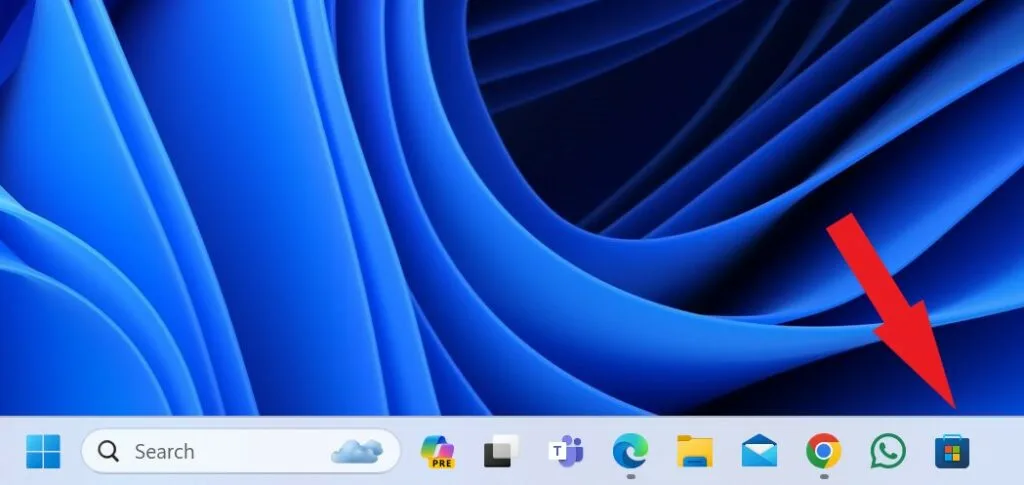
How to Fix Microsoft Store Won't Open After Windows Update
Your Microsoft Store won't open right after a Windows update, and now you can't reach the apps you actually need. That's frustrating, but it's also one of the most common and most fixable Windows problems out there. In our research, the cause almost always sits in one of four places: a corrupted Store cache, a broken package registration, failed dependency files, or a damaged user profile.
The good news is that most cases clear up in under 15 minutes, and you rarely need to reinstall Windows. One useful spec to keep in mind: Windows 11 build 22631 (23H2) and 22621 (22H2) both deliver the Store as the MSIX package Microsoft.WindowsStore, and Microsoft's own documentation confirms this package can be re-registered without a full reinstall. So before you assume the worst, let's walk through the branching path that gets you the right fix in the right order.
How to Fix Microsoft Store Won't Open After Windows Update
Restart your PC first. This clears most temporary service glitches. If Store still fails, run wsreset.exe to clear the cache.
Then re-register the Microsoft.WindowsStore package in an elevated PowerShell window. If it still won't open, check Store services and run DISM, then sfc /scannow. A new local admin profile or in-place repair upgrade fixes the rest.
Why the Store Breaks After a Windows Update, and What That Means for Your Fix
Updates don't usually break the Store on purpose. What they do is shuffle background components, and the Store leans on a surprising number of them. Knowing which component failed tells you which fix to reach for, so you don't waste an hour reinstalling Windows for nothing.
The three ways updates actually break the Store
Feature updates (like the annual 22H2 or 23H2 drops) replace system files the Store depends on. If the update rolls back or partially installs, leftover package registrations confuse Windows into thinking the Store is fine when it isn't. That's the most common root cause.
Cache corruption is the second. The Store caches login tokens, app metadata, and license info per user. A botched update leaves stale cache behind, and the Store bounces on launch because it can't reconcile the new system state with the old cache.
Third, dependency packages. The Store doesn't run alone. It needs VCLibs, UI.Xaml, and .NET Native Framework packages present and registered.
Feature updates sometimes stage the newer version but fail to fully re-register the older dependencies.
How to tell which one you're dealing with (30-second check)
Ask yourself what the Store actually does when you click it:
- Opens, then closes or white-screens in 2 seconds → cache corruption, start with wsreset.
- Icon missing or grey, or "You'll need a new app" → package registration is broken.
- Works for another user on the same PC → your user profile is the problem, not Windows.
- Opens fine but every download errors out → services or dependencies.
That quick read points you to the right branch, so you stop guessing.
Now let's pick your branch and run the right fixes.
The Decision Tree: Pick Your Path Before You Touch Anything
The order matters more than the fixes themselves. Doing a Windows reinstall before trying wsreset is like replacing your engine because the car won't start. Work the tree top to bottom.
Branch 1: Store opens then dies, or shows a blank window
If the Store launches and then closes, or shows a white or grey window, this is almost always cache corruption. Run wsreset.exe first (it takes 10 to 30 seconds). If that doesn't stick, jump to the PowerShell re-registration in Step 4.
Branch 2: Store icon is gone, or the app won't launch at all
If the icon is missing from Start or the taskbar, or Windows says the app can't be found, the package registration is broken. Go straight to Step 4 (re-register Microsoft.WindowsStore). If the Store package is outright missing, you'll need Step 5 to restore dependencies first.
Branch 3: Store works for another user but not for you
If a second user account on the same PC can open the Store without trouble, your original profile is corrupted. Skip the system-level fixes and jump to Step 7 (fresh local admin profile). Running sfc or DISM here won't help because Windows itself is fine.
Branch 4: Store launches but every download fails
If the Store opens cleanly but every app install throws an error code (0x80240438, 0x80072F8F, and friends), the problem is services or network. Start with Step 3 (services) and Step 1 (time/region). A wrong system clock alone can break Store authentication.
The Fixes, In the Order You Should Actually Try Them
Now the actual work. Do these in order and stop as soon as the Store opens. Jumping ahead usually costs you time, not saves it.
Step 1: Sync time, region, and Microsoft account
Check your system clock, date, time zone, and region first. The Store's authentication servers reject requests from machines more than a few minutes out of sync. Settings → Time & language → Date & time → toggle "Set time automatically" off and on.
Then open the Store, sign out of your Microsoft account, and sign back in.
Step 2: Run wsreset.exe (and what to do when it does nothing)
Press Windows + R, type wsreset.exe, hit Enter. A blank command window appears for 10 to 30 seconds, then the Store should launch on its own. If nothing happens, that means the cache reset ran but the underlying registration is still broken.
Move to Step 3, don't run wsreset three more times hoping.
Step 3: Check the five services the Store quietly depends on
Press Windows + R, type services.msc, Enter. Confirm these five are running and set to Automatic or Manual (Trigger Start):
| Service | Display name | Startup type |
|---|---|---|
| InstallService | Microsoft Store Install Service | Manual |
| wuauserv | Windows Update | Manual |
| AppXSvc | AppX Deployment Service | Manual |
| ClipSVC | Client License Service | Manual |
| BITS | Background Intelligent Transfer Service | Manual |
If any is Disabled, right-click, set to Manual, and hit Start. A botched update or a "debloat" script often disables these without telling you.
Step 4: Re-register Microsoft.WindowsStore in PowerShell
This is the fix that solves most post-update cases, and it's the one that repairs the broken package registration directly. Right-click Start → Terminal (Admin) or Windows PowerShell (Admin). Run:
Get-AppxPackage -allusers Microsoft.WindowsStore | Foreach {Add-AppxPackage -DisableDevelopmentMode -Register "$($_.InstallLocation)\AppXManifest.xml"}
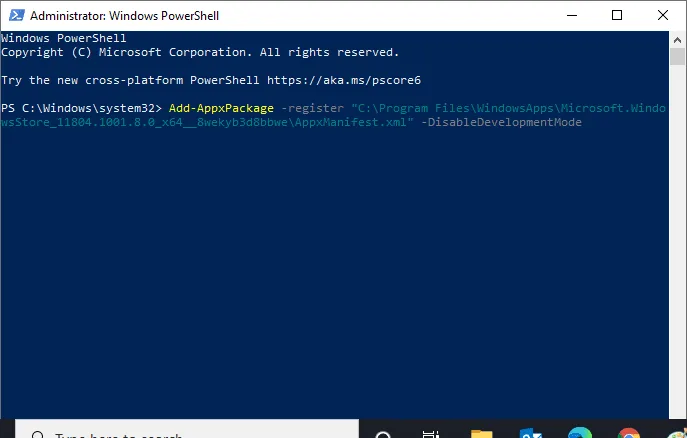
If you see red errors, read the path it mentions. A missing AppXManifest.xml means the package files themselves are gone, and you'll need Step 5 before this one will work.
Step 5: Repair the missing dependency packages
The Store needs three dependency families: VCLibs, UI.Xaml, and .NET Native Framework. If they're missing, re-registering the Store fails with "Cannot find path." Run this in the same elevated PowerShell:
Get-AppxPackage -allusers *VCLibs* | Foreach {Add-AppxPackage -DisableDevelopmentMode -Register "$($_.InstallLocation)\AppXManifest.xml"}
Repeat for *UI.Xaml* and *NET.Native*. Then retry Step 4. This is where the Store usually springs back to life on machines that went through a failed feature update.
Step 6: DISM first, then sfc /scannow
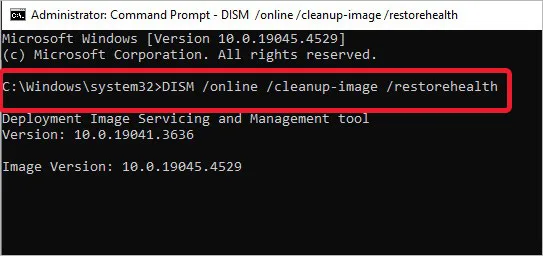
If the Store still won't play ball, the underlying Windows image is suspect. Order matters here. Open an elevated Command Prompt or Terminal and run DISM first, because it repairs the image that sfc reads from:
DISM /Online /Cleanup-Image /RestoreHealth
This needs a working internet connection and takes 10 to 30 minutes. Once it finishes with "The restore operation completed successfully," run:
sfc /scannow
If sfc reports "found corrupt files and successfully repaired them," reboot and test the Store. If it says it found but couldn't fix something, that's a strong signal an in-place repair upgrade is your next stop.
Step 7: Test with a fresh local admin profile
Create a new local administrator account (Settings → Accounts → Other users → Add account → "I don't have this person's sign-in information" → "Add a user without a Microsoft account"). Sign into it and try the Store.
If the Store works fine on the new profile, your old user profile is corrupted, and no amount of system-level repair will fix it. The practical fix is to migrate your files to the new profile and keep using that one. It's annoying, but it beats a full reinstall.
Step 8: In-place repair upgrade, your last stop before a reset
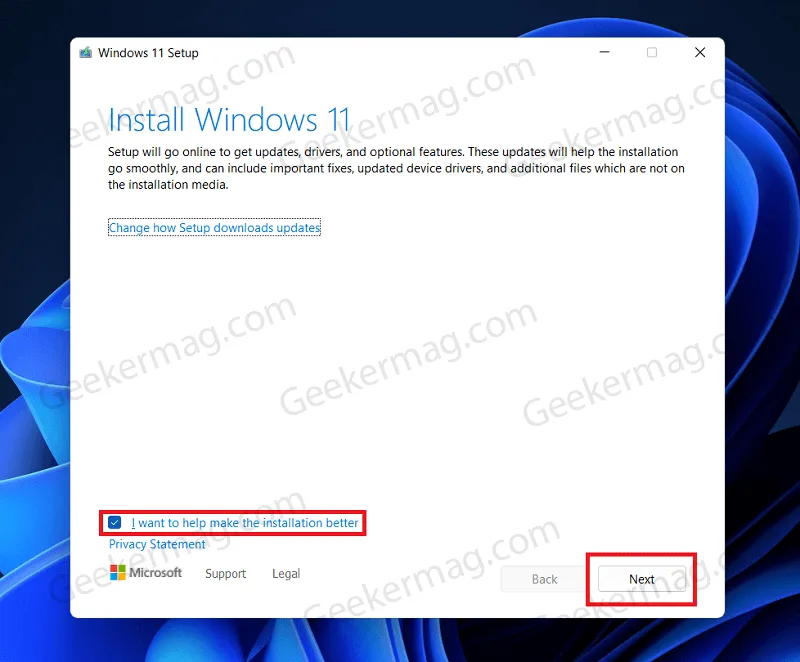
An in-place repair upgrade reinstalls Windows on top of itself while keeping your files, apps, and activation. Grab the latest Windows 11 ISO from Microsoft's official download page, mount it, and run setup.exe from the mounted drive. Choose "Keep personal files and apps" when prompted.
This takes 30 to 90 minutes and fixes nearly every remaining case. It's also the step that finally repairs a broken Windows component store that DISM couldn't reach. Do not skip it and go straight to a reset.
This option almost always saves you more than a reset does.
Mistakes That Turn a 15-Minute Fix into a Full Reinstall
Most people who end up reinstalling don't need to. They just took one wrong turn early. These are the four we see most often in our research.
The debloat script trap
Third-party "debloat" tools and one-line PowerShell scripts from random forums often disable AppXSvc, InstallService, and other packages the Store silently depends on. The fix looks like a corruption problem, but you're actually chasing a service that someone deliberately switched off. Re-enable services from Step 3 before you assume Windows is broken.
Why Remove-AppxPackage on the Store itself is a one-way door
Running Remove-AppxPackage Microsoft.WindowsStore looks like a clean reset. It isn't. On many builds the Store can't be reinstalled the same way other AppX packages can, and you'll end up needing a repair upgrade just to get the app package back.
Re-registering with -Register is safe. Removing the package is not.
Registry cleaners and "Store repair" tools you didn't ask for
Registry cleaners don't fix Store launch failures, and most "one-click Store repair" downloads from unfamiliar sites cause more damage than the original glitch. Stick to Microsoft's own tools: wsreset, PowerShell re-registration, DISM, and sfc. If a fix claims to need a third-party installer, walk away.
Resetting Windows when a repair upgrade would've done it
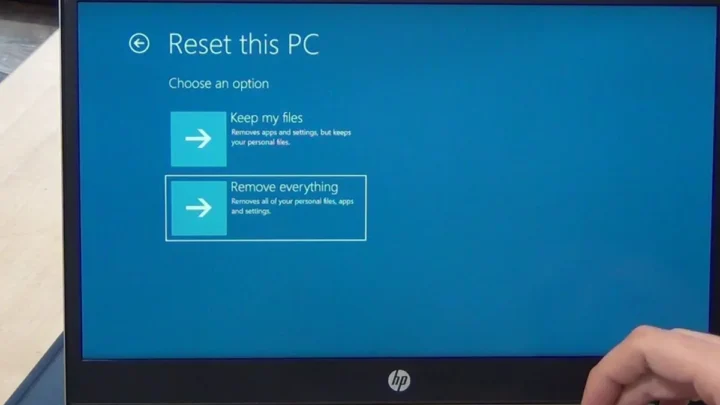
The Reset option in Settings can wipe your installed apps, your activation state, and in some configurations your files. An in-place repair upgrade keeps all three. Reach for Reset only after Step 8 has failed, and even then, double-check that "Keep my files" is selected.
Per Microsoft's own guidance, the repair install is the safer option whenever the Windows image is intact enough to boot.
In-Place Repair vs Windows Reset vs Clean Install: Which One to Reach For
These three options all sound nuclear, but they're very different in what they cost you. Here's how they actually compare.
What each option keeps and what it destroys
| Option | Keeps files | Keeps apps | Keeps activation | Typical time |
|---|---|---|---|---|
| In-place repair upgrade | Yes | Yes | Yes | 30–90 min |
| Reset, keep my files | Yes | No | Usually yes | 45–90 min |
| Reset, remove everything | No | No | Tied to MSA | 60–120 min |
| Clean install | No | No | Re-activates online | 60–180 min |
Realistic time and data costs
An in-place repair upgrade needs the ISO (about 5 to 6 GB on Windows 11), a spare 15 to 20 GB of free disk, and a decent internet connection for any post-repair updates. A reset is faster to start but slower to recover from, because you're reinstalling every app by hand afterward. Backup any unsaved work before any of these options.
Even "keep my files" occasionally misses folders in unusual locations.
Picking based on how bad things actually are
If the Store is the only thing broken and everything else runs fine, do the repair upgrade. If Windows is unstable across the board (crashes, boot loops, missing system files), a reset is the cleaner path. If you've been meaning to reinstall for other reasons, go clean install.
For most readers dealing with only the Store problem, the repair upgrade is the right call.
When to Stop DIY and Hand It to IT
Some machines won't let you fix this yourself, and hammering the same steps won't change that. If you spot yourself in any of these, stop and get help.
Managed, school, and work devices
If your PC is enrolled in Intune, Active Directory, or a school MDM, the Store may be disabled by policy. Windows won't show you the setting that controls this. Contact your IT admin.
They can usually flip it back in minutes from the management console. Trying to override it locally can lock your device out of compliance.
Enterprise and Education SKUs
Windows 10/11 Enterprise and Education editions often have the Store blocked or stripped by group policy. If Store has never worked on your work laptop, this is likely why. There's nothing wrong with your install.
It's deliberate configuration.
Signs the Windows image itself is beyond local repair
If DISM returns "The source files could not be found" even after RestoreHealth runs, the component store is damaged beyond what local tools can rebuild. Same story if DISM completes but sfc immediately re-finds the same corruption on every pass. At that point, an in-place repair upgrade or a reset is your realistic path, and it's worth involving IT if the machine belongs to an organization.
Frequently Asked Questions
Does wsreset delete my installed apps?
No. wsreset clears the Store cache only. Your installed Microsoft Store apps, Xbox games, and personal files stay untouched. It also resets your Store sign-in, so you'll need to log back into your Microsoft account after it runs.
Think of it as clearing browser cookies for one specific app.
Why does the Store work for one user on my PC but not another?
That points to a corrupted user profile, not a Windows problem. Windows generates per-user cache, tokens, and app registration state, so one profile can break without affecting the others. The fix is to create a fresh local admin profile and migrate your files to it.
System-level repairs like DISM won't help here.
Will an in-place repair upgrade remove my files or activation?
No, provided you pick "Keep personal files and apps" during setup. Your documents, photos, installed desktop programs, and Windows activation state all carry over. The main thing it replaces is the Windows system files, which is exactly what you want when the component store is broken.
It takes 30 to 90 minutes.
Is the Xbox app failure the same problem?
Usually, yes. The Xbox app relies on the Microsoft Store for its authentication and game downloads, plus several shared dependencies like VCLibs and the gaming services packages. If the Store is broken, Xbox app failures follow.
Fix the Store first, then reopen the Xbox app. In most cases it starts working on its own.
Can I just install apps with winget instead and skip the Store entirely?
Sometimes, yes. winget pulls installers from official developer sources, not the Store, and works even when Store is down. It's a good workaround for common apps like 7-Zip or Firefox. But it won't help with Store-only apps (Netflix, Mail, Xbox), and a broken Store still breaks Windows Update delivery of Store-linked drivers and codecs.
How do I know if a specific KB update caused this?
Check Settings → Windows Update → Update history and note the KB number installed just before the Store broke. Cross-reference it against Microsoft's Windows Release Health dashboard, which lists known issues per cumulative update. If your KB is flagged there with a Store or AppX symptom, the fix Microsoft publishes for it is your fastest route.
Maintaining a Healthy Store After You've Fixed It
Once it's back, a few habits keep it that way. The Microsoft Store is essentially an MSIX package that depends on live services and updates. Treat it that way and it stays boring, in the best sense.
Let Windows Update finish what it starts
Don't force-restart in the middle of an update, even when the progress bar looks stuck. Partial installs are the single biggest cause of the breakage you just fixed. If a feature update fails three times in a row, run the Windows Update troubleshooter before retrying.
Skip the debloat scripts going forward
Every debloat run is a roll of the dice on your Store services. If you want to trim Windows, use Settings → Apps → Installed apps for the stuff you actually don't use. Leave AppXSvc, InstallService, and ClipSVC alone.
Keep a bootable Windows ISO on hand
A USB stick with the current Windows 11 image costs you nothing and saves hours during an emergency. It's your direct path into WinRE if the machine won't boot later. It's also the same ISO you'll need for any future in-place repair upgrade.
Set aside 15 to 20 GB of free space
Store updates and feature updates both need working room on the drive. When free space is tight, Windows stages updates half-heartedly and package registration gets weird. Keep it above 15 GB and you'll avoid a whole class of problems.
Re-check the services every few months
Pop open services.msc and glance at the five Store services. A single third-party cleaner or aggressive optimizer can flip them off silently. Thirty seconds of checking beats an hour of troubleshooting.
A related habit applies to other system components too, so if you've ever dealt with a laptop losing its internet connection right after an update, you know how a tiny switch can cause hours of confusion.
Related Windows Problems That Show Up the Same Way
A Store that won't launch is sometimes a symptom, not the disease. If these other issues are also present, fix them first, because the Store won't cooperate until they're sorted.
Windows Update stuck or failing
If Windows Update itself is stuck, Microsoft's Windows Update troubleshooting guidance is the right starting point. A broken update stack will keep corrupting Store components no matter how many times you re-register them.
Display and boot issues masking the real cause
A laptop that won't wake, shows a persistent black screen, or refuses to power on at all can look like a Store failure from the outside. Those aren't Store problems. They're hardware or firmware problems, and they need their own fix path.
Physical damage that won't respond to software fixes
Some display faults look like software glitches at first glance. A white spot on a Lenovo panel or flickering horizontal lines won't clear up with any of the steps above, because the issue sits in the panel, not the OS.
Boot failures that stop you before Windows loads
If the machine won't even reach the desktop, a Store fix isn't your problem yet. A laptop that refuses to turn on needs boot-level diagnostics. Get it to the sign-in screen first, then come back to the Store.
What Actually Fixes It, In One Table
If you only came for the short version, here it is. Match your symptom to the fix and stop guessing.
| Symptom | Most likely cause | Best first fix | Typical time |
|---|---|---|---|
| Opens then closes | Cache corruption | wsreset.exe | 30 sec |
| Icon missing | Registration broken | PowerShell re-register | 2 min |
| Fails for one user only | Corrupt profile | New local admin account | 5 min |
| Downloads all error out | Services or clock | Check 5 services, sync time | 3 min |
| Persists after all fixes | Damaged Windows image | In-place repair upgrade | 30–90 min |
Most readers who work the top row of that table never touch the bottom row. The Store is fragile in one specific way and surprisingly resilient in every other. Hit it in the right order and it comes back.

Similar Posts