How to Stop Windows 10 Updates Permanently
Windows will reboot when you're on a deadline, hog your Wi-Fi to pull 4 GB of updates, and quietly undo your settings next month. If that's the experience you're tired of, the good news is that Windows 10 gives you real controls. You just need to know how do you stop updates in windows 10 in a way that matches your edition, your hardware, and how permanent you want the block to be.
Microsoft packages roughly two feature updates a year, each ranging from 3 to 6 GB, alongside monthly quality updates. That's a lot of bandwidth and downtime. As of 2026, Windows 10 is past its official end-of-support date, so blocking updates now has a different risk profile than it did in 2020.
We'll walk through your options, method by method, starting with the fastest fix.
how do you stop updates in windows 10
You can't fully stop updates on Windows 10 Home forever. But you can pause them for up to 35 days. On Pro and Enterprise you can defer or block updates entirely through Group Policy.
You can also set a metered connection, disable the wuauserv service, or use a third-party blocker.
Quick Answer: Pause, Defer, or Block — Pick Your Level of Control
There's no single switch that says "updates off." Windows 10 gives you three layers of control, and each one fits a different problem. Picking the wrong one is why so many people end up frustrated after ten minutes of registry editing.
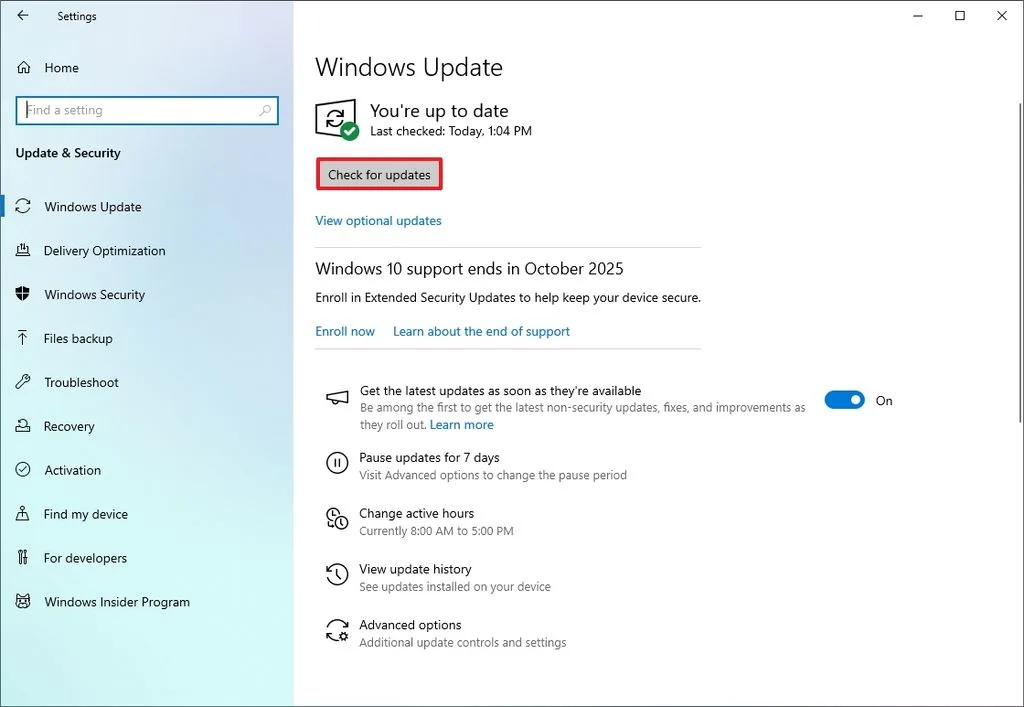
Pause is the lightest touch. It stops all updates for 7 days per click, up to 35 days total on Home. Settings menu only, no registry, reversible in seconds.
Defer is for Pro, Enterprise, and Education. It lets you push feature updates out by up to 365 days and quality updates by 30 days. This is the sweet spot for anyone who wants stable, tested builds without going fully dark.
Block is the nuclear option. You disable the Windows Update service (wuauserv), brake the Windows Update Medic Service (WaaSMedicSvc), and neutralize scheduled tasks. Effective, but it risks breaking the Microsoft Store and Defender definitions.
Here's the if/then logic most people need:
- If you just need a week or two of peace, pause updates.
- If you're on Pro and want long-term control, use Group Policy.
- If you're on Home and pause isn't enough, metered connection is your next step.
- If nothing else works and you accept the trade-offs, disable the services.
Know What You're Actually Turning Off
Windows 10 ships three categories of update, and they behave very differently. Blocking all three together is a common mistake. The risks aren't equal.
Quality Updates vs. Feature Updates vs. Driver Updates
Quality updates arrive on Patch Tuesday (the second Tuesday of each month). They fix security holes and bugs. Skipping them leaves you exposed to known exploits.
Feature updates are the big ones. Each is 3 to 6 GB and introduces new builds like 21H2 or 22H2. They're the main reason people want updates off, since they can break drivers and reset preferences.
Driver updates come through Windows Update too. Intel, NVIDIA, and AMD push drivers here. Blocking these means you're stuck on whatever driver shipped with your machine.
Definition updates keep Windows Defender current. Block these and your antivirus signatures go stale fast.
What Windows 10 Home, Pro, and Enterprise Each Allow
Edition matters more than almost anything else here. Per Microsoft's own documentation, Group Policy controls are simply unavailable on Home.
- Home: Pause (35 days max), Active Hours, metered connection, registry edits, service disable.
- Pro: Everything Home has, plus Group Policy Editor (gpedit.msc), deferrals, and Target Release Version.
- Enterprise/Education: Same as Pro, plus WSUS, Intune, and MECM for fleet-level control.
If you're on Home and someone tells you to "just set a Group Policy," they're wrong. That advice sends thousands of users hunting for gpedit.msc that doesn't exist on their machine.
Choose Your Method Based on What You Need
Each method below maps to a specific scenario. Skim the subheadings, find the one that matches your situation, and follow the steps.
Pause Updates (Everyone, Temporary Relief)
The fastest way to stop updates right now is the Pause toggle. It's available on every edition of Windows 10.
Steps:
- Open Settings > Update & Security > Windows Update.
- Click Advanced options.
- Under "Pause updates," pick a date up to 7 days out.
- Repeat every 7 days to extend, up to 35 days total.
Pause expires silently. If you forget to extend it, updates resume. That catches a lot of people off guard.
Active Hours and Metered Connection (Low-Effort Throttling)
Active Hours stops reboots during your workday, but not downloads. Metered connection goes further.
Set Active Hours:
- Settings > Update & Security > Windows Update.
- Advanced options > Active hours.
- Choose your window (18-hour max).
Set a metered connection:
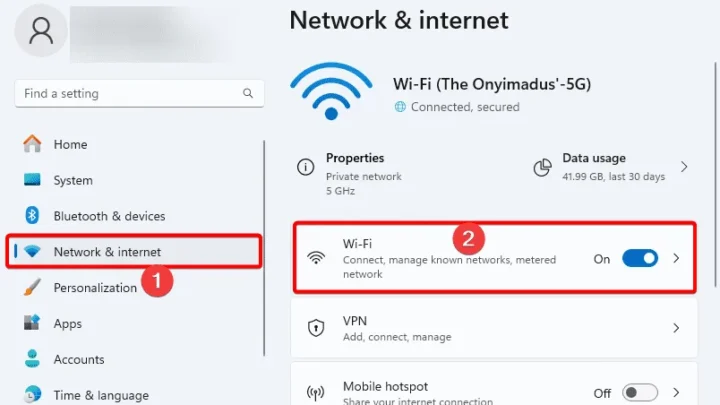
- Settings > Network & Internet > Wi-Fi.
- Click your network name > Manage known networks.
- Toggle Set as metered connection to On.
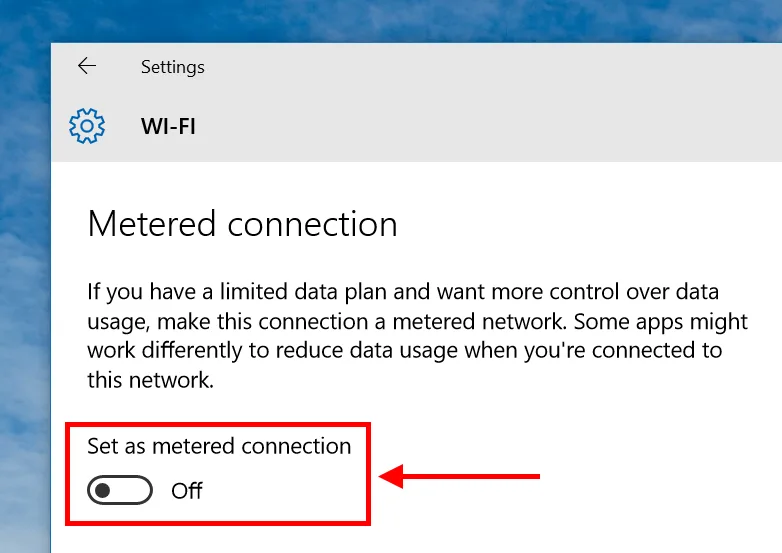
On a metered connection, Windows 10 stops most automatic downloads but still allows critical security patches and Defender definitions. That's a feature, not a bug.
Group Policy and Registry (Real Control on Pro and Enterprise)
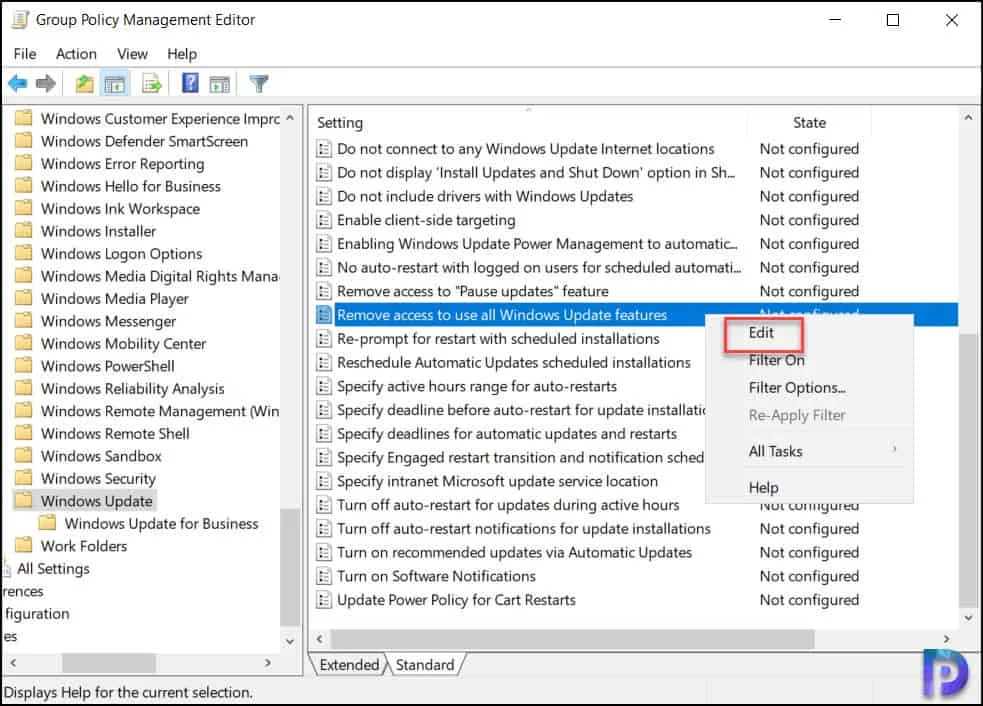
This is where Pro and Enterprise users get genuine control. The Group Policy path is the cleanest option.
Steps (Pro/Enterprise/Education):
- Press Win+R, type
gpedit.msc, hit Enter. - Navigate to Computer Configuration > Administrative Templates > Windows Components > Windows Update.
- Double-click Configure Automatic Updates.
- Set to Enabled, then choose option 2: "Notify for download and notify for install."
- Click Apply, then run
gpupdate /forcein Command Prompt.
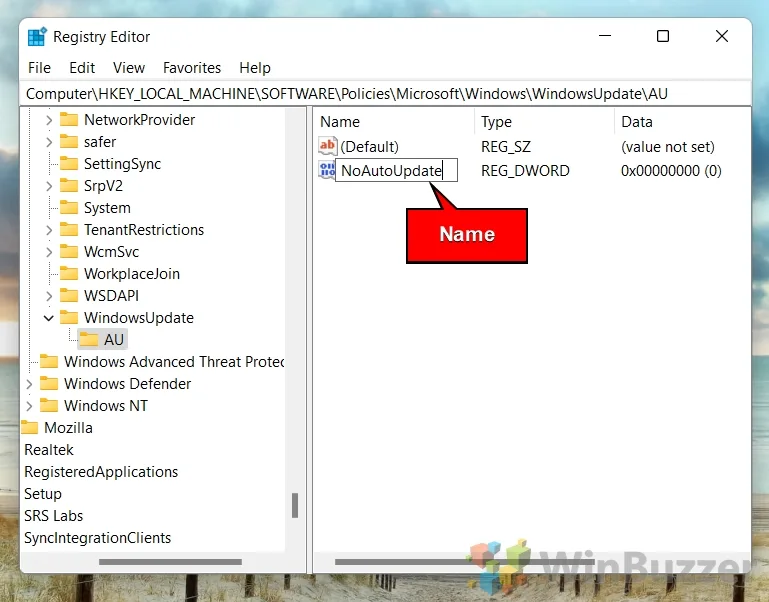
On Home, you can edit the registry instead. The key is HKLM\SOFTWARE\Policies\Microsoft\Windows\WindowsUpdate\AU. Set NoAutoUpdate to 1 and AUOptions to 2.
Back up the key first.
Services, Scheduled Tasks, and WaaSMedicSvc (The Nuclear Option on Home)
If you really want updates dead on Home, you have to handle three things: the service, the medic, and the tasks. Skip any one and Microsoft re-enables everything.
Steps:
- Press Win+R, type
services.msc. - Find Windows Update, set Startup type to Disabled, and on the Recovery tab set all failures to "Take No Action."
- Find Windows Update Medic Service (WaaSMedicSvc). It's permission-locked, so you'll need to edit
HKLM\SYSTEM\CurrentControlSet\Services\WaaSMedicSvcand setStartto 4. - Open Task Scheduler > Task Scheduler Library > Microsoft > Windows > UpdateOrchestrator. Disable every task there.
- Reboot and verify.
This method works, but it's brittle. Feature updates sometimes reinstate the tasks. Expect to redo this after every major Windows update cycle.
Third-Party Blockers and Show/Hide Tools (When You Want a Toggle)
Third-party tools like Windows Update Blocker and StopUpdates10 flip the service-level switches for you. They save time but inherit the same risks: Store breakage, stale Defender definitions, and no security patches.
If you only want to block one bad update, the wushowhide.diagcab troubleshooter from Microsoft is the right tool. It hides a specific update without touching the service at all. Just download it from Microsoft's support site, run it, and select the update you want hidden.
Side-by-Side: Which Method Fits Which Situation
| Method | Edition | Duration | Reverts After Feature Update? | Breaks Store/Defender? | Best For |
|---|---|---|---|---|---|
| Pause | All | Up to 35 days | No | No | Temporary relief |
| Active Hours | All | Persistent | No | No | Stopping reboots only |
| Metered Connection | All | Persistent | No | No | Slow or capped internet |
| Group Policy | Pro/Enterprise/Education | Persistent | No | No | Long-term control, no breakage |
| Registry (NoAutoUpdate) | All | Persistent | Sometimes | No | Home users wanting policy-level block |
| Disable wuauserv + WaaSMedicSvc | All | Persistent until major update | Yes | Yes | Full lockout, accepted risk |
| Third-party blocker | All | Persistent | Sometimes | Yes | Users wanting a simple toggle |
The table tells the story fast. Group Policy is the best outcome when you have it. Home users get a harder trade-off.
Mistakes That Leave You Unprotected — Or Still Updated
Most failed attempts trace back to the same few oversights. Here's what our research keeps turning up.
Killing wuauserv Without Handling WaaSMedicSvc
Disabling the Windows Update service alone does almost nothing long-term. The Windows Update Medic Service (WaaSMedicSvc) runs every few hours and re-enables wuauserv the moment it detects it's off. You'll think you've won, then a reboot later updates resume without warning.
You have to handle both services in the same session, or the medic undoes your work.
Forgetting That Pause Expires
Pause is the friendliest option and the easiest one to forget. It expires after 7 days unless you extend it. The maximum is 35 days on Home, and then Windows resumes automatically.
Set a calendar reminder for day 34. Otherwise the surprise restart you were trying to avoid lands anyway, often mid-task.
Blocking Updates Past October 14, 2025
Windows 10's official end-of-support date was October 14, 2025. Since then, Microsoft only ships Extended Security Updates (ESU) to enrolled machines. Blocking everything past that date doesn't save you bandwidth.
It leaves your PC permanently unpatched against newly discovered exploits.
Per CISA and NIST SP 800-40 guidance, patch management is a core security control. An unpatched Windows 10 box is a favored ransomware target because the vulnerabilities are public and never get fixed. If you're blocking updates in 2026, you need another layer of defense: a solid firewall, restricted browsing, and no sensitive data on that machine.
Setting a Metered Connection on Wi-Fi Only
Metered connection is per network. If you reconnect to the same SSID later, the setting usually sticks. But if you switch to Ethernet, join a different Wi-Fi, or reset your network stack, metering disappears.
Windows goes right back to downloading. Check the toggle after any network change.
Real Scenarios: Gamers, Kiosks, Clinical Machines, and Slow Connections
Different users block updates for very different reasons, and the right method shifts with the scenario.
Gamers fighting forced restarts. The best fix is Group Policy set to "Notify for download and notify for install," paired with a wide Active Hours window. That stops mid-raid restarts without disabling security patches. On Home, pause plus metered connection gets close.
Retail kiosks and digital signage. These run validated builds on a fixed schedule. Group Policy with Target Release Version locks the machine to a specific Windows 10 build like 21H2 or 22H2. You get zero surprise feature updates, and monthly quality updates still arrive on your terms.
Clinical workstations under HIPAA. Validated software stacks can't jump Windows builds overnight. Per HIPAA's Security Rule and PCI DSS v4.0 for POS, an unsupported or unpatched OS is a compliance gap. The correct approach is deferred quality updates plus documented change control, not disabling Windows Update.
Slow or metered connections. Rural US and UK broadband users often pay per GB. A single feature update is 3 to 6 GB, which is a real cost. Metered connection blocks the automatic download while still allowing critical security patches.
It's the highest-value single toggle in this whole guide.
Industrial and lab equipment on legacy hardware. Old drivers and instrument software sometimes only support one Windows build. Target Release Version plus deferral is the standard fix. Never disable wuauserv on these machines unless the shop network is fully air-gapped.
Frequently Asked Questions
Does disabling Windows Update also stop Defender definitions?
Yes, disabling wuauserv stops Defender definition downloads through Windows Update. You can keep definitions current by enabling "Update definitions even when Windows Update is off" in Windows Security. Alternatively, download them manually from Microsoft's security intelligence site.
Without fresh definitions, your real-time protection weakens within weeks.
Will my settings survive a feature update?
Often, no. Feature updates frequently re-enable services, recreate UpdateOrchestrator scheduled tasks, and reset metered connection flags. Group Policy settings usually persist because they live in the policy hive.
Registry edits and service changes are less reliable. Recheck everything after each major build.
Is Windows Update Blocker safe to use?
It's a small, open-source utility that flips the same service and registry switches you would edit manually. Verified user reviews report it works as advertised. The risk isn't the tool itself, it's the outcome: blocked Defender definitions, a stale Microsoft Store, and zero security patches.
Use it only if you accept those trade-offs.
Can I block just one specific update?
Yes. Download Microsoft's Show or Hide Updates troubleshooter (wushowhide.diagcab) from the official support site. Run it, choose "Hide updates," and select the one you want blocked.
It hides that update without touching the Windows Update service. Perfect for skipping a single buggy driver or feature build.
What happens to my PC after Windows 10 end of support?
You stop receiving free security updates. Microsoft offers Extended Security Updates (ESU) through a paid program for consumers and businesses. Without ESU, the machine still runs, but every newly discovered vulnerability stays open forever.
For a daily-driver PC, that's a serious risk, not a minor annoyance.
Should I disable updates permanently?
Only if the machine is offline, air-gapped, or runs validated software that can't tolerate change. For a normal connected PC, permanent blocking is a bad trade. You save a few minutes of downtime and lose your security floor.
Use deferral or pause instead.
Final Decision Guide: Match Your Goal to the Right Method
Here's the shorthand version of everything above.
- If you need peace for a week, pause updates. Extend before day 7.
- If you want updates on your schedule, set Active Hours and a metered connection.
- If you're on Pro and want real control, use Group Policy with "Notify for download and notify for install."
- If you're on Home and pause isn't enough, edit the registry with NoAutoUpdate and AUOptions.
- If you want updates fully dead and accept the risk, disable wuauserv, WaaSMedicSvc, and UpdateOrchestrator tasks.
- If you just want to skip one bad update, use wushowhide.diagcab.
The honest takeaway: stopping updates on Windows 10 isn't a single switch, it's a decision. Match the method to your edition and your tolerance for risk. Pause is free and reversible.
Full disabling is a permanent trade you should make with clear eyes, especially now that Windows 10 is past its support date. Pick the level of control you actually need, and check back after every Patch Tuesday to make sure it held.

Similar Posts