How to Enable Touchpad on Laptop: Quick Fix Guide
Your laptop’s cursor has stopped moving, and the touchpad feels completely dead under your fingers. Before you assume the worst, though, know this: the fix for how to enable touchpad on laptop is usually a single keystroke or setting toggle, not a repair bill. Most dead touchpads we’ve researched weren’t broken at all.
They were simply switched off somewhere the user never thought to look.
Here’s the part that surprises people. According to Microsoft’s Windows hardware documentation, the vast majority of laptops sold today ship with a Precision Touchpad or a Synaptics/ELAN equivalent, and every one of those drivers includes a software disable state. That means a dead touchpad is a software condition far more often than a hardware failure.
So before you call a repair shop, let’s walk through the fixes in the right order.
how to enable touchpad on laptop
Press the Fn key plus the touchpad hotkey on your keyboard, usually F5, F7, F9, or F10. If that fails, open Windows Settings and toggle the touchpad on. On a MacBook, check System Settings under Trackpad.
Next, enable the device in Device Manager. Finally, confirm it’s switched on in BIOS.
Start Here: The Fn Key Fix That Solves Most Dead Touchpads
Start with the cheapest, fastest check: the Function key toggle. Every major laptop brand builds a touchpad on/off command into its keyboard, and it’s shockingly easy to hit by accident. If your cursor vanished right after you were typing, this is almost certainly your culprit.
Here’s how to test it:
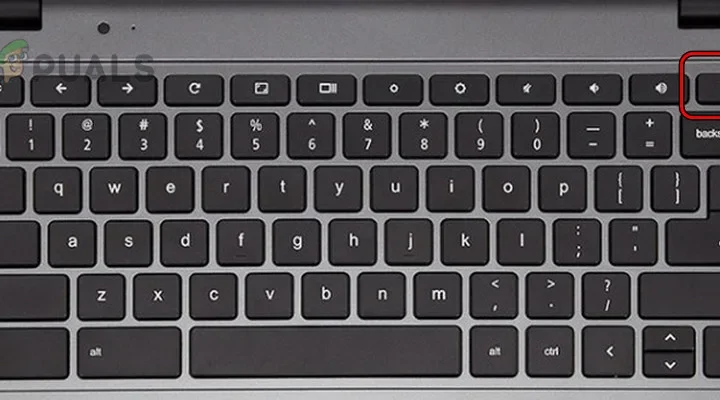
- Look across the top row of keys (F1 through F12) for a small touchpad icon. It usually looks like a rectangle with a diagonal line or a finger.
- Press that key once on its own.
- If nothing happens, hold Fn and press it together.
- Wait two seconds. Try moving the cursor.
On some machines, Fn Lock reverses the behavior, so the hotkey fires only when you hold Fn. If your media keys and function keys seem swapped, that’s your clue.
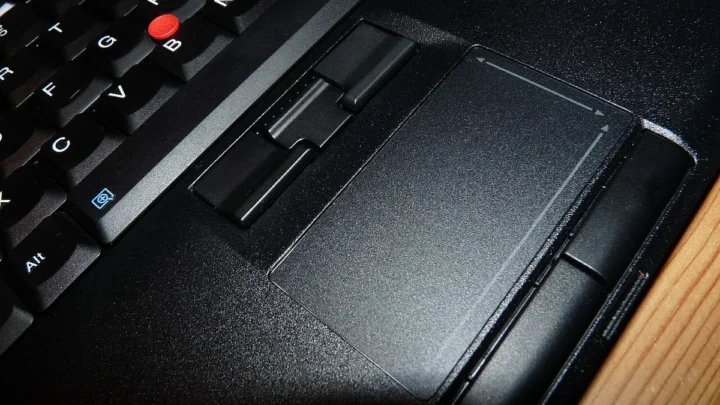
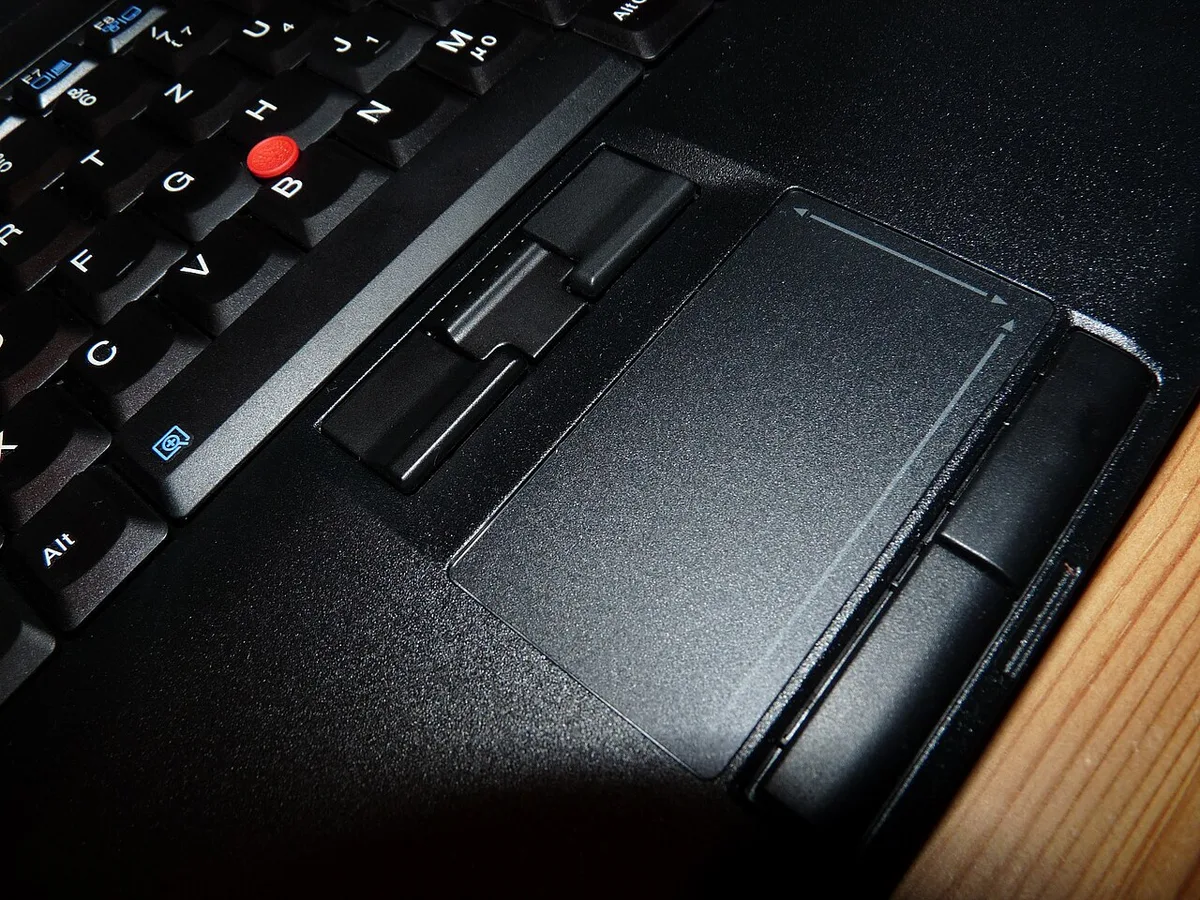
Image source: Wikimedia Commons / Sloesch (Diskussion) (CC BY-SA)
Brands differ here, so know your mapping. Lenovo and ThinkPad models often put it on F6 or F8. Dell frequently uses F7, HP tends to use F5 or F9, and Asus lands on F9 or F10.
Acer spreads it across F6 or F7.
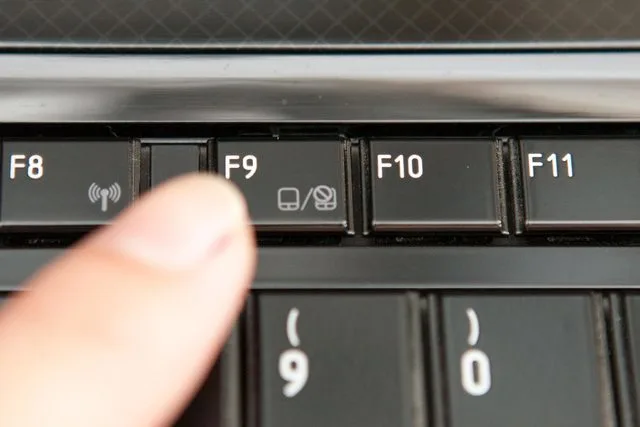
If the hotkey fixes it, you’re done. If not, move to the next section.
Windows Touchpad Settings: What to Check Before Anything Else
The Fn key didn’t work, so now we check the software toggle. Windows keeps its own touchpad on/off switch, and it can get flipped by updates or by plugging in a mouse. This is the second most common cause we see in troubleshooting threads.
Here’s the path in Windows 11:
- Press Windows key + I to open Settings.
- Go to Bluetooth and devices, then Touchpad.
- Confirm the main toggle is set to On.
- Scroll down and check the sensitivity dropdown. Set it to Medium if it’s pegged to Most sensitive.
- Find the checkbox labeled “Leave touchpad on when a mouse is connected” and tick it.
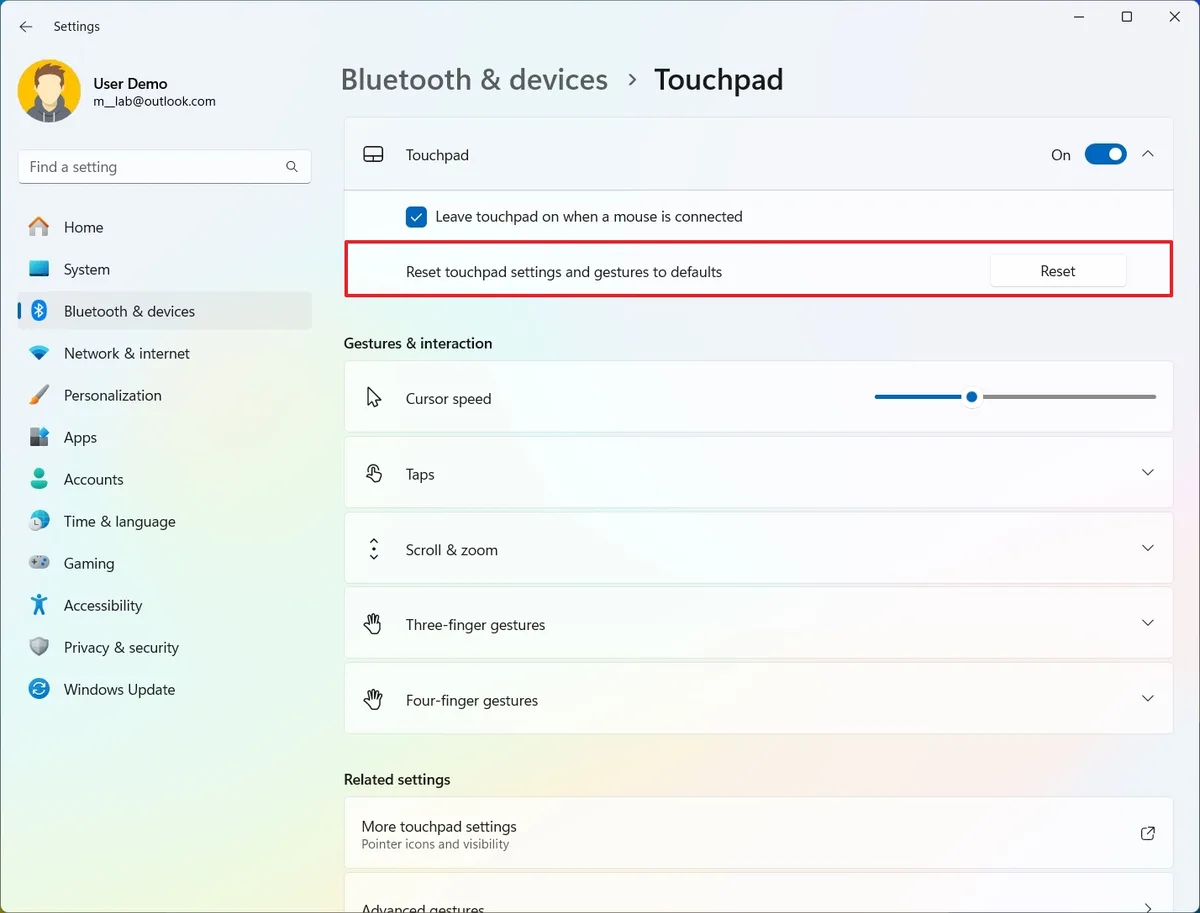
That last checkbox trips up more people than any other setting. If it’s unchecked and you have a USB or Bluetooth mouse attached, Windows silently disables the touchpad. You plug in a mouse to make life easier, and the touchpad dies.
That’s the “disable when mouse connected” trap.
Windows 10 vs Windows 11: Where the Toggle Actually Lives
The setting exists in both, but the path moved. In Windows 10, you’ll find it under Settings, Devices, then Touchpad. In Windows 11, it relocates to Bluetooth and devices, then Touchpad.
Same options, different neighborhood.
If the Touchpad section doesn’t appear at all in Settings, that’s a big signal. It usually means Windows can’t see the driver. Jump ahead to the Device Manager section for that one.
MacBook Trackpad Not Working? The macOS-Only Fixes
MacBooks don’t have an Fn hotkey for the trackpad, so the troubleshooting path is narrower. If you’re on macOS, your two most likely culprits are a paired Bluetooth pointing device and a stuck trackpad controller.
First, check for a Bluetooth handoff. Open System Settings, then Trackpad. Under the Pointer Control options, look for a setting called “Ignore built-in trackpad when a mouse or wireless trackpad is connected.” If a Magic Mouse or Magic Trackpad is paired, macOS may have handed control over to it.
Second, force restart the machine. Hold the power button for about 10 seconds until the screen goes black, release, then power back on. That clears the trackpad controller on most Apple Silicon Macs and resolves a surprising number of frozen-trackpad cases.
If neither works, the cause is likely driver-level or physical. On older Intel MacBooks, a swollen battery pressing up against the underside of the trackpad is a known failure mode. That’s not a software fix.
It’s a repair.
When Windows Loses the Touchpad Entirely: Driver and Device Manager Fixes
Now we move into driver territory. If the Touchpad option is missing from Settings, or the hardware shows up greyed out, Device Manager is where you diagnose it. Right-click Start, then choose Device Manager.
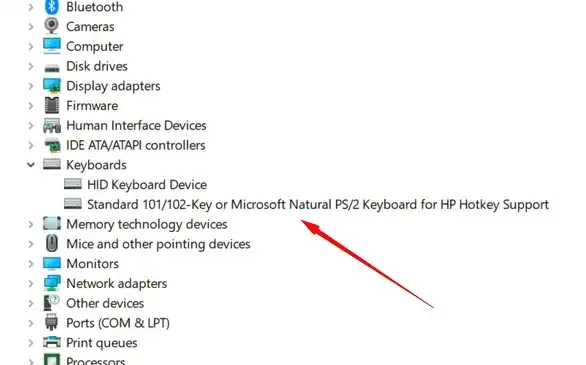
Expand “Mice and other pointing devices.” Your touchpad may be labeled Synaptics, ELAN, Precision Touchpad, or I2C HID Device. Match your symptom to the table below to know what to do.
| Symptom | Likely Cause | First Fix to Try |
|---|---|---|
| No Touchpad option in Settings at all | Driver disabled or missing | Device Manager, enable device |
| Touchpad greyed out in Device Manager | Driver disabled | Right-click, Enable device |
| Cursor works in BIOS but not Windows | Windows driver fault | Uninstall and reboot |
| Gestures dead but cursor moves | OEM utility missing | Reinstall the manufacturer’s touchpad app |
Reinstalling Without Locking Yourself Out
If the device is enabled but misbehaving, uninstall the driver and let Windows reinstall a clean one. Right-click the device, choose Uninstall device, then restart.
One warning before you do this. Plug in a USB mouse first, because the touchpad will stay offline until Windows finishes the reinstall. If the reinstall fails, you’re navigating with keyboard shortcuts only.
That’s a bad time.
A quick definition: Precision Touchpad is Microsoft’s own driver standard, introduced with Windows 8.1. If your device shows that label, you’ll get the full gesture set. Older Synaptics and ELAN drivers rely on OEM software for gestures, so reinstalling the vendor utility matters.
Brand-Specific Quirks: Lenovo, Dell, HP, Asus, Acer, and Surface
Drivers are one thing. OEM lock-ins are another. Every major laptop brand layers its own utility on top of Windows, and those utilities can override or re-disable the touchpad without warning.
If nothing in Windows worked, this is your next stop.
Lenovo Vantage and the TrackPoint Test
Lenovo ThinkPads and IdeaPads push their touchpad management through Lenovo Vantage. Install it from the Microsoft Store, open the Device section, then Input and Accessories. If your driver is missing or mismatched, Vantage reinstalls the correct one.
Here’s a fast diagnostic that ThinkPad owners should run. The little red TrackPoint in the middle of the keyboard runs on a completely separate hardware path. If the TrackPoint works but the touchpad doesn’t, you’re looking at a driver or software issue, not hardware failure.
That’s a useful fork in the decision tree.
Dell, HP, and Asus: OEM Utilities That Override Windows
Dell ships its own Dell Touchpad app from the Microsoft Store, and it controls gestures independently of Windows Settings. Some Dell Latitude models also carry a BIOS-level touchpad lock that has to be cleared before Windows can see the device.
HP bundles HP Support Assistant, and that’s where you’ll find driver updates and touchpad toggles on Envy and Spectre models. HP’s BIOS sometimes disables the touchpad by default, so check System Configuration if the device is missing entirely.
Asus runs its touchpad stack through MyASUS. On gaming laptops like the ROG line, there’s a dedicated physical button near the top-left corner of the touchpad. Press it once, and the pad re-enables.
Users who don’t know that button exists file a lot of support tickets over nothing.
Acer leans on ELAN drivers. When gestures break after a Windows update, reinstalling the latest ELAN package from Acer’s support portal usually fixes it in one reboot.
Surface Type Cover: Detach, Reattach, Then Check
Microsoft Surface machines have no Fn touchpad hotkey. If your Type Cover touchpad dies, detach the cover, wait five seconds, then reattach it. The magnetic connector occasionally drops the HID signal.
If that doesn’t work, open Settings, Bluetooth and devices, then Touchpad and confirm the toggle. A firmware update through Windows Update often resolves persistent Type Cover issues.
BIOS, Hardware Tests, and When to Walk Into a Repair Shop
You’ve tried every software fix. Nothing worked. Now we’re in the diagnostic phase, where you determine whether the touchpad is truly dead or just hidden from Windows.
BIOS is where you settle that question.
Testing the Touchpad in BIOS or a Linux Live USB
Restart the laptop and tap F2, F10, Del, or Esc during boot, depending on brand, to enter BIOS/UEFI. Look for a setting called Internal Pointing Device, Touchpad, or PS/2 Mouse under Advanced or System Configuration. Confirm it’s Enabled, then save and exit.
If the touchpad works inside BIOS or on a Linux Live USB, the hardware is fine. The fault is software-side, and a clean Windows install or driver rollback will fix it. If it’s dead in BIOS too, you’re past the point of software troubleshooting.
Physical Failure Signs: Swollen Battery, Spills, and Cracks
Run a hands-on inspection before you spend money on a repair. Look for a swollen battery pushing the palm rest up. Lithium-ion cells that swell can deform the chassis and press the touchpad’s ribbon cable loose.
That’s also a fire risk, so stop using the laptop and seek authorized service.
Check for cracked palm rests, liquid spill residue, or a warped trackpad surface. Any of those points to hardware damage, and no driver reinstall will help. If your laptop is under warranty, do not open the chassis yourself.
That voids coverage on nearly every brand.
Frequently Asked Questions
Why did my touchpad stop working after a Windows update?
Windows updates occasionally push a generic driver that conflicts with your OEM touchpad. Roll back to the previous driver in Device Manager, or reinstall the manufacturer’s version from their support portal. Restarting after the rollback usually restores full gesture support.
Does plugging in a mouse disable the touchpad on purpose?
Yes, that’s intentional on many laptops. Windows includes a setting called “Leave touchpad on when a mouse is connected.” If it’s unchecked, the touchpad shuts off the moment a USB or Bluetooth mouse connects. Turn the checkbox on to use both at once.
Can a dead touchpad be fixed for free?
Most cases, yes. Pressing the Fn hotkey, toggling the Windows Settings switch, or re-enabling the device in Device Manager costs nothing. Free fixes cover roughly 80% of dead-touchpad scenarios we’ve researched.
Only hardware failure requires paid repair.
How do I know if it’s the driver or the hardware?
Boot into BIOS or a Linux Live USB and test the touchpad there. If it works, it’s a driver or software issue. If it’s dead in both environments, the hardware itself has failed.
That test takes about two minutes.
Will disabling the Fn Lock stop me from killing the touchpad by accident?
Fn Lock doesn’t stop the hotkey, it just changes which keypress triggers it. Turning Fn Lock on means you’ll need to hold Fn plus the touchpad key, which reduces accidental toggles slightly. It’s a small habit change, not a permanent guard.
Is a touchpad worth repairing on an older laptop?
It depends on cost. Touchpad replacement typically runs between $60 and $150 at a repair shop, depending on the model and whether the palm rest must be replaced too. If the laptop is worth under $300, a $10 USB mouse is the smarter move.

Similar Posts