How to Access BIOS on Any PC: Step-by-Step Guide
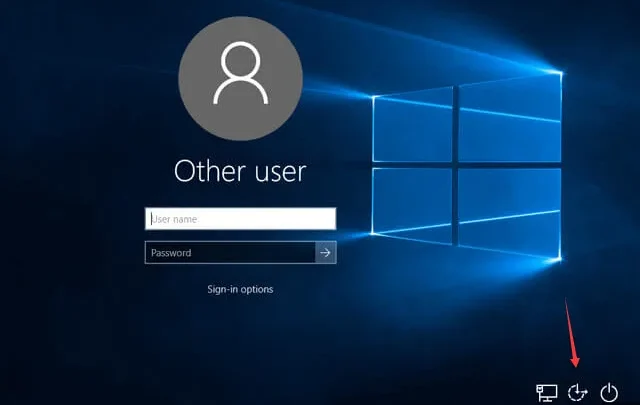
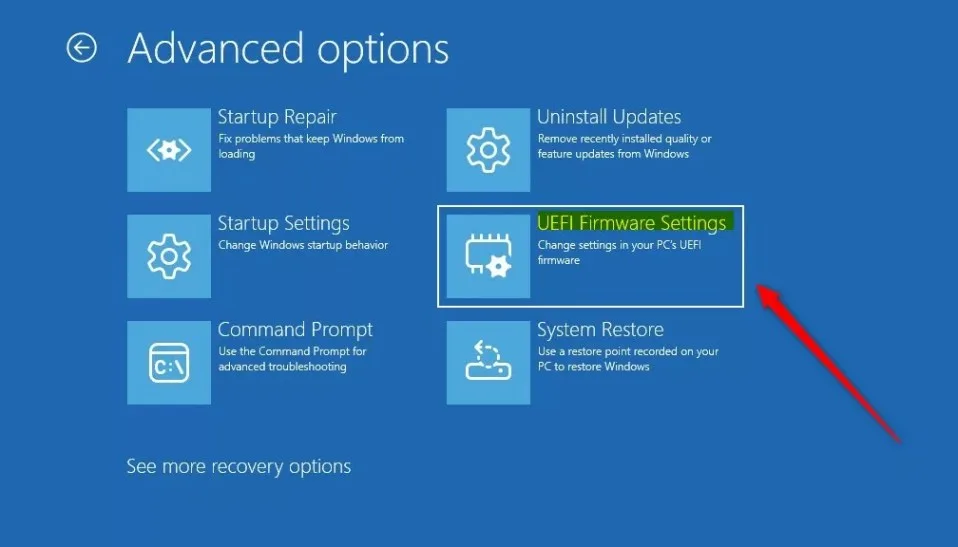
How to access BIOS depends on your situation. If Windows still boots, the easiest path is Settings > System > Recovery > Advanced startup > Restart now > Troubleshoot > Advanced options > UEFI Firmware Settings. If Windows won't load, mash the setup key right after powering on.
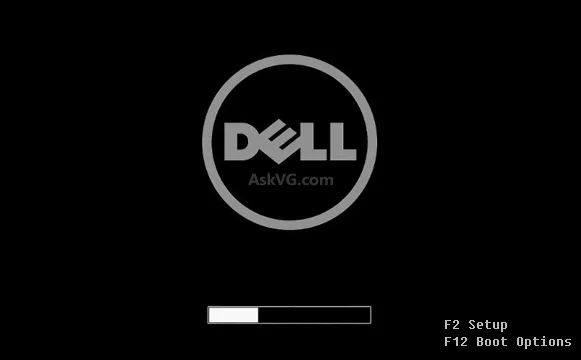
Per manufacturer specifications, that key is usually F2, Del, F10, Esc, F1, or F12.
The classic "tap Del repeatedly" trick has gotten flakier over the years. As of 2026, Fast Boot on UEFI firmware and Fast Startup in Windows 11 can shrink the POST window to under one second, hiding the splash screen entirely. So let's walk through the decision tree that actually works, no matter what hardware you're on.
how can i access bios
You have two reliable paths. If Windows boots, use Advanced Startup to reach UEFI Firmware Settings. If it doesn't, restart and tap your motherboard's setup key during POST.
Check your manual for the exact key. Try F2 first, then Del.
Why You Can't Always Get Into BIOS Anymore
The short answer: firmware got faster, and Windows got lazier about shutting down. Both changes quietly sabotaged the old key-mash trick.
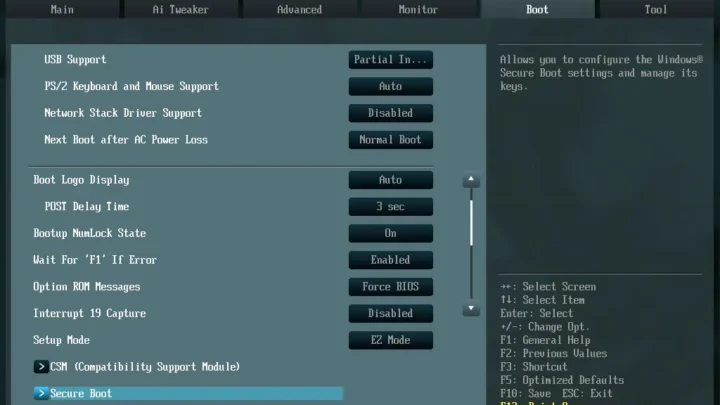
UEFI replaced legacy BIOS on virtually every PC built this decade. UEFI initialize hardware in parallel, so POST finishes in one to five seconds instead of the ten to thirty you'd see on a 2008-era machine. That tiny window is where the "Press F2 to enter setup" prompt lives.
Miss it, and Windows boots.
Fast Boot makes it worse. It's a firmware setting that skips most initialization steps, including the splash screen. Per UEFI Forum specifications, Fast Boot is designed to hand control straight to the OS.
Many OEMs ship it enabled by default.
Then there's Fast Startup, a Windows feature that turns "shutdown" into a hybrid hibernate. It saves the kernel session to disk so the next boot skips full initialization. The practical effect is that a normal shutdown doesn't really power down your PC, so the POST screen never appears on the next start.
Here's the if/then rule: if your PC boots straight to the desktop in under five seconds with no logo, Fast Boot is probably on. Your firmware key isn't broken. It's just being skipped.
First, Figure Out Which Situation You're In
Before you touch anything, work out which branch you're on. The answer changes based on three things: whether Windows still boots, whether your keyboard is wired, and whether your PC is a laptop, desktop, or something unusual (Mac, Chromebook, Surface).
Answer these in order:
- Does Windows boot normally? If yes, skip straight to Advanced Startup. That route bypasses Fast Boot and Fast Startup entirely.
- Is your PC a desktop, laptop, or prebuilt? Desktops have standard firmware keys. Many laptops hide advanced menus or require Fn combos. Apple Silicon Macs and Chromebooks have no traditional BIOS at all.
- Is your keyboard wired or wireless? Bluetooth keyboards rarely connect fast enough to register a POST keypress. USB 2.0 rear ports work best on desktops.
- Have you recently changed Secure Boot, TPM, or boot order? If yes, expect a BitLocker recovery prompt on the next boot. Have your recovery key handy.
If Windows boots, use the software route. It's faster, works on every motherboard, and avoids the keyboard timing lottery. If Windows won't boot, go to the key-tapping branch.
If neither works, you're looking at a hardware-level fix like a CMOS reset.
Already in Windows? Use This Route Every Time
This is the branch most people should take. Microsoft bakes UEFI firmware access directly into Windows Recovery Environment (WinRE), so you never have to race the POST screen.
Step by step:
- Open Settings (Win + I).
- Go to System > Recovery.
- Under "Advanced startup," click Restart now.
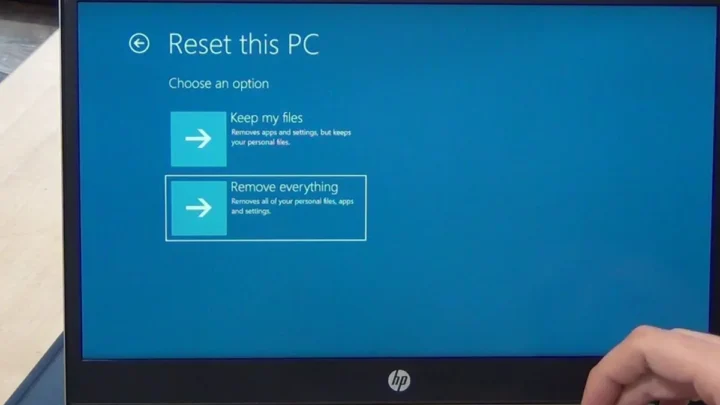
- Your PC reboots into a blue menu. Choose Troubleshoot.
- Select Advanced options.
- Click UEFI Firmware Settings, then Restart.
Your machine boots straight into BIOS or UEFI setup. No key-tapping, no timing window, no wireless keyboard problems.
There's a faster shortcut too. Hold Shift while clicking Restart in the Start menu. That skips step 1 through 3 and lands you on the same blue menu.
One important caveat: this route only works when Windows itself is healthy enough to reach Recovery. If your PC is stuck in a boot loop or won't load Windows, fall back to the key-tap method below.
If your PC uses a legacy BIOS setup instead of UEFI, the "UEFI Firmware Settings" tile won't appear in WinRE. In that case, use the key-tap method.
Keyboard Shortcuts: What to Press and When
Start tapping the setup key as soon as you press the power button. Tap it once every half-second until the firmware menu appears. Don't hold it down.
On most boards, one clean tap during the logo window is enough.
The exact key depends on your motherboard or PC brand. Here's the reference most technicians use:
| Brand / Board | BIOS Setup Key | Boot Menu Key |
|---|---|---|
| Dell | F2 | F12 |
| HP | Esc, then F10 | Esc, then F9 |
| Lenovo (ThinkPad, IdeaPad) | F1 or F2 (or Fn + F2) | F12 |
| Acer | F2 or Del | F12 |
| ASUS | Del or F2 | Esc or F8 |
| MSI | Del | F11 |
| Gigabyte | Del | F12 |
| ASRock | Del or F2 | F11 |
| Microsoft Surface | Vol Up + Power | Vol Down + Power |
| Intel NUC | F2 | F10 |
Notice that the setup key and boot menu key are usually different. If you only need to boot from a USB stick, you want the boot menu, not BIOS. If you need to change fan curves, Secure Boot, or XMP profiles, you want setup.
Laptop gotcha: on some Lenovo, Dell, and HP laptops, the top-row F-keys default to media controls. You may need to hold Fn while tapping. If in doubt, tap Fn + F2 together.
Timing gotcha: on modern systems with Fast Boot enabled, the splash screen might flash for under a second. Start tapping before the screen even turns on.
When Nothing Works: Fast Boot, Wireless Keyboards, and Other Culprits
If your key-tap attempts keep landing on the desktop instead of BIOS, one of these is usually the reason.
Fast Boot is enabled. Disable it from inside UEFI? Not helpful if you can't get in. Better move: use the Windows Advanced Startup route to reach firmware settings once, then turn Fast Boot off so the splash screen returns.
Fast Startup is on. Go to Control Panel > Power Options > "Choose what the power buttons do" > "Change settings that are currently unavailable" > uncheck "Turn on fast startup." Now a shutdown is a real shutdown, and the next boot shows the POST screen.
Wireless keyboard isn't initializing fast enough. Bluetooth keyboards pair after the OS loads. Plug in a wired USB keyboard for BIOS access.
Wrong USB port. On desktops, use a rear USB 2.0 port (usually black, not blue). Some front-panel and USB 3.x ports aren't active during POST.
Monitor is on the wrong output. If you have a discrete GPU, plug the monitor into the GPU, not the motherboard's video output. The motherboard port may not show POST.
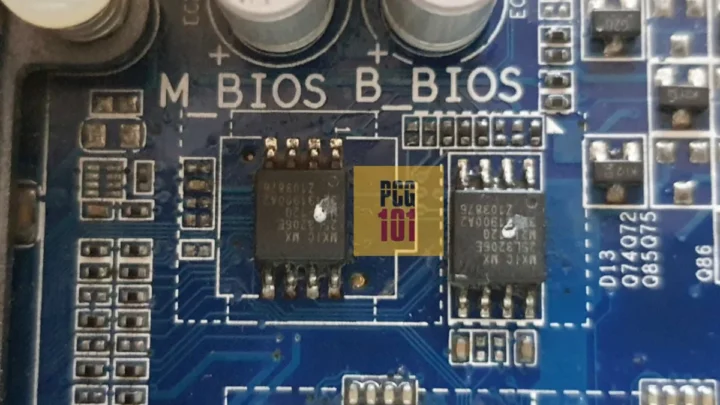
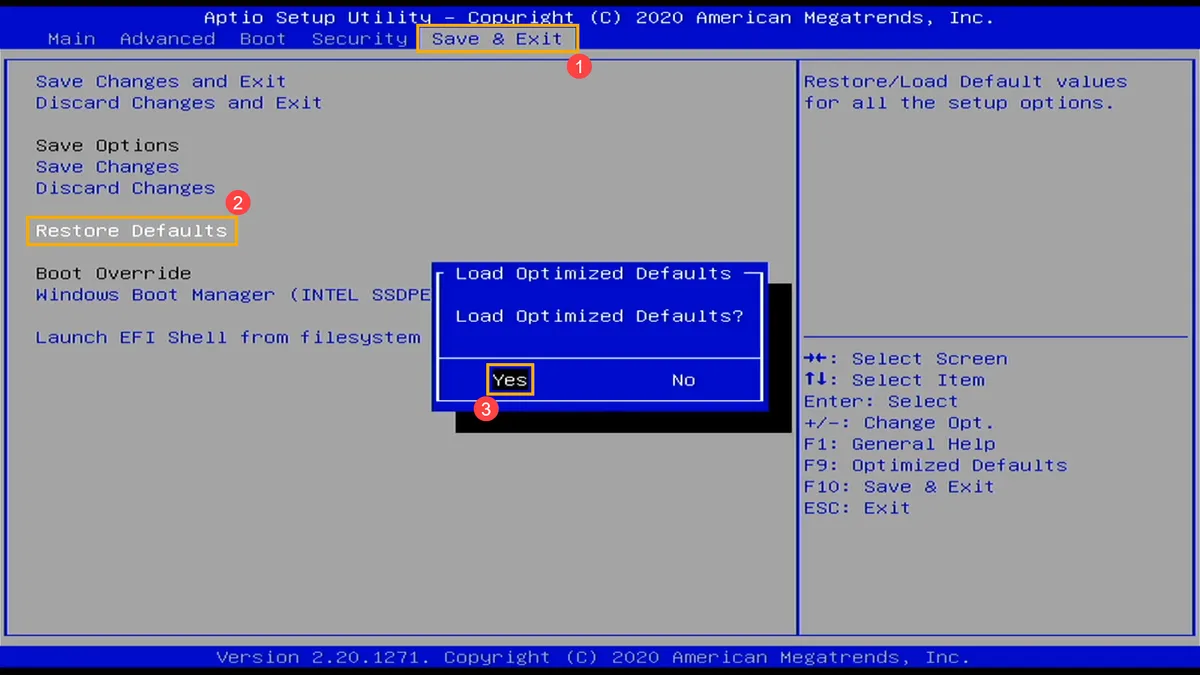
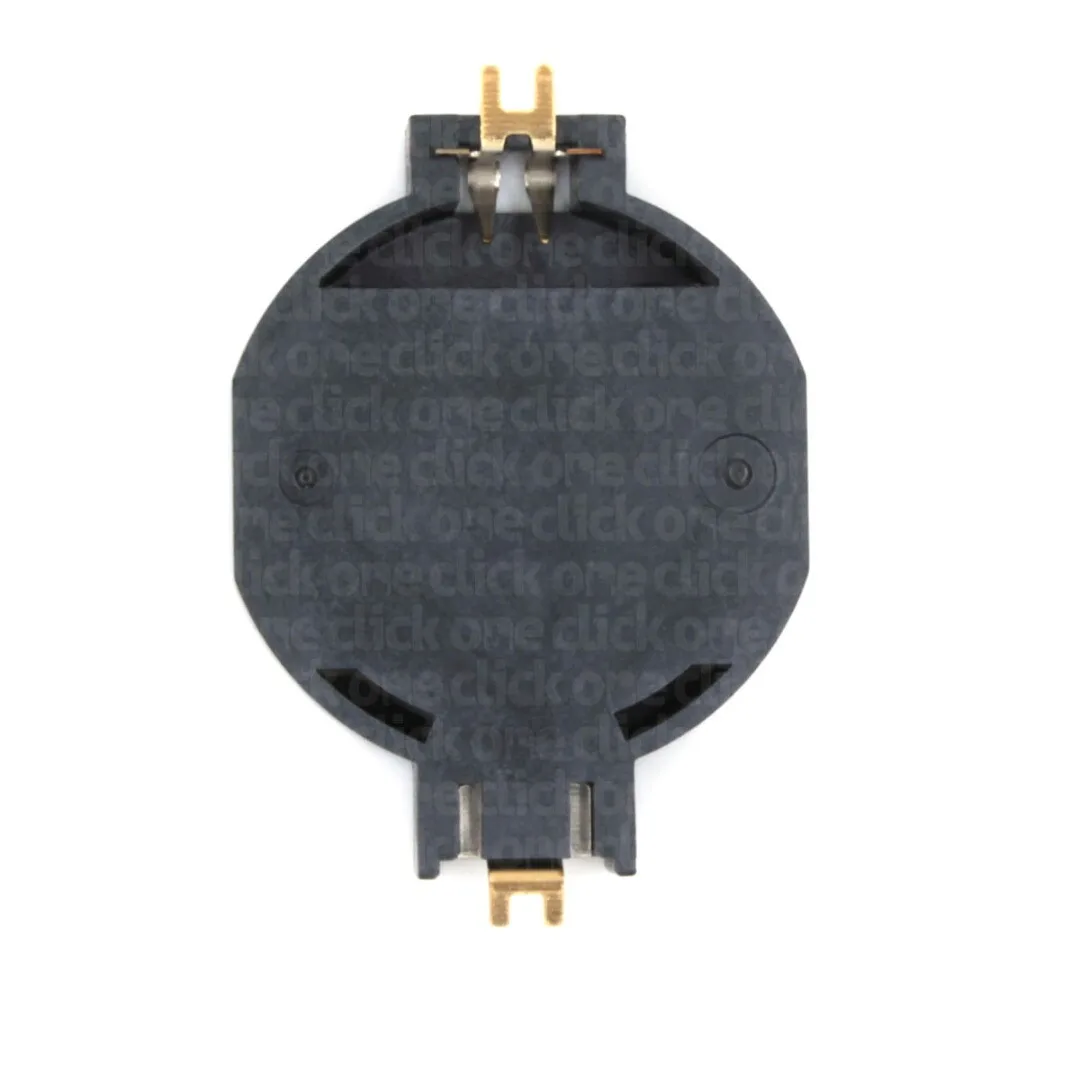
Locked BIOS / unknown supervisor password. You can't bypass this from software. The fix is a CMOS reset: power down, unplug, pop out the CR2032 coin cell for 30 seconds, and reinsert. That wipes the firmware settings, including the password.
Firmware is actually broken. Rare, but possible after a failed BIOS update. Most modern boards have a BIOS Flashback button that lets you reflash from a USB stick without entering setup.
One warning worth repeating: if BitLocker is active, resetting CMOS or changing Secure Boot settings can trigger a recovery prompt. Microsoft's official guidance is to back up your 48-digit BitLocker recovery key before touching firmware security settings. Without it, your drive stays encrypted.
You can read the full procedure on the Microsoft Support page for BitLocker recovery.
Laptop and Mac Exceptions You Should Know About
Not every machine has a traditional BIOS menu, and forcing one open isn't always possible. Here's the quick breakdown by platform.
Windows laptops mostly work like desktops, with two twists. First, top-row F-keys often default to media controls, so you tap Fn + F2 (or Fn + F1) instead of F2 alone. Second, many OEM laptops hide advanced menus behind a basic setup screen.
A consumer Lenovo, HP, or Acer may only expose boot order and time/date to the average user.
Microsoft Surface doesn't use a standard firmware key. Hold Volume Up while pressing Power to enter the Surface UEFI. This gives you Secure Boot, TPM, and boot order controls, but nothing resembling a legacy BIOS.
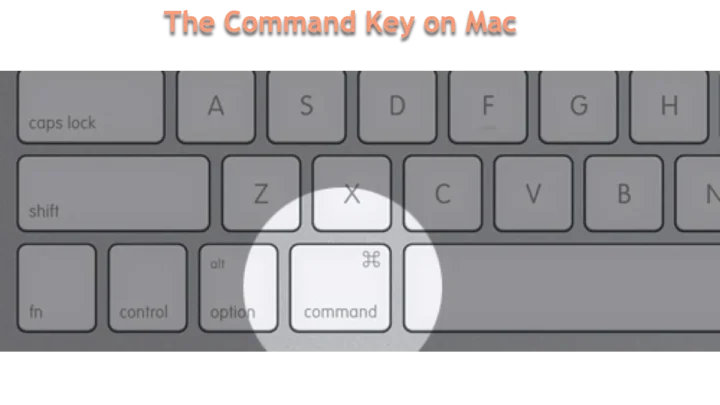
Apple Silicon Macs (M1 and later) have no BIOS or UEFI accessible to users. Firmware-level options live in the Startup Security Utility, reachable through macOS Recovery by holding the power button. Intel-based Macs use Option at boot for the startup manager or Cmd + R for Recovery.
Chromebooks use firmware write-protect screws and Developer Mode instead of a setup menu. There's no key press that opens anything like BIOS. If you need to change boot behavior, you're looking at ChromeOS flags or a full firmware reflash.
If your device is on this list, don't waste time hunting for a BIOS key. Reach for the platform-specific route instead.
Mistakes That Cost You Time (Or Lock You Out)
These are the errors we see most often, ranked by how much damage they cause.
- Tapping the key too late. The POST window can be under one second with Fast Boot on. Start tapping before the screen wakes.
- Holding the key instead of tapping. Some firmware ignores a held key during POST. Repeated single taps work better.
- Using the wrong key. F12 usually opens the boot menu, not setup. F2 or Del opens setup. Confusing them sends you to the wrong screen.
- Changing Secure Boot or TPM without backing up BitLocker. Per Microsoft's official BitLocker documentation, changing firmware security settings can force a recovery prompt. Back up your 48-digit key first.
- Flashing the BIOS on a bad power source. A power flicker mid-flash bricks the board. Use a UPS if you can.
- Assuming a wireless keyboard will work. It usually won't during POST. Keep a wired USB keyboard handy.
- Pulling the CMOS battery with the PSU still plugged in. Always unplug the power cord and press the power button once to drain residual charge first.
One more: don't guess at overclock settings. Wrong CPU voltage can permanently damage the chip. If you're unsure what a setting does, write down the default before changing anything.
FAQs
Why can't I get into BIOS with F2 or Del?
Fast Boot is probably skipping the POST splash screen. Use Windows Advanced Startup to reach UEFI Firmware Settings instead. Once you're in, disable Fast Boot so the setup key works on future boots.
Is BIOS the same as UEFI?
No. UEFI is the modern replacement for legacy BIOS. It adds a graphical interface, mouse support, Secure Boot, and TPM controls.
Most people still say "BIOS" out of habit, but on any PC built after roughly 2012, you're actually entering UEFI firmware.
What key opens BIOS on Windows 11?
There's no Windows 11-specific key. The firmware key comes from your motherboard brand, usually F2, Del, F10, Esc, F1, or F12. On locked-down laptops, the easiest route is Settings > System > Recovery > Advanced startup.
Can I enter BIOS without restarting?
Not really. Firmware runs before the operating system, so you have to reboot to reach it. The Advanced Startup method does reboot your PC.
It just hands off to firmware settings instead of Windows.
Will entering BIOS erase my data?
No. Opening the setup utility changes nothing on your drive. Only saving changes to boot order, Secure Boot, or TPM settings could affect the OS.
Clearing CMOS resets firmware settings but leaves files intact.
How do I reset a forgotten BIOS password?
On most desktops, you clear it with a CMOS reset. Power down, unplug, remove the CR2032 coin cell for 30 seconds, then reinsert it. On laptops, some models need a service jumper or an OEM unlock code.

Similar Posts